

Automate follow-ups
Build an automation that texts, emails, creates tasks, or moves deals when something happens in your shop.
An automation does a follow-up for you. When something happens, like an estimate going out or a job finishing, it can wait a few days and then text the customer, send an email, create a task, or move a deal.
Automations work on every plan. Text steps need the Pro or Autopilot plan, and on Essential you can use email steps. You need Manage automations to build or change one. Owners and Admins have it. Technicians don't, unless you add it.
Build an automation
Start from a template or a blank page
Click Automations in the sidebar, then New automation. For a head start, click Templates and pick one, such as Review Request or Estimate Follow-up. A template opens as a draft you can change.
Pick the trigger
The trigger is what starts it. Choose an event like Estimate > Sent, Job > Completed, Invoice > Overdue, or Contact > Lead created. Other triggers run on a Schedule, when a customer replies by text or email, or on a missed call.
You can also ask ShopWrker in the side panel to draft the whole automation, then review what it built.
Add the steps
Click + under a step, or Add step at the bottom of the canvas, to add the next one. Actions you can add include:
- Send SMS, Send email, and Send review request, which sends your Google review link by text.
- Notify team, which alerts your staff instead of the customer.
- Create task, Assign task, and Complete task.
- Move stage, Create deal, and Update deal.
- Add tag, Add note, Update job, Send estimate, and Send invoice.
Add a Wait between steps, such as 2 days after the estimate goes out. Add a Condition to branch, such as only texting a contact who hasn't approved yet.
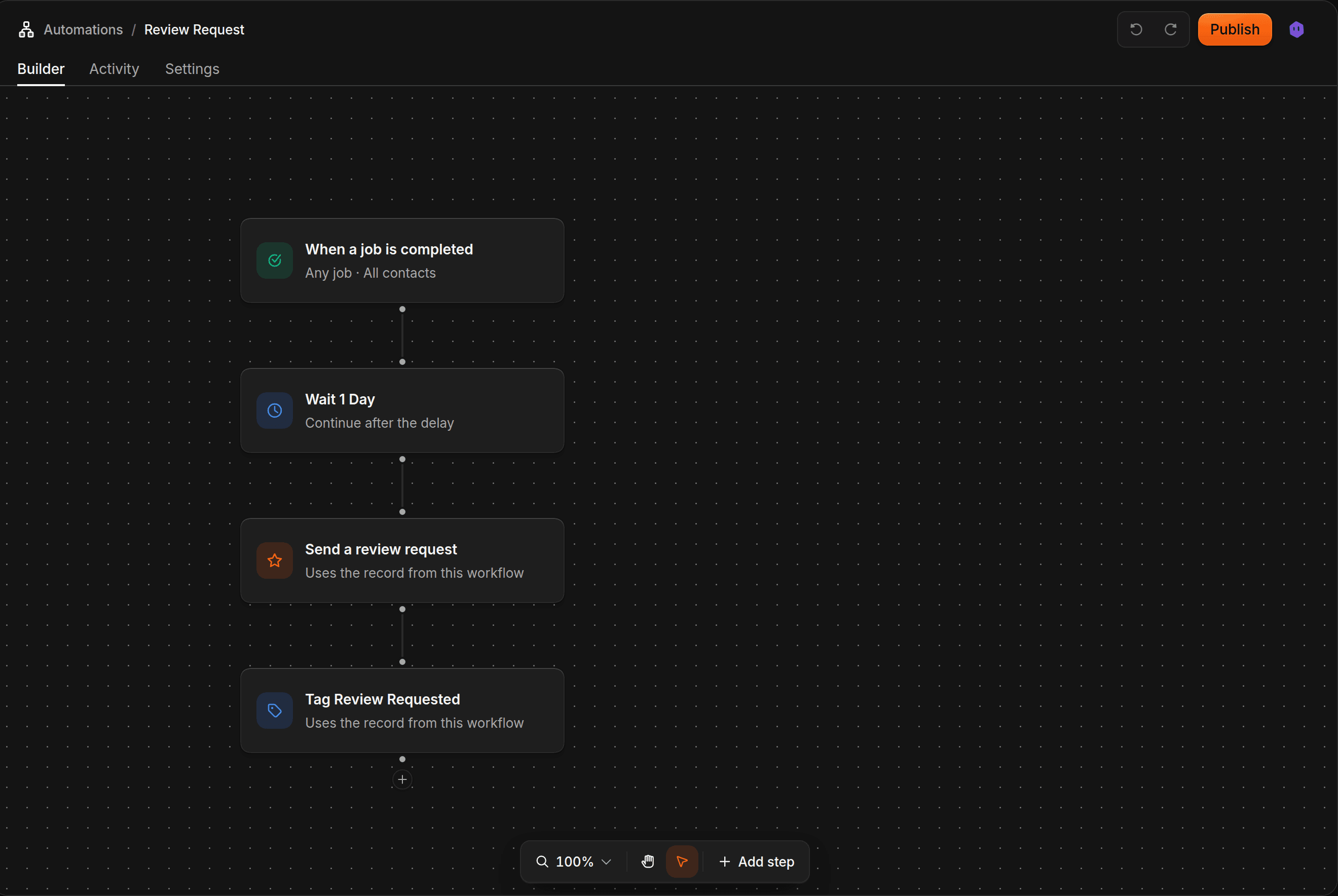
Publish
Click Publish. ShopWrk checks the steps first and tells you what's missing, such as a trigger or a message body. After it passes, the automation is live.
A draft does nothing until you publish it. If you change a live automation, click Publish changes to send the new version. Until then, it keeps running the version you published last.
Turn one on or off
On the Automations list, use the switch beside a name. Turning it off pauses it. Switch it back on to resume. Drafts have no switch because they've never been published.
Each row shows a status:
- Live is on and running.
- Paused is off.
- Draft has never been published.
- Needs attention means its last run failed.
Use Live, Paused, Draft, or Needs attention at the top of the list to filter. To copy one, open the menu on its row and click Duplicate.
Check run history
Open an automation and click Activity. Each run shows whether it finished. Filter by Failed, Completed, Running, Pending, or Cancelled, or search by a customer's name. Click a run to open Run details.
On a run that's still going, click Cancel. On a failed run, click Retry to start a new run, or Diagnose with AI to have ShopWrker explain what went wrong. It opens in the builder, and you send the question yourself.
Use this when a customer says they never got a text.
Control who gets messages and when
Click Settings on an automation.
- Allow re-entry lets the same contact go through again. It's off, so each contact runs once.
- Stop on response ends the automation for a contact who replies to one of its messages. It's off.
- Send window limits messages to the days and hours you pick, in your Shop Details timezone. It's off, so messages go out as soon as the step runs. Turn it on to avoid a text at 11 pm.
- Email on run failure emails your owners and admins after Alert after failures, which starts at 3. It's on.
- Disable after failures turns the automation off by itself after this many failures in a row. It starts at 5. Fix the cause, then switch it back on.
On a follow-up that texts customers, turn on Stop on response before you publish. Otherwise the follow-up keeps going after the customer replies.