

Reply to customers in Conversations
Read and reply to texts, email, Instagram, Messenger, and Client Portal messages in one shared inbox, and see calls and voicemail.
Conversations is where every customer message lands, whatever channel it came from. Each customer has one thread, so your team sees the texts, calls, and replies together before answering.
Texting and calls need the Pro or Autopilot plan. Email, Instagram, and Messenger work on every plan. To get a shop number, see Texts and calling. To connect Instagram and Messenger, see Instagram and Messenger.
What shows up in a thread
- Texts, from your shop number.
- Email, sent from your shop's email address. To send from your own domain, see Email domain.
- Instagram and Messenger messages.
- Client Portal messages, from customers signed in to the Client Portal.
- Calls and voicemail. A voicemail shows in the thread with a player and a transcript.
If Lead Closer is answering a customer, its texts show in the same thread.
Reply to a customer
Open the thread
Under Contacts, open Conversations, then pick a customer. Use the All, Unread, and Starred tabs to narrow the list.
Pick the channel
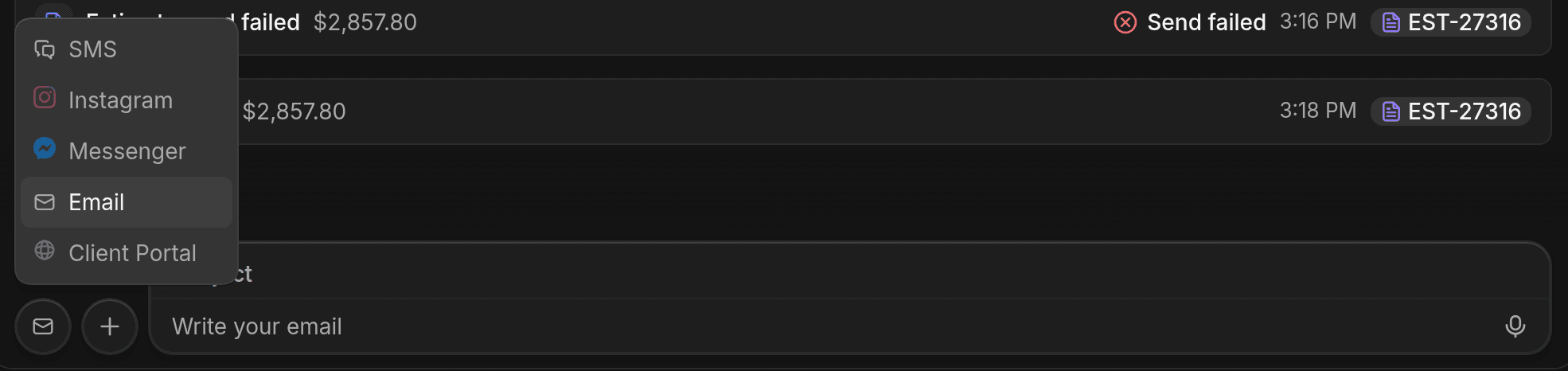
The channel button at the left of the message box shows where the reply will go. Click it to switch between SMS, Instagram, Messenger, Email, and Client Portal. A channel is greyed out if the contact has no number, address, or account for it, or if your plan doesn't include it. Hover to see why.
Write and send
Type your message and press Enter. Email also has a Subject line. Press Shift+Enter for a new line.
Attachments, templates, and voice notes
Click + next to the message box for Attach file, Insert template, and Schedule send. Client Portal messages are text only, so Attach file isn't there.
To send a voice note, click the waveform button, record, and send it. It works on SMS, Instagram, and Messenger. A voice note can be up to 5 MB, and 1 MB on SMS.
Start a new conversation
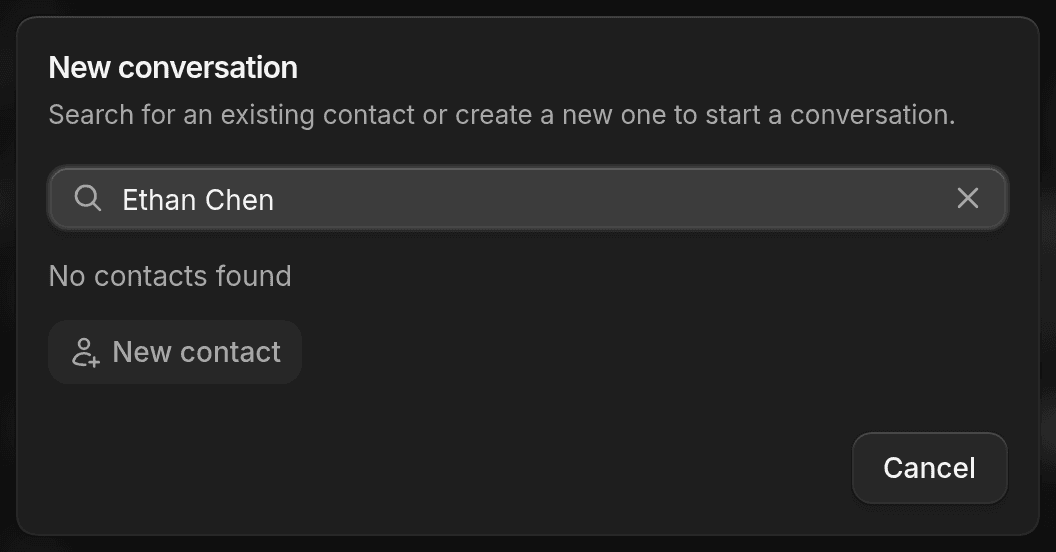
Click New conversation and search by name, phone, or email. If the person isn't a contact yet, click New contact, fill in the form, and click Create contact. The thread opens ready for your first message.
Assign, close, and snooze
To give a thread to a teammate, open the contact panel on the right and set Assignee. You can also open the thread's actions menu in the list and choose Assign. Choose Unassign to clear it.
Use the menu at the top of the thread to Close conversation when you're done. To bring a closed thread back, click Reopen. Snooze hides a thread for a set time, and Mark as unread puts it back in Unread.
When Lead Closer is replying
Lead Closer texts customers on its own in threads it has taken. When you send a text in one of those threads, ShopWrk asks what happens next. Send, then I'll reply myself takes the thread over. Send, then Lead Closer keeps replying leaves Lead Closer in charge. To give a thread back later, click Let it reply again.
See Lead Closer for how to set it up.
Questions
SMS is greyed out. Texting needs the Pro or Autopilot plan and a finished shop number setup. See Texts and calling. Contacts are covered in Contacts.