

Set up Lead Closer
Turn on Lead Closer so it replies to new leads and customer messages, quotes from your catalog, and hands off to your team.
Lead Closer is the agent that talks to your customers. It replies to new leads and incoming messages by text, email, Instagram and Messenger, quotes from your services catalog, and books the job or hands the customer to you. It isn't ShopWrker. ShopWrker works for you inside the app. Lead Closer works for the customer.
Lead Closer needs the Pro or Autopilot plan. Anyone with access to agents can open it, but only people who can configure agents can change settings. To also answer phone calls, see Let Lead Closer answer calls.
Open Lead Closer
Under Operations, click Agents, then Lead Closer.
Check Setup
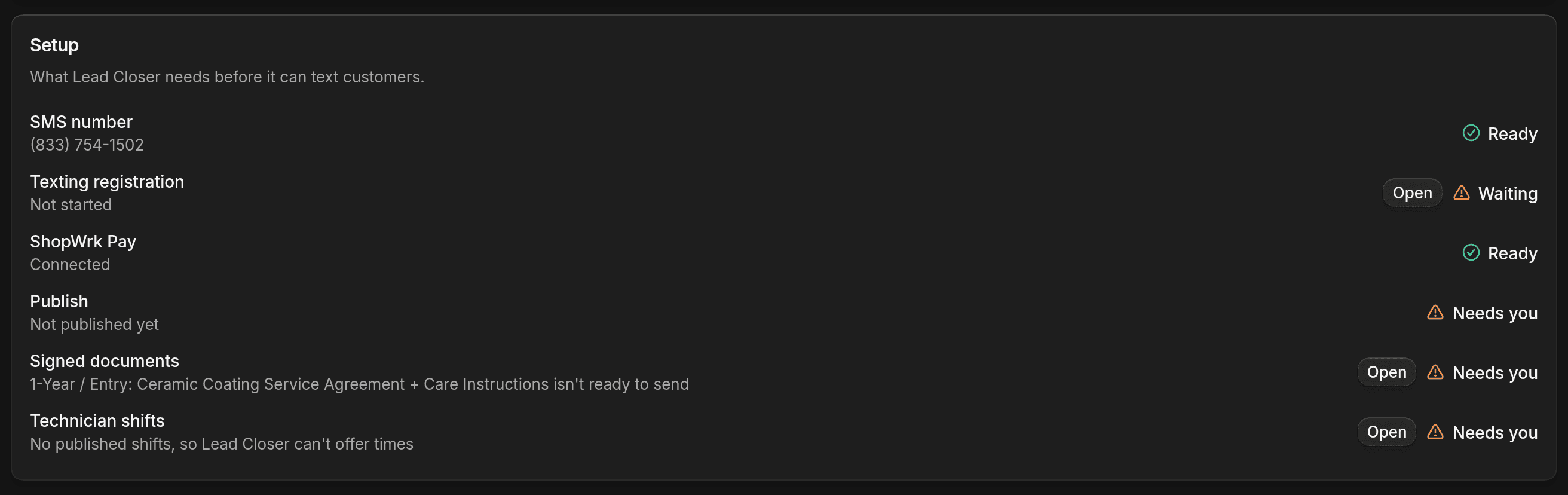
Open Configuration. The Setup card lists what Lead Closer needs. Each row shows Ready, Waiting or Needs you, with an Open button that takes you to the fix.
- SMS number and Texting registration must be Ready before Lead Closer can text. See Set up texting and calling.
- ShopWrk Pay matters once a service asks for a deposit.
- Signed documents and Technician shifts matter if you want it to book. With no published shifts, it can't offer times.
Choose the services it sells
On Services, open each service you want Lead Closer to handle and set how it sells it. Auto means it replies and books on its own. Draft means it writes replies for your team to send. Off means it hands those customers to your team.
Prices come from your catalog, so check them in Services first.
Turn it on and publish
At the top right, open the Off menu and choose On. Then click Publish. Nothing you change on this page goes live until you publish. To try it first, click Test, which runs on your unpublished settings.
Which messages it answers
Under Channels on the Configuration tab, each channel has an Auto-reply switch: SMS, Instagram, Messenger, Email and Client Portal. A channel that isn't connected shows Not connected and its switch stays off. Connect Instagram and Messenger under Instagram and Messenger.
Reply hours is Shop hours or Any time. A message that arrives outside those hours gets its reply when they open.
Forms
The Forms card is for new leads. Click Add form and pick one of your forms. When someone fills it in, Lead Closer adds their deal and texts them right away, at any hour. For each form you can set:
- Service, where the conversation starts. Lead Closer still follows what the customer asks about.
- Offer ends and Context, such as "Ceramic tint, all around, $299, through Dec". Lead Closer only quotes an offer price that's written in Context.
Under After the first text, set when Lead Closer follows up if they don't reply, and which pipeline stage the deal moves to when they reply or book. It stops after 5 texts with no answer.
If an automation already texts new leads from that form, the form shows Already texted by an automation. Turn one of them off so the customer doesn't get two texts.
What it does without asking you
Under Limits on Configuration:
- Max discount is the most it can take off a price, counting discounts your team already gave. The default is 0%. Asks for more come to you.
- Vehicles that need your OK takes makes, models or years in your own words, such as "Ferrari, McLaren, anything older than 2000". For these it writes a draft and waits for your team to send it.
Who it hands to
Under Escalation on Configuration, Send to is an ordered list of people. Click Add person to add one, and drag to reorder. A new shop starts with Assigned person first, then the owner. Assigned person means whoever is assigned to the contact or their deal.
When Lead Closer hands off a message, it alerts the first person on the list. If nobody picks it up, it reminds them after 15 minutes, then alerts the owners after an hour. Phone transfers ring the same list in order. See Let Lead Closer answer calls.
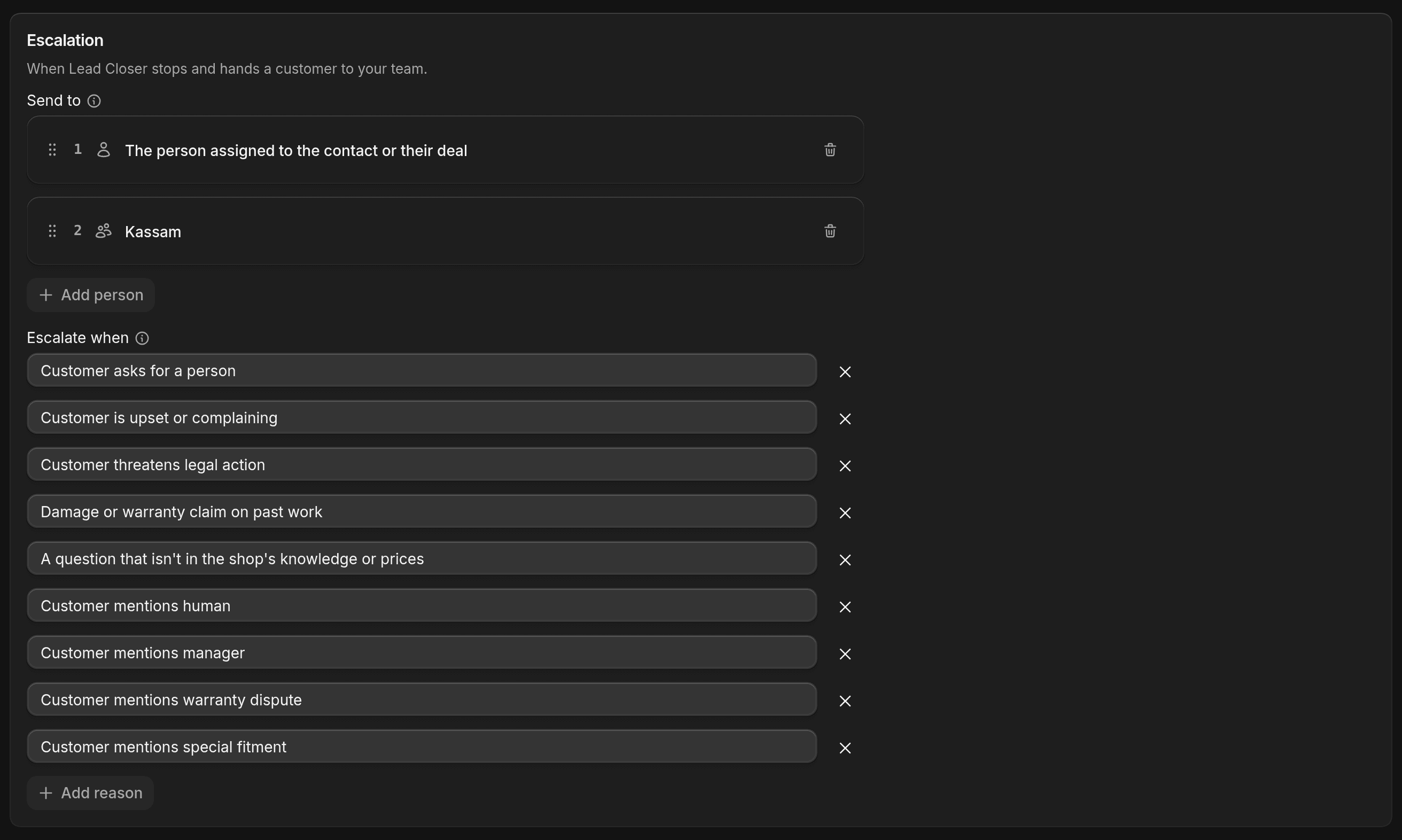
Escalate when is a list of situations where Lead Closer stays quiet and alerts your team. It starts with five:
- Customer asks for a person
- Customer is upset or complaining
- Customer threatens legal action
- Damage or warranty claim on past work
- A question that isn't in the shop's knowledge or prices
Click Add reason to add your own, such as "Asks about financing".
When it needs you
On the Activity tab, the Show filter has All, Needs you, Drafts and Talking now. Rows marked Needs you or Question are waiting on you. A row marked Paid, not booked means the customer paid a deposit but the job isn't on the calendar yet. To fix that, book the job.
Add the answer teaches Lead Closer a missing answer, so the next customer who asks gets it.
Take over a thread
You can step in on any thread from Conversations. When Lead Closer is waiting on an answer, a banner offers Add the answer and I'll reply myself. I'll reply myself stops Lead Closer on that thread until you hand it back.
If you send a text while Lead Closer is handling the thread, ShopWrk asks what happens next. Send, then I'll reply myself is the default and takes the thread over. Send, then Lead Closer keeps replying leaves Lead Closer in charge. To hand a thread back later, click Let it reply again.