

See and edit what ShopWrker remembers
Read, edit and delete the shop rules and personal notes ShopWrker keeps, and reset its memory.
ShopWrker keeps two kinds of memory. Shop memory is rules and facts for everyone in the shop, such as "We're closed Dec 24 to 26" or "Never book PPF on Saturdays". Your memory is notes about how you like to work, and only you see it.
You don't type memory into a form. Tell ShopWrker in chat, for example "Remember that we only ceramic coat on cars that are washed first." It saves what you said. The Memory tab is where you check it, fix it or delete it.
Open the Memory tab
Go to Settings > AI & Automation > ShopWrker, then click Memory. Everyone who can use ShopWrker has this tab.
Read what it has saved
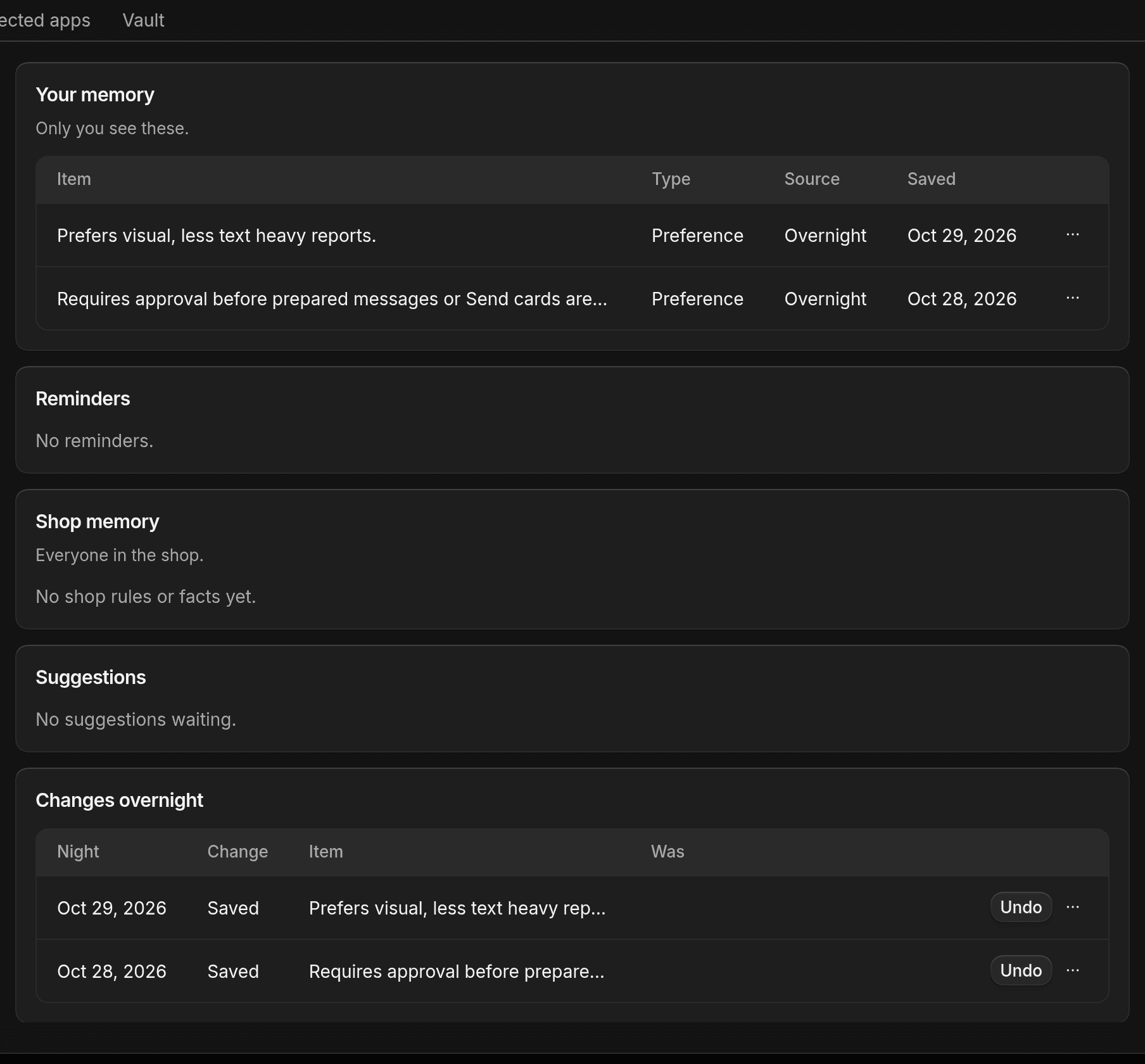
Your memory lists your notes. Shop memory lists the rules and facts everyone in the shop shares. Each row shows its Type (Rule, Fact, Preference or Note), its Source and when it was saved. Click the ... menu on a row, then View, to read a long one in full.
Fix or remove an item
In Shop memory, open the row's ... menu and click Edit, change the wording, then click Save. To delete a row, click Forget, then Forget again to confirm. ShopWrker stops using it, and you can't undo that.
Your own notes only have View and Forget. To change one, forget it and tell ShopWrker the new version in chat.
Who can change shop memory
Shop memory follows these permissions:
- View shop memory shows the Shop memory table. Without it, you see only your own memory.
- Manage shop memory lets you edit and forget shop items, and approve or decline suggestions.
- Contribute to shop memory lets you tell ShopWrker something about the shop. It goes to Suggestions for someone who manages memory to approve.
Owners and Admins have all three. Technicians have none, so what they tell ShopWrker is saved as their own memory only.
A shop item can carry a Staff only badge. ShopWrker keeps those out of customer messages.
Suggestions
If you manage shop memory, a Suggestions section lists changes people proposed. Each row shows the suggestion next to the Current wording. Click Approve to make it a shop rule. Click ... and Edit and approve to reword it first, or Decline to drop it.
Reminders
Reminders lists follow-ups ShopWrker is holding, such as something you said you'd do or something it said it would check. Each has a Due time. Click ... and Forget to drop one.
Changes overnight
Overnight, ShopWrker can save or update items from the day's chats. Changes overnight shows the last 14 nights. Click Undo on a change to reverse it. Once a change is approved, declined or undone, the row says so instead.
Make it forget
- One item. Click Forget on its row, or tell ShopWrker in chat to forget it.
- Everything about you. Go to Settings > AI & Automation > ShopWrker > General. Under Reset, click Reset memory. ShopWrker forgets everything it learned about you in this shop. Your chats stay.
- Shop rules too. If you manage shop memory, the reset window has Also clear shop rules for everyone in the shop. It starts unchecked.
Resetting can't be undone.
What goes elsewhere
Customer and job details don't go in memory. ShopWrker puts those on the customer or job as a note. It also doesn't save live numbers like balances or job status. It reads those from your records each time. To see how ShopWrker uses its memory in a chat, read Ask ShopWrker.