

Set up the Client Portal
Turn on the Client Portal so customers can sign in to see their jobs, estimates, invoices, documents, and messages.
The Client Portal is a page on your shop's own web address where customers sign in to see their jobs, estimates, invoices, and documents, and to message you. It uses your shop logo and main color.
The Client Portal needs the Pro or Autopilot plan. On Essential, Settings > Branding > Client Portal shows a View plans link instead of the switch. To change the logo and color, see Branding.
Turn it on
Go to Settings > Branding > Client Portal and turn on Client Portal. The page shows your shop's web address under Access. Customers who open it while the portal is off see that your shop doesn't have its Client Portal on.

Send a customer their link
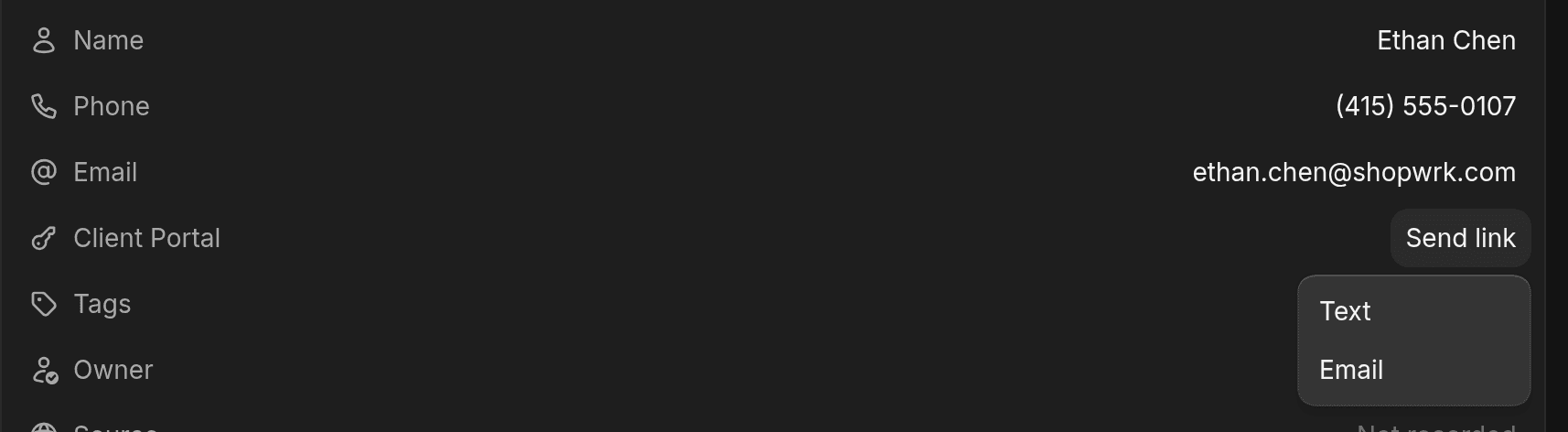
Open the contact. On the Client Portal row, click Send link, then choose Text or Email. The link goes to the phone number or email address on the contact, so the option is greyed out if the contact has neither.
After the first send, hover the row for two icons: one copies the portal address and one sends another link.
Customer signs in
The customer opens the link and clicks Continue. The link works once and expires after 7 days.
A customer can also go to your portal address, enter their Phone or email, and get a new link by text or email. They don't need a password.
What customers can do
Once signed in, customers see these tabs:
- Home. A greeting and a Request quote button.
- Jobs. Current and past jobs. Opening a job shows its status, details, payments, documents, and photos. If there's a balance, a Pay button for the amount appears. Paying uses ShopWrk Pay.
- Documents. Their invoices, estimates, and agreements.
- Messages. A chat with your shop. It shows up in your Conversations as the Client Portal channel.
The account menu also has Vehicles and Profile.
Quote requests
A customer who clicks Request quote picks one of their vehicles and writes a note, such as "Full front PPF and 20% tint on the sides". They click Send request.
Your shop gets an email with the customer's details and a link to the Requests list on Jobs. The request also appears in the Requests list. Open it to see the vehicle and the notes.
From the request, click Book now to book the job from it, or Create estimate to start an estimate for them. Call and Message reach the customer first if you have questions.
Requests only show for staff who can view all jobs or customers.
Questions
A customer says their link doesn't work. It may have expired or been used already. Send a new one from the contact, or have them enter their phone or email on your portal address.