

Send an email campaign
Pick the contacts, design one email, and send it now or at a set time.
An email campaign is one email you send to a group of contacts, such as everyone who had ceramic coating last spring. You pick the people, design the email, and send it now or later. Afterward the campaign page shows who opened, who clicked, and how many jobs it led to.
Email campaigns need the Autopilot plan. Sending needs Send campaigns, and building one needs Create campaigns. Owners and Admins have both.
Start a campaign
Click Marketing in the sidebar, open Email Campaigns, and click New Campaign.
Pick the audience
On Audience, tick the contacts who should get the email. Search by name, or click Filter to narrow the table. To tick everyone who matches, pick a list or use Advanced filters and click Apply. Click Next when you're done.
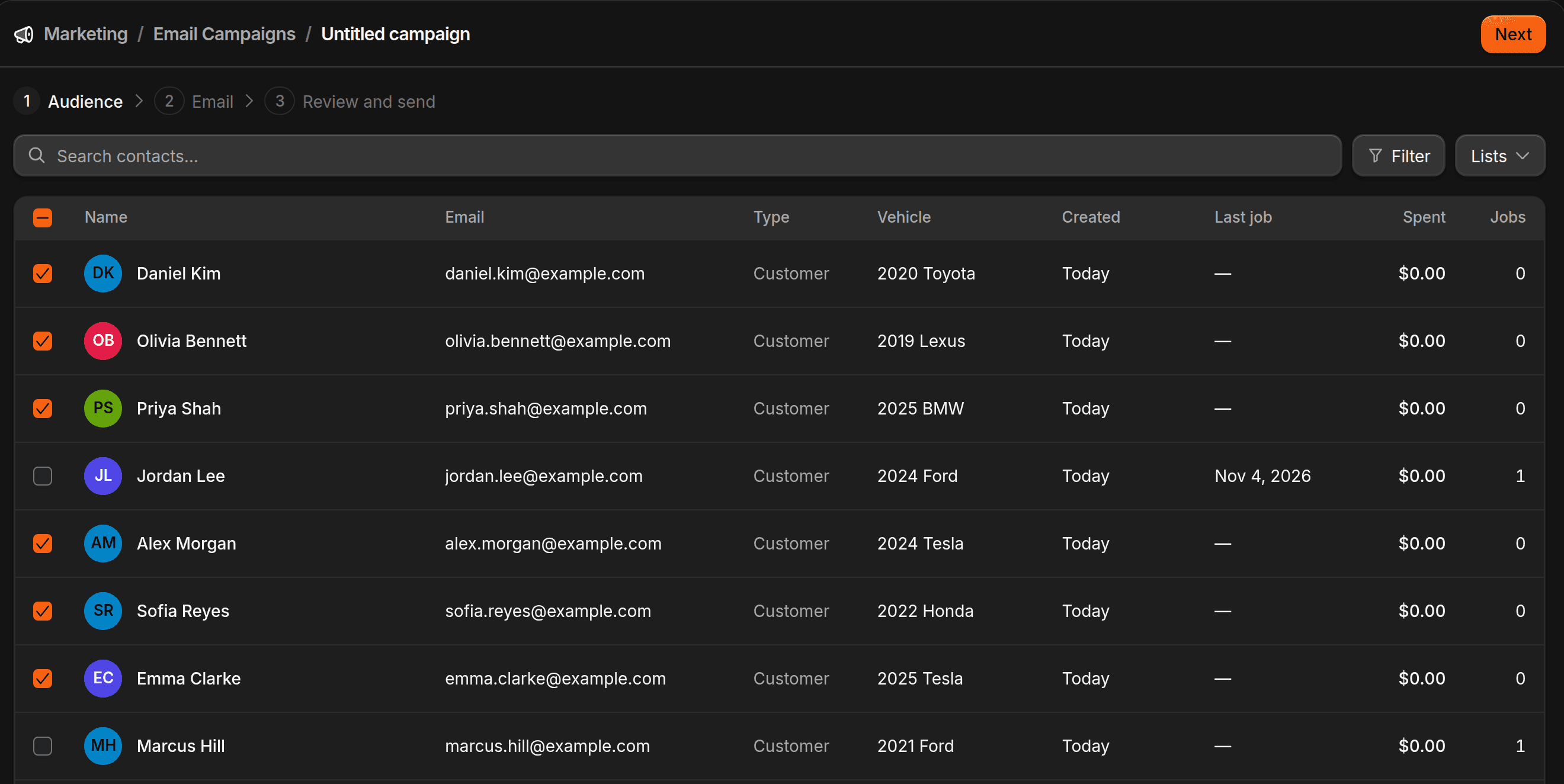
Contacts with no email address, and contacts who unsubscribed, sit at the bottom of the table and can't be ticked. An audience can have at most 50,000 people.
Choose how to start the email
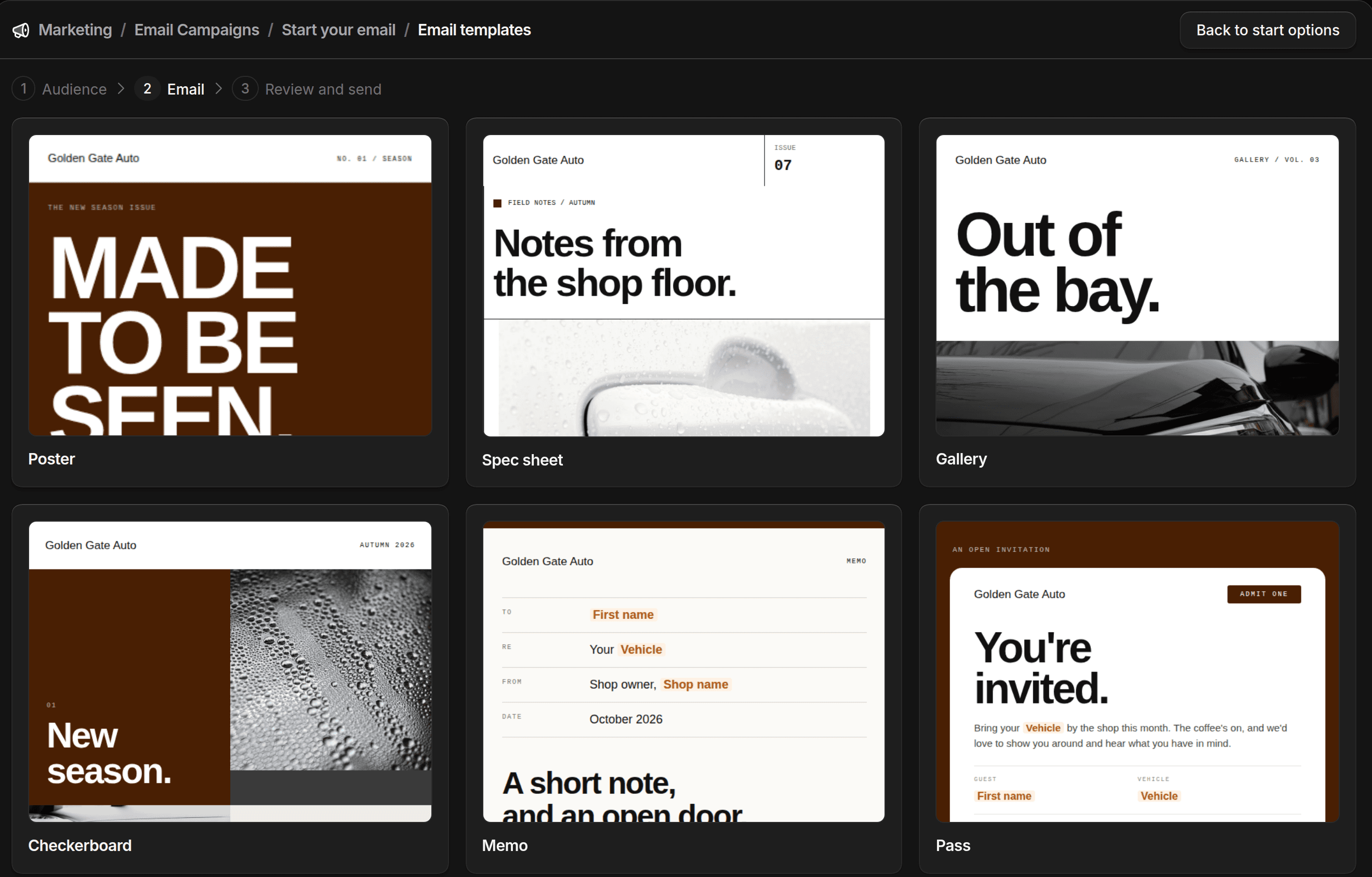
Pick Design with AI, Start from scratch, or Start from template. With a template, click one to preview it, then click Use template. Templates pick up your shop's name, logo, and colors from Branding.
Design the email
Click in the email and type. Type / on a new line to add an image, a button, or columns. Use Insert in the toolbar to add the contact's First name, Vehicle, and other details, so each person sees their own. If you chose Design with AI, ask ShopWrker for the email in the panel on the side.
Everything saves as you work. Click Next when it looks right.
Review and send
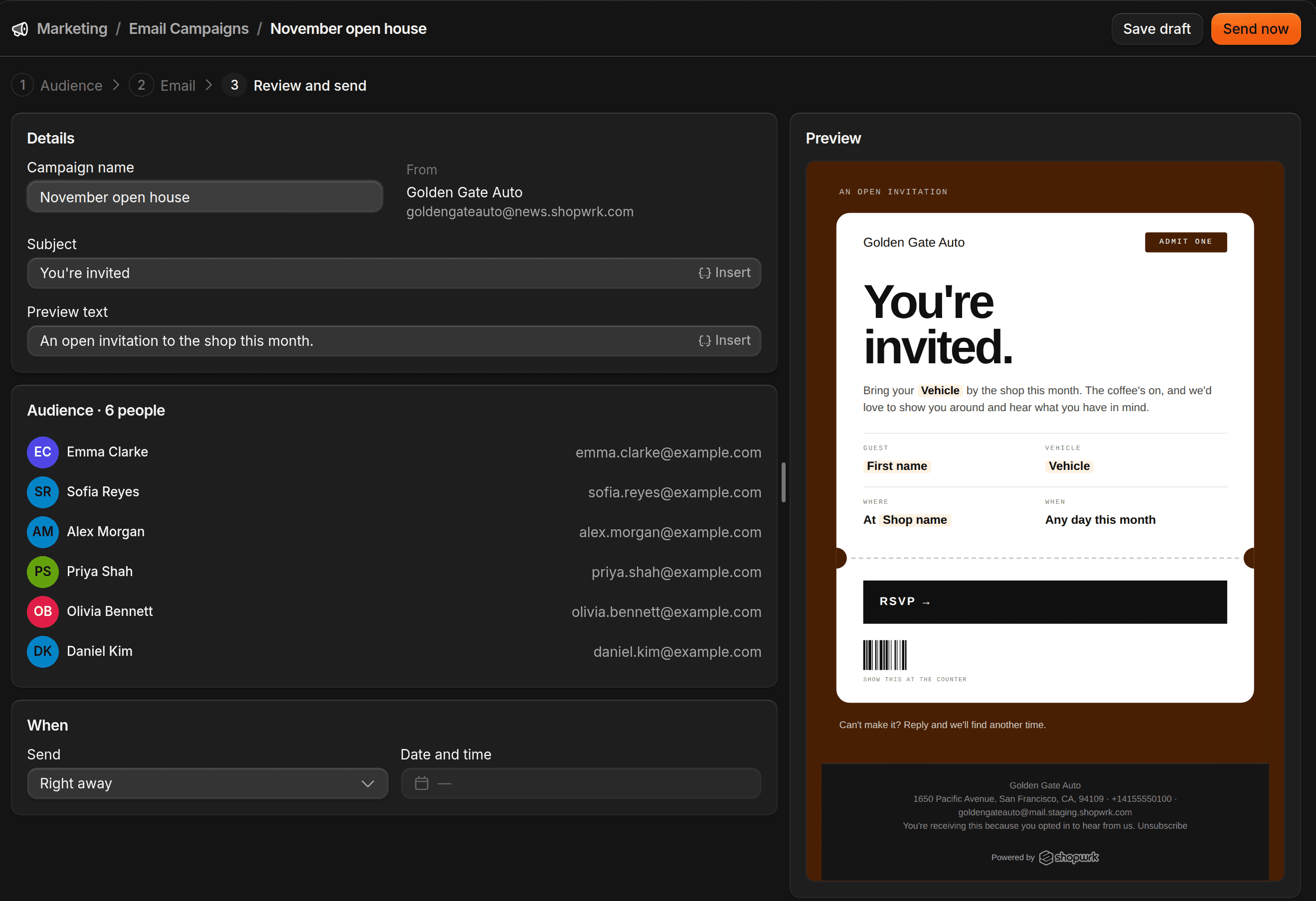
On Review and send, check the Subject and Preview text, which shows after the subject in the inbox. The Audience card lists who gets it. Under When, leave Send on Right away, or pick At a set time and choose a date and time at least 15 minutes from now.
Click Send now or Schedule. To come back later, click Save draft.
Before you can send
Add your shop's address under Settings > Shop Details. The address field doesn't show if Where you work is set to mobile. Without an address, Send now and Schedule stay off and the page says Not ready to send. Every campaign also needs a subject and at least one person who can still get it.
Every campaign ends with a footer that shows your shop name, your contact details, and an Unsubscribe link. You can't edit or remove the footer.
Lists
A list is a saved set of contact filters, like everyone who got a ceramic coating job in 2025. On Audience, click Lists to pick one, click the pencil to change its filters, or click New list to build one. Picking a list ticks everyone who matches right now and replaces earlier ticks. Lists and Advanced filters need access to Contacts.
Change a campaign
Click a campaign to open it. The tabs are Overview, Email, and Audience.
- Draft. Click Edit email or Edit audience, then Review and send.
- Scheduled. Click Reschedule or Send now. To stop it, open More actions and click Cancel schedule. Nothing is sent.
- Sent. The email and audience are locked. Duplicate in More actions makes a new draft.
Read the results
Open a sent campaign. Results shows these counts, each with a percentage:
| Count | Percentage of |
|---|---|
| Sent | the audience |
| Delivered | people sent to |
| Opened, Clicked | people delivered to |
| Bounced | people sent to |
| Unsubscribed, Marked spam | people delivered to |
| Blocked | the audience |
Link clicks lists each link and how many people clicked it. Jobs shows the jobs booked and their revenue. A job counts if it's booked within 30 days of the person's latest open or click. If they opened another campaign more recently, that campaign gets the job.
On the Audience tab, filter recipients by Delivered, Opened, Clicked, Bounced, Unsubscribed, Marked spam, or Blocked.
If too many people mark your emails as spam or bounce, ShopWrk pauses campaign sending for your shop. Every scheduled or sending campaign shows Paused, and ShopWrk support contacts you within 2 business days.
For texts and calls, see Texting and calling. For messages that go out on their own after a job or a form, see Automations.