

Build a form and share it
Build a form for your website or a link, publish it, and see where each submission goes.
A form collects a customer's name, phone, vehicle, and what they want done, then puts them in your contacts. You can embed it on your website or text the link.
Owners and Admins can build forms. Forms work on every plan.
Create the form
Click Marketing in the sidebar, open Forms, and click New form. Type a Form name, such as "Website quote request", and click Create form. Customers never see this name.
Build the questions
The form starts with First name, Last name, Phone, and Vehicle. Click a question to change its wording or make it required. Click Add to add more.
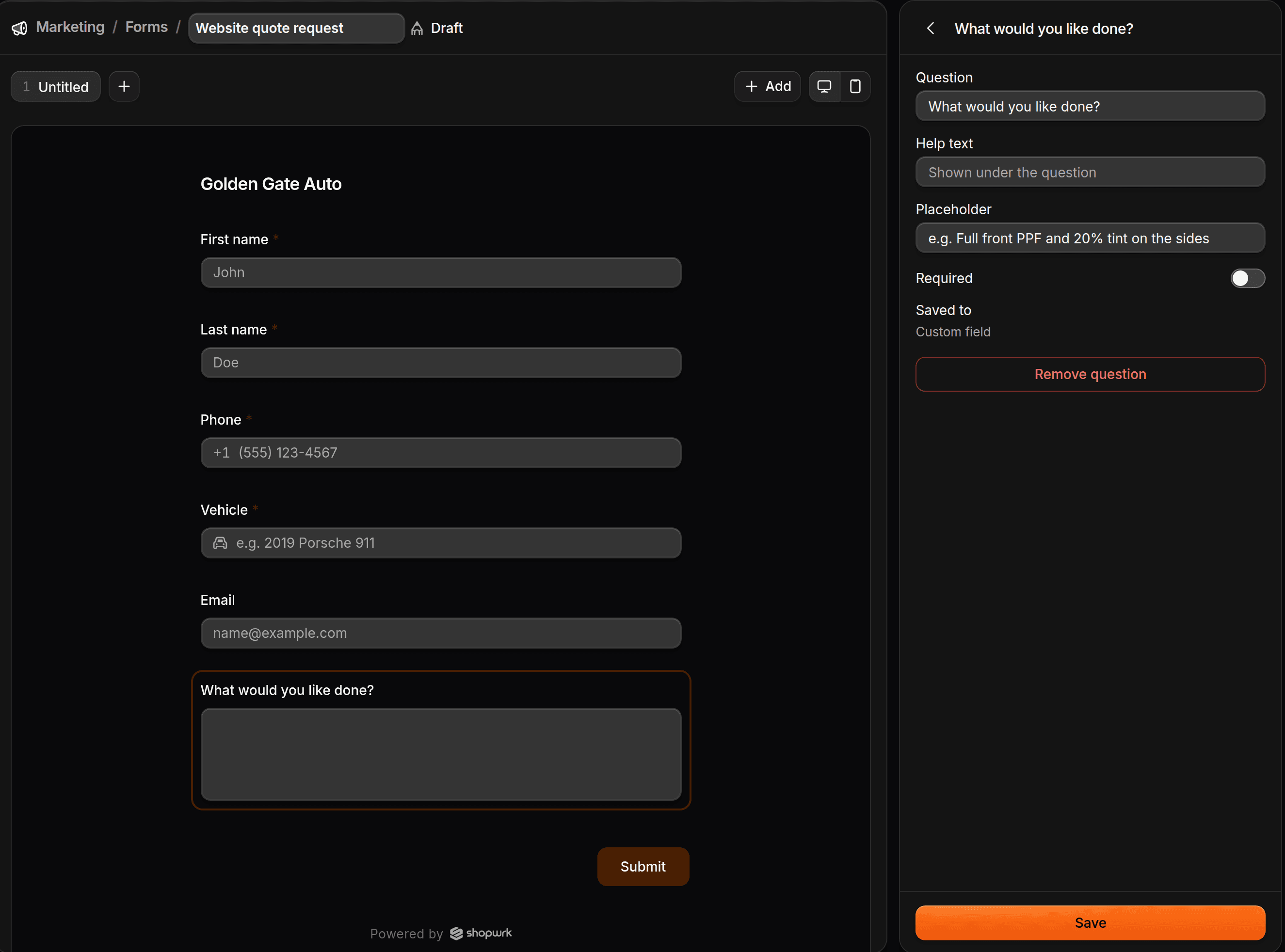
Contact has Full name, First name, Last name, Email, Phone, and Vehicle. Under New custom field you can add Short text, Long text, Date, Dropdown, Radio group, Checkbox group, File upload, or Signature. You can also add a heading, body text, or a logo.
To save an answer to one of your own contact fields, pick it under Existing shop fields. You set those up under Settings > Custom Fields.
Split it into steps
Click + beside the step tabs to add a step, and click a step's name to rename it. Use the Desktop preview and Mobile preview buttons to check both.
Set what happens after they submit
The settings are in Form settings on the right. On a narrow window, click Settings to open them. Under After submit, write the Success message customers see. To send them to your own thank-you page, add a Continue link, which adds a Continue button.
Publish
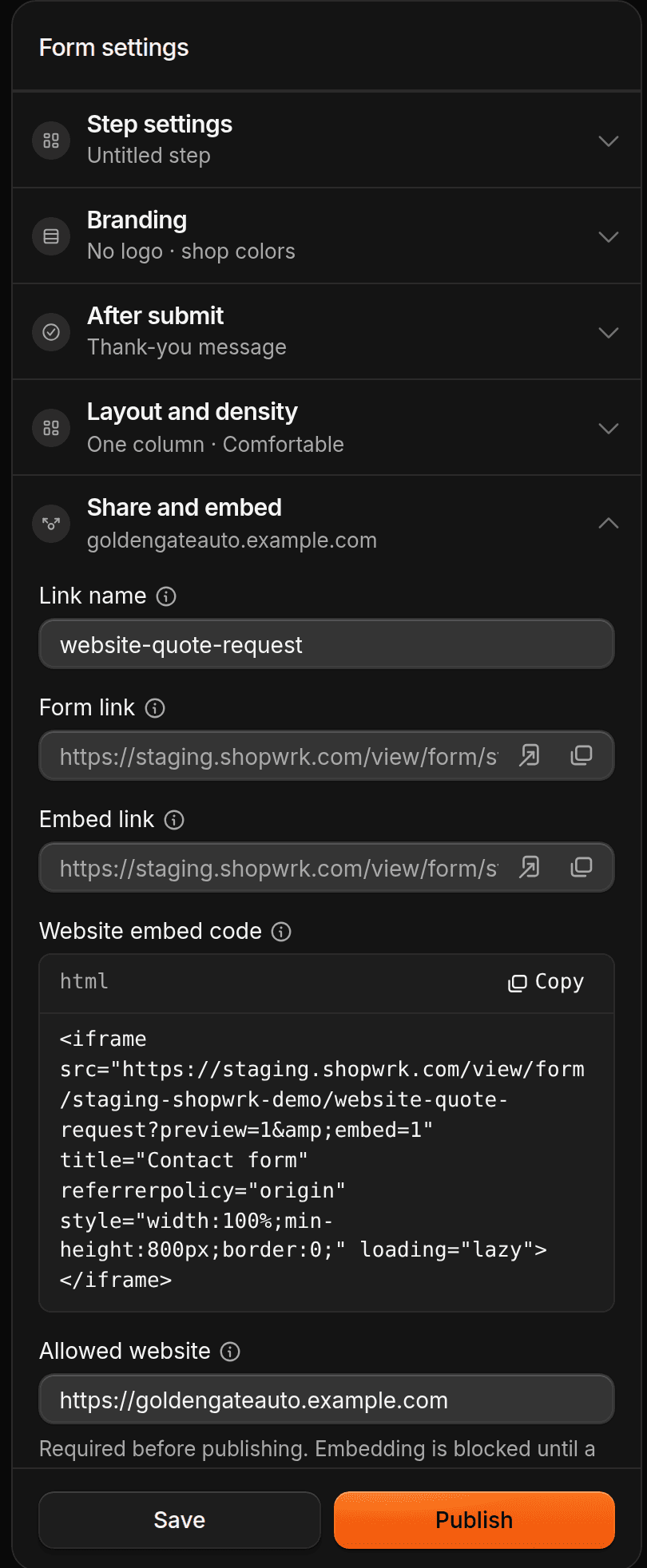
A form needs an Email or Phone question before it can be published. Under Share and embed, type your website in Allowed website, such as https://riversidewrap.com. This is required even if you only plan to share the link. Click Publish.
Share the form
After you publish, the Publish button becomes Share. Click it in the builder, or open the menu on the form's row in the list and click Share.
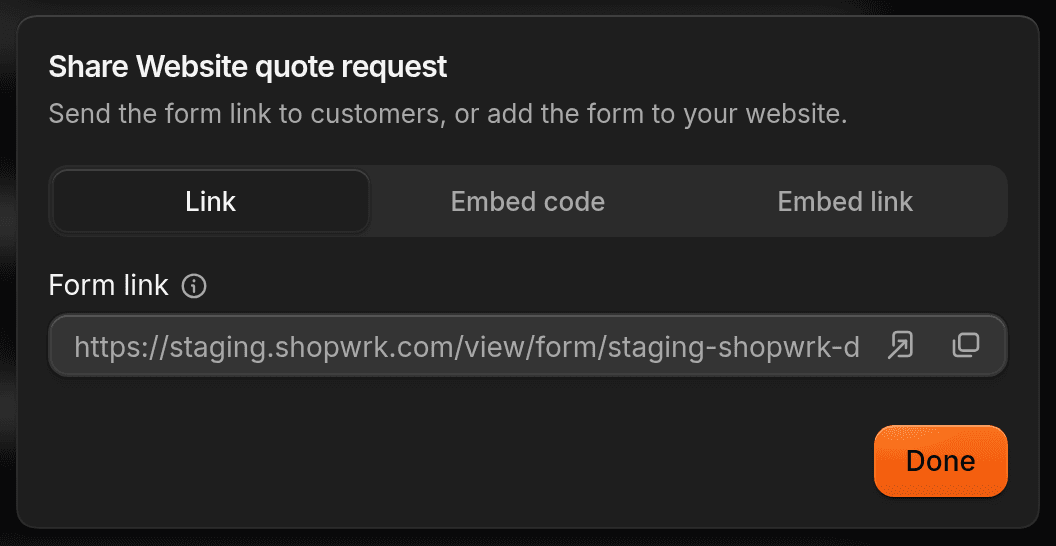
- Link is a page you can text, email, or put in your Instagram bio.
- Embed code is a snippet to paste on your website. It only works on the Allowed website. If you move the form to another site, update that field.
- Embed link is for website builders that ask for an embed URL instead of code.
Under Share and embed, Link name is the last part of the link. Use lowercase letters, numbers, and hyphens, such as request-a-quote.
To change the colors, columns, spacing, or corners, open Settings and use Branding and Layout and density.
Where a submission goes
When someone submits the form:
- A contact is created or updated. ShopWrk matches an existing contact by email or phone. If nobody matches, it creates a Lead. A contact who is already a Customer stays a Customer.
- The submission is saved. Open the form's row menu and click Submissions to see every answer.
- You get an email. It goes to your shop's email address. The customer gets a confirmation email if they gave an email address.
- Automations can run. Use the ShopWrk Form Submitted trigger. See Automations.
- Lead Closer can start a deal and text them. Only forms you add to the Forms card on Lead Closer do this. See Lead Closer.
A form on its own doesn't create a deal.
Work the submissions
On Submissions, search by name, email, or source, or filter by Source, Reviewed, and Date from. Click a submission to read the answers. Click Mark as reviewed so your team knows it's handled, or Create estimate to start an estimate for that contact. To handle several at once, tick them and click Mark reviewed or Delete. Export CSV downloads the list.
Pause or retire a form
- Archive stops new submissions and keeps the old ones. Click Publish in the builder to bring it back.
- Delete removes the form and all its submissions for good.
Facebook lead forms
To bring leads from a Facebook Lead Ads form into the same list, click Connect Facebook on the Forms tab. You pick the page and form, then match each Facebook question to a contact field. Connect Facebook Lead Ads first. See Facebook Lead Ads.