

Ask ShopWrker
Ask ShopWrker questions about your shop, or have it draft estimates, messages and jobs for you to approve.
ShopWrker is the assistant at the top of your sidebar. It reads your jobs, customers, estimates and invoices, and it drafts the work you'd otherwise type out yourself. Before it changes anything, it asks.
You need View Agents to use it. Owners and Admins have it. Technicians don't, unless you add it.
Open ShopWrker
Click ShopWrker at the top of the sidebar to open your main chat. To start a separate conversation, click + next to Side chats. Side chats can be pinned, renamed and deleted from the ... menu on each row.
Ask for what you need
Type in Message ShopWrker. You can ask it to:
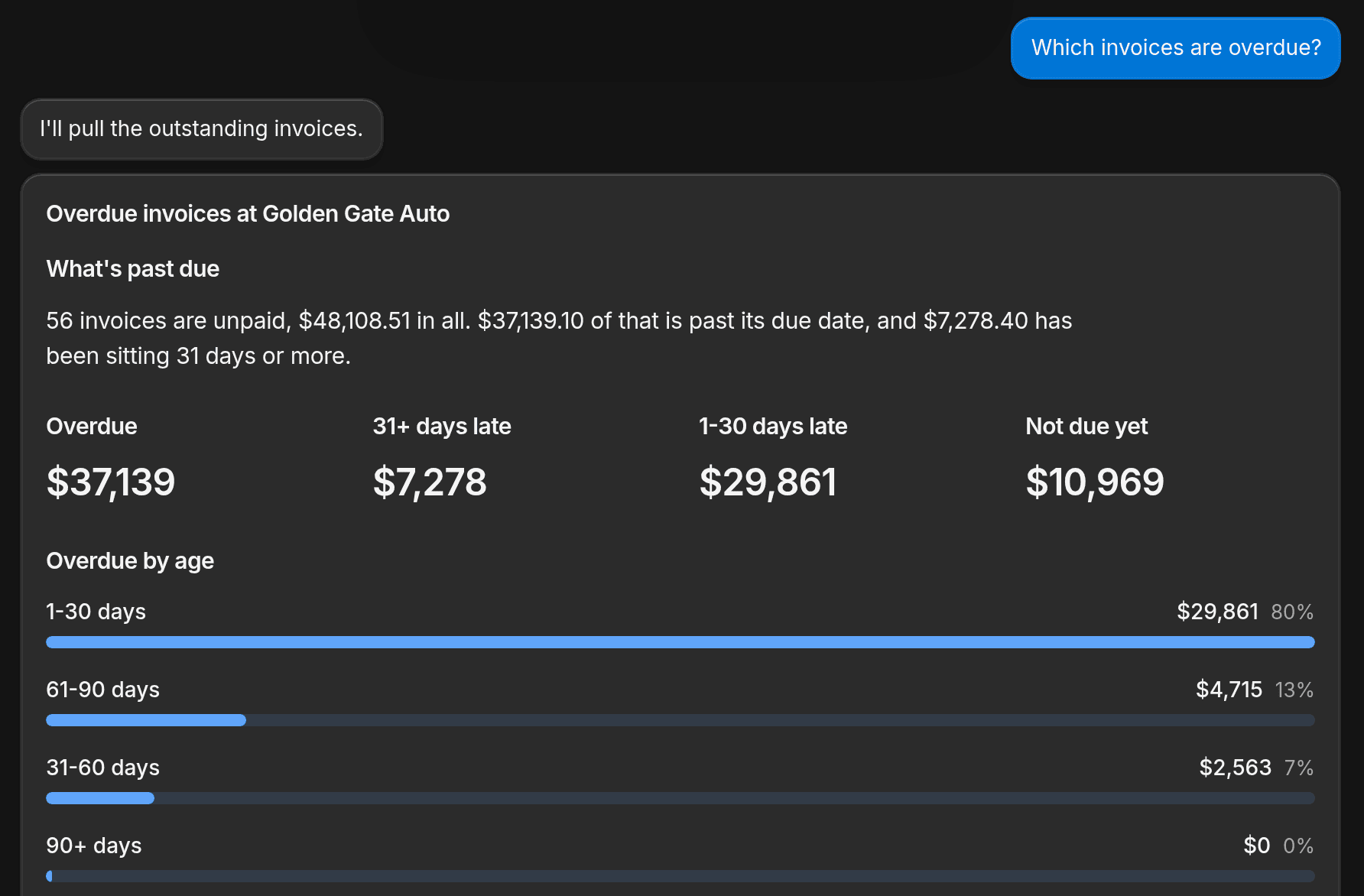
- Look something up: "What did Ethan Chen have done on his Model Y?" or "Which invoices are overdue?"
- Draft a text or email to a customer.
- Build an estimate or an invoice, or start a job.
- Book or reschedule a job.
- Pull a report on revenue, jobs or services. Revenue reports need View revenue reports.
- Make a document, a spreadsheet or an image, such as a one-page price sheet or a social post graphic. It saves these to the Library.
It can also search the web, and it can use your shop's services and prices when it builds an estimate.
Approve what it wants to change
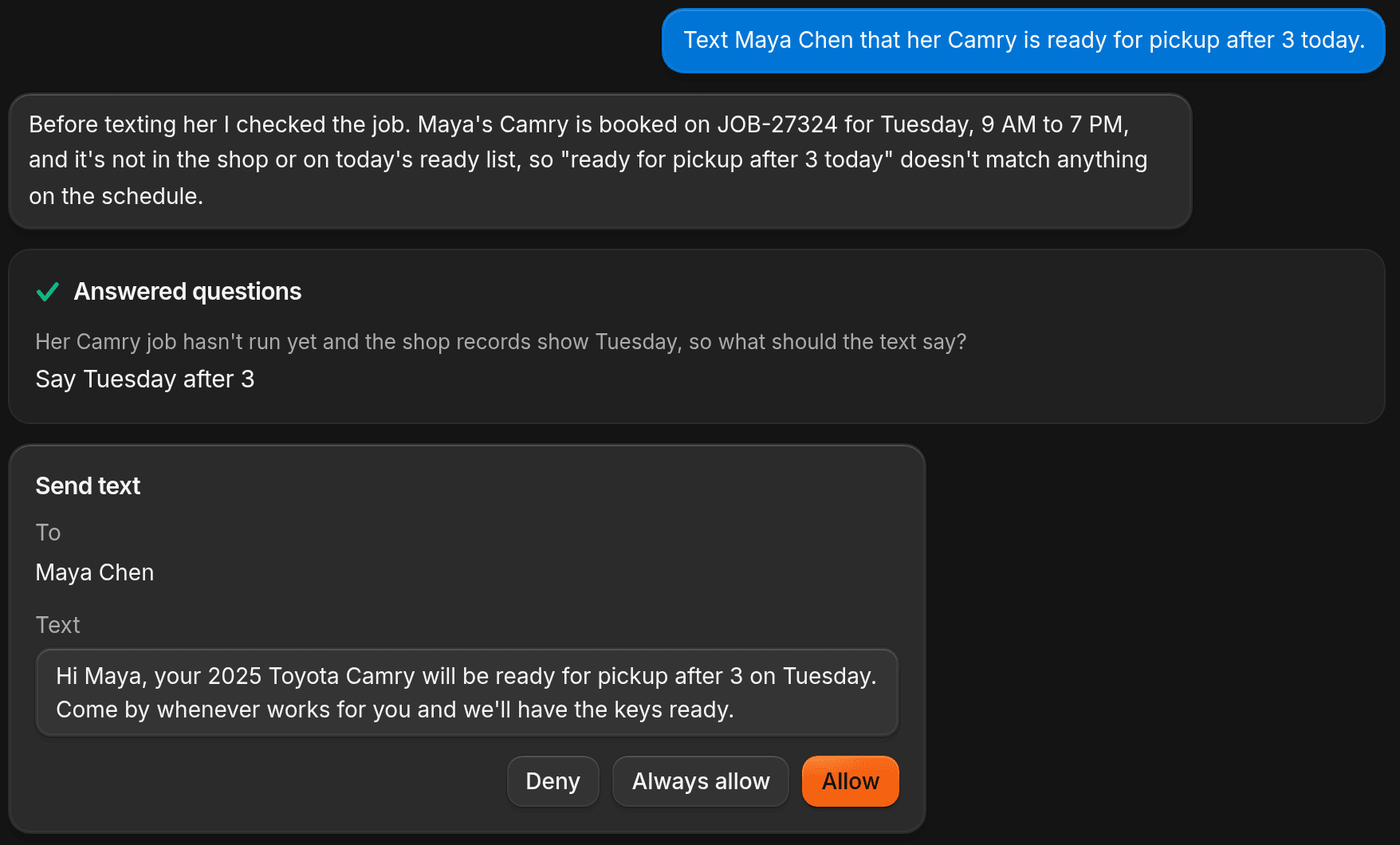
When ShopWrker wants to send a message, change a price or edit a record, it shows a card with the change. Click Allow to go ahead or Deny to stop it. You can edit a message in the card before you allow it.
When it asks you a question
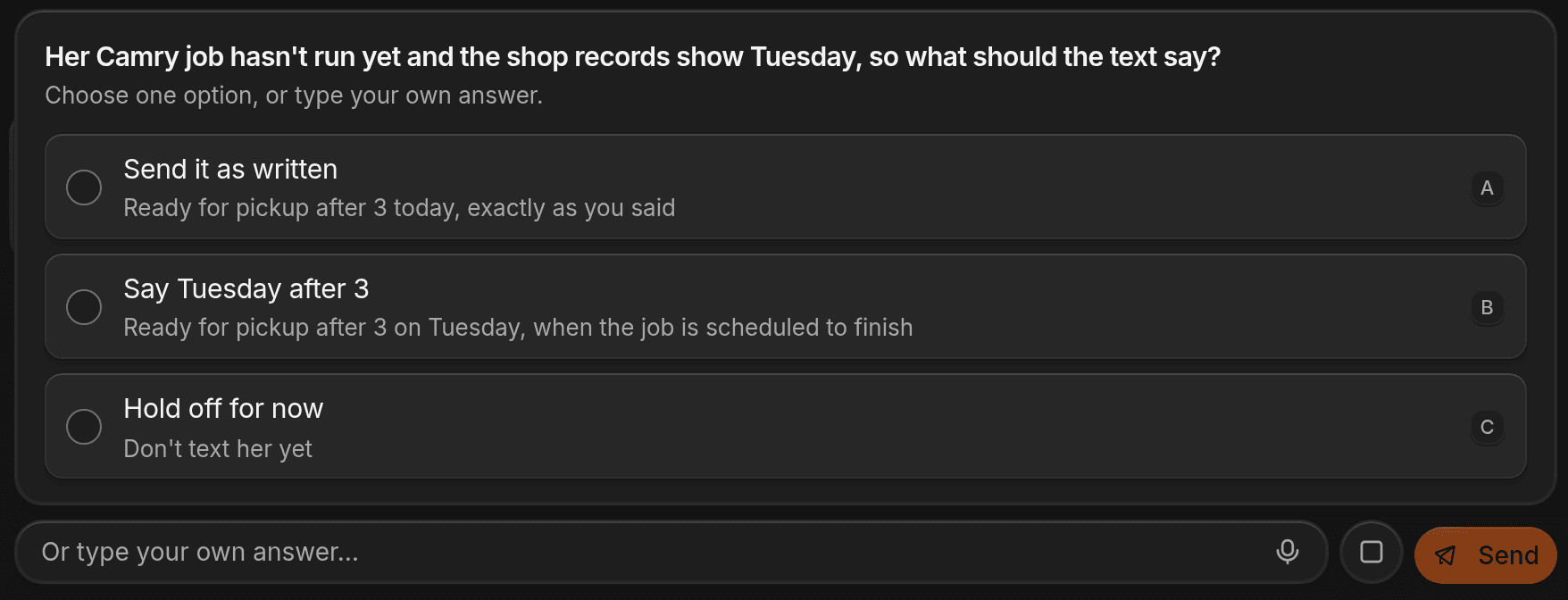
If ShopWrker needs a choice before it can go on, it shows a question card. Pick an option, type your own answer, or click Skip if the question is optional. Your answer goes back to ShopWrker as your next message.
Attach photos and files
Click the paperclip to attach up to 5 files, 10 MB each. ShopWrker reads PNG, JPEG, GIF and WebP images, and PDF, DOCX, CSV, TXT and MD files. Use this for a customer's price list, a photo of a vehicle, or a supplier invoice.
You can also click the microphone and dictate. It's dimmed if your browser can't record.
Leave while it works
You can leave the chat while ShopWrker is still working. On any page, the face on the ShopWrker row shows what it's doing, and a number shows results waiting for you. Hover the row to read the status. When a chat has a card waiting, the row says Needs you.
What it never does without asking
Which actions ask first is set per person. Go to Settings > AI & Automation > ShopWrker > General, and under Tools ShopWrker can use pick Never, Ask every time or Always allow for each kind of change, such as Text customers, Change prices or Edit customers. Everything starts on Ask every time.
Two limits apply whatever you pick. Make purchases can't be set to Always allow. And a text or email to a customer always shows its exact Send card, even with Always allow.
ShopWrker's computer
On Pro and Autopilot, ShopWrker has a computer of its own with a web browser. Ask it to do something on a website, such as check a supplier's stock or fill in a form, and you can watch its screen live. The computer needs the Personal computer permission, which Owners and Admins have.
When it needs a password or a login code, it asks in a card with hidden fields. Type the value and click Continue. Leave Save to ShopWrker vault ticked to reuse it next time, or untick it to use it for this task only.
When it gets stuck on something only you can do, such as a robot check or a passkey, it shows a Needs you card with its live screen. Click Take control, do the step, then click Release control so ShopWrker carries on. Click Skip if you don't want it to go on.
To watch the computer outside a chat, open ShopWrker's own page and click the Computer tab. Settings > AI & Automation > ShopWrker > General has a Reset computer button. It wipes the computer, including saved website logins and files, and can't be undone.
AI credits
ShopWrker runs on AI Credits. When the shop runs out, chat pauses. Owners and anyone with billing access see Buy AI Credits, which opens billing. Everyone else is told to ask the shop owner. To see your balance, buy a credit pack or turn on auto-recharge, go to Settings > Billing.
Your Library and routines
Click Library at the bottom of the sidebar to see everything ShopWrker has made for you. Ask ShopWrker in chat to do something on a schedule, and it appears under Routines on ShopWrker's page, where you can pause it. To see what it remembers about your shop, read ShopWrker memory. To find a record fast, use search. Agents like Lead Closer are a separate thing. See Agents.