

Search your shop
Find customers, jobs, estimates and invoices from any page, start a new one, or ask ShopWrker a quick question.
Search opens on top of whatever page you're on. Use it to jump to a record, start a job, estimate or invoice, or ask ShopWrker something short without leaving the page.
Open search
Press Cmd+K on a Mac or Ctrl+K on Windows. Or click Search at the top of the sidebar.
Type what you're looking for
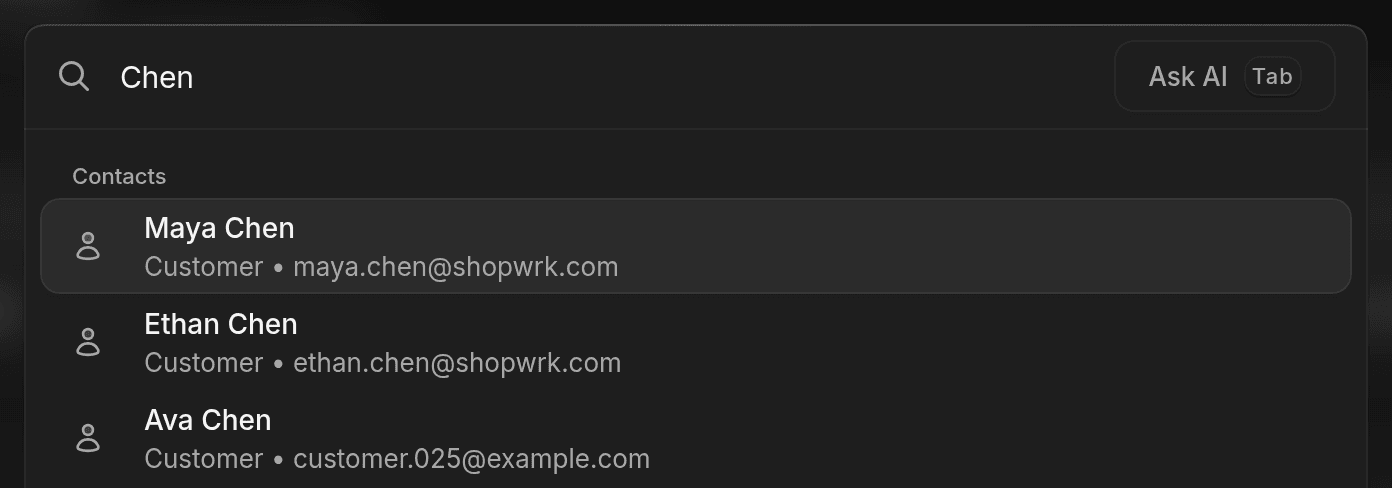
Type a customer's name, a vehicle, a job or invoice number, or a page name like Calendar. Results are grouped by type, such as Contacts, Vehicles, Services and Inventory. Jobs, estimates, invoices, payments, conversations, calls, deals, tasks and warranties show up the same way. You only see types you have permission to view.
Pick a result
Use the arrow keys and press Enter, or click. A record opens on its own page. On a customer, click View connected records to see their jobs, estimates and invoices in the same window.
Before you type
An empty search shows what to look at first:
- Needs attention, such as overdue invoices, estimates awaiting a response, missed calls, unread conversations, unassigned work and low-stock inventory. Each list only appears if there's something in it and you can view it.
- Continue and Recent activity, so you can get back to what you were doing.
- Quick actions: New job, New estimate and New invoice. Each needs the matching create permission.
- Quick access pages and your Recent chats with ShopWrker.
When you're on a job or estimate, New invoice moves to the top. Records tied to the page you're on show first, under On this page.
Start a job, estimate or invoice by typing
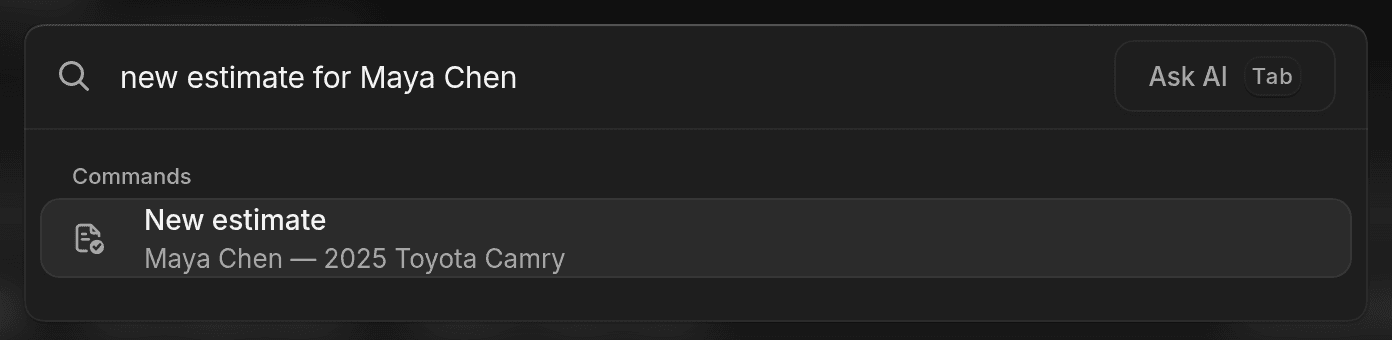
Start with a verb: new, create, start, draft, make or schedule. Then say what to make and who it's for:
new estimate for Maya's Porschecreate invoice for job 1042schedule job for Ethan Chen
You get a command under Commands. Pick it and the builder opens with the customer and vehicle filled in. Nothing is created until you save there. If the name matches more than one person, you get one row for each. "Quote" works like "estimate", and "booking" or "appointment" work like "job".
Ask ShopWrker from search
You need View Agents for these.
- Ask AI. If your search finds nothing, or only partial matches, Ask AI shows at the top. You can also click Ask AI at the right of the field, or press Tab. The answer appears in the search window. Type in Ask a follow-up… to keep going.
- Open in full chat. In an answer, click Open in full chat to move the thread into ShopWrker. It's dimmed while the answer is still being written. Click Back to search to return to results.
- Ask about a customer. Type @ and a customer name, then press Tab to select them. Your question is about that customer. This also needs View contacts.
Press Esc to step back one level, and again to close.