

Book a job
Book the customer, the vehicle, and the work, with or without a time.
A job is the work you book for one vehicle. You build it on one page. You can leave the time blank and schedule it later.
You need Create jobs. To set a time you also need Schedule jobs, and to pick a technician or bay, Assign technicians. Owners and Admins have all three. Technicians don't, unless you add them.
Start the job
On Jobs, click New job. You can also click an open time on the calendar, and the first service starts there. On a contact, click +, then Book job.

Pick the customer and the vehicle
Search by name, phone, or plate, then pick the vehicle. Click New customer for a new person, or Add vehicle for a new vehicle. Make sure the vehicle has a Size, because prices depend on it.
Add the services
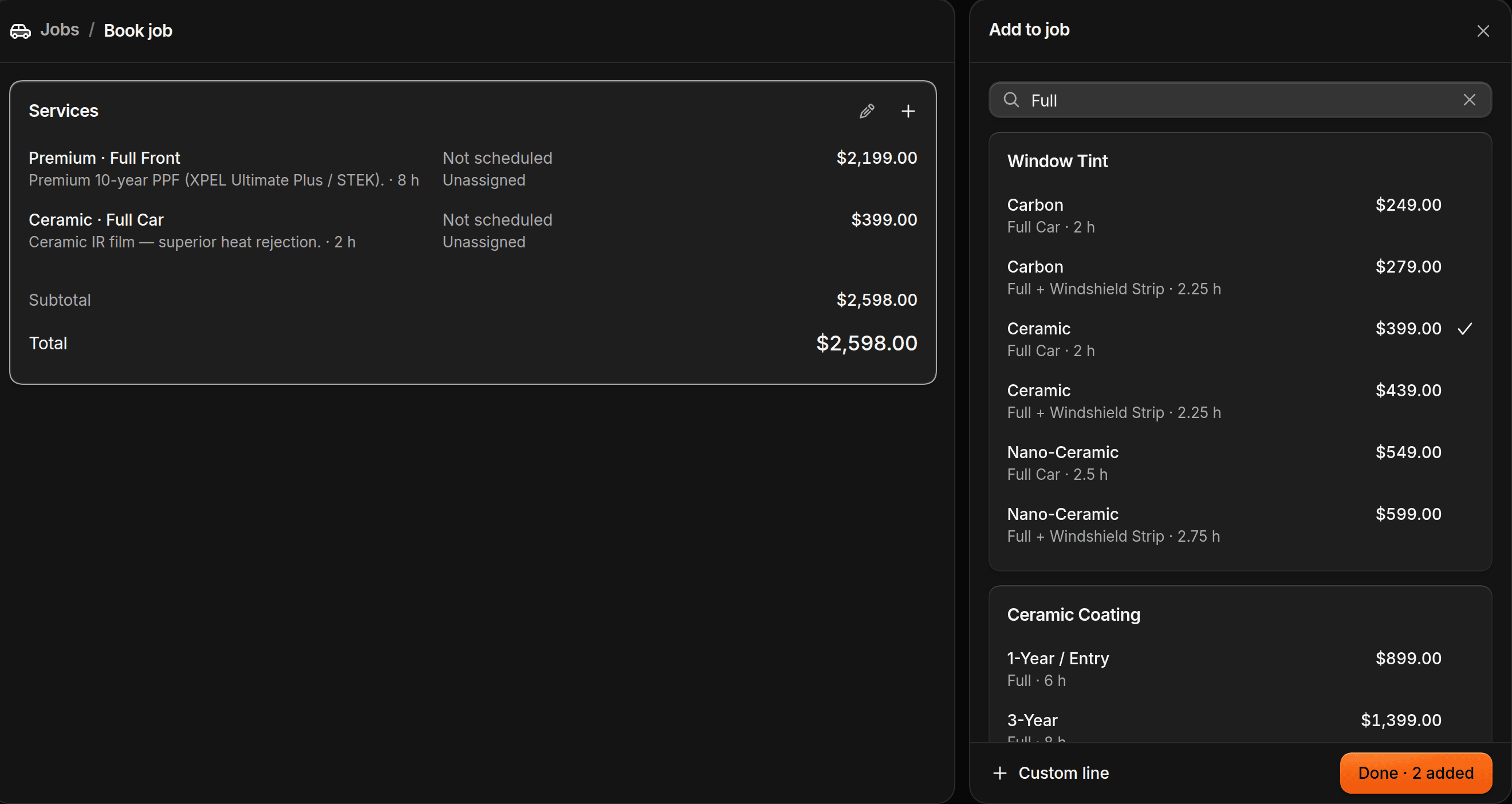
On Services, click +. Add the work, such as full-front PPF. For work that isn't in the catalog, click Custom line and set Name, Price, and Time. Click Done.
If a service has panels, pick a film for each panel. Decide later leaves the shade until drop-off.
Schedule each service
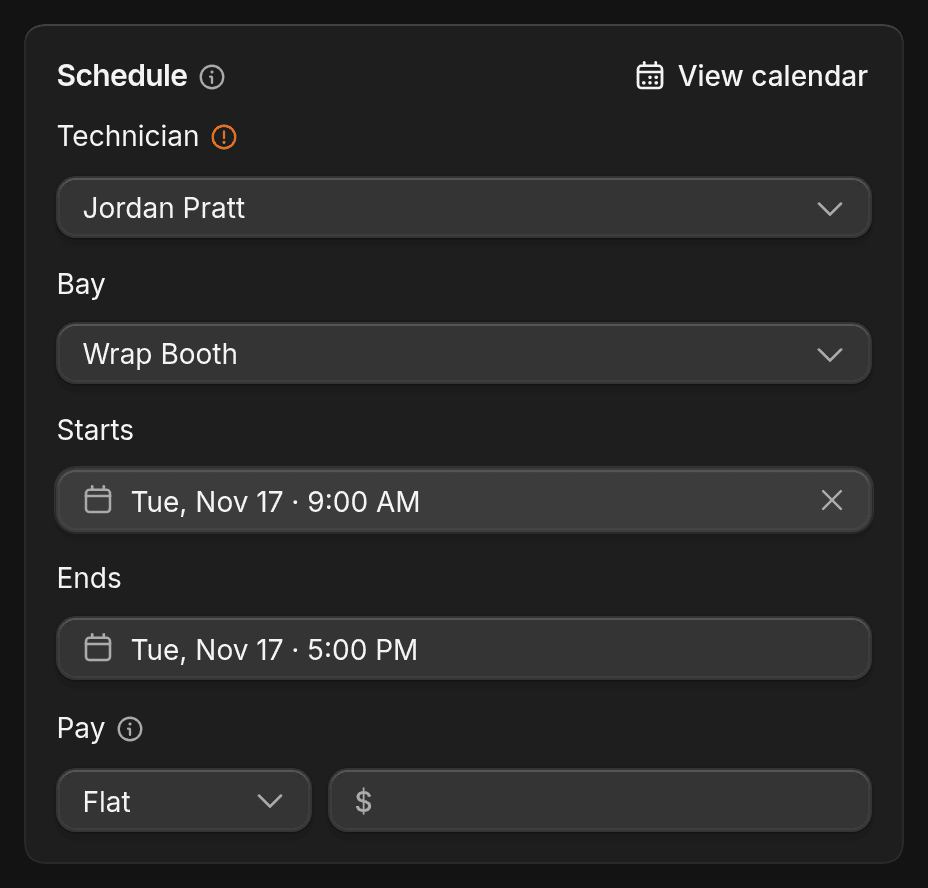
Open a service. Under Schedule, set Technician, Bay, Starts, and Ends. Each service has its own time. The next service lines up after it, with the same technician and bay if they're free.
To book without a time, leave Starts empty. The job waits in Waiting until you schedule it.
Set drop-off, payment, and reminders
Drop-off and Pickup follow the services' times. Change them if the customer is coming earlier or later.
To take money up front, choose Deposit or Full amount under Payment. The confirmation then includes a payment link. That needs ShopWrk Pay.
Reminders use your shop's reminder for upcoming jobs: one day before, by text and email, unless you've changed it under Settings > Notifications. Change it here for just this job.
Send the confirmation
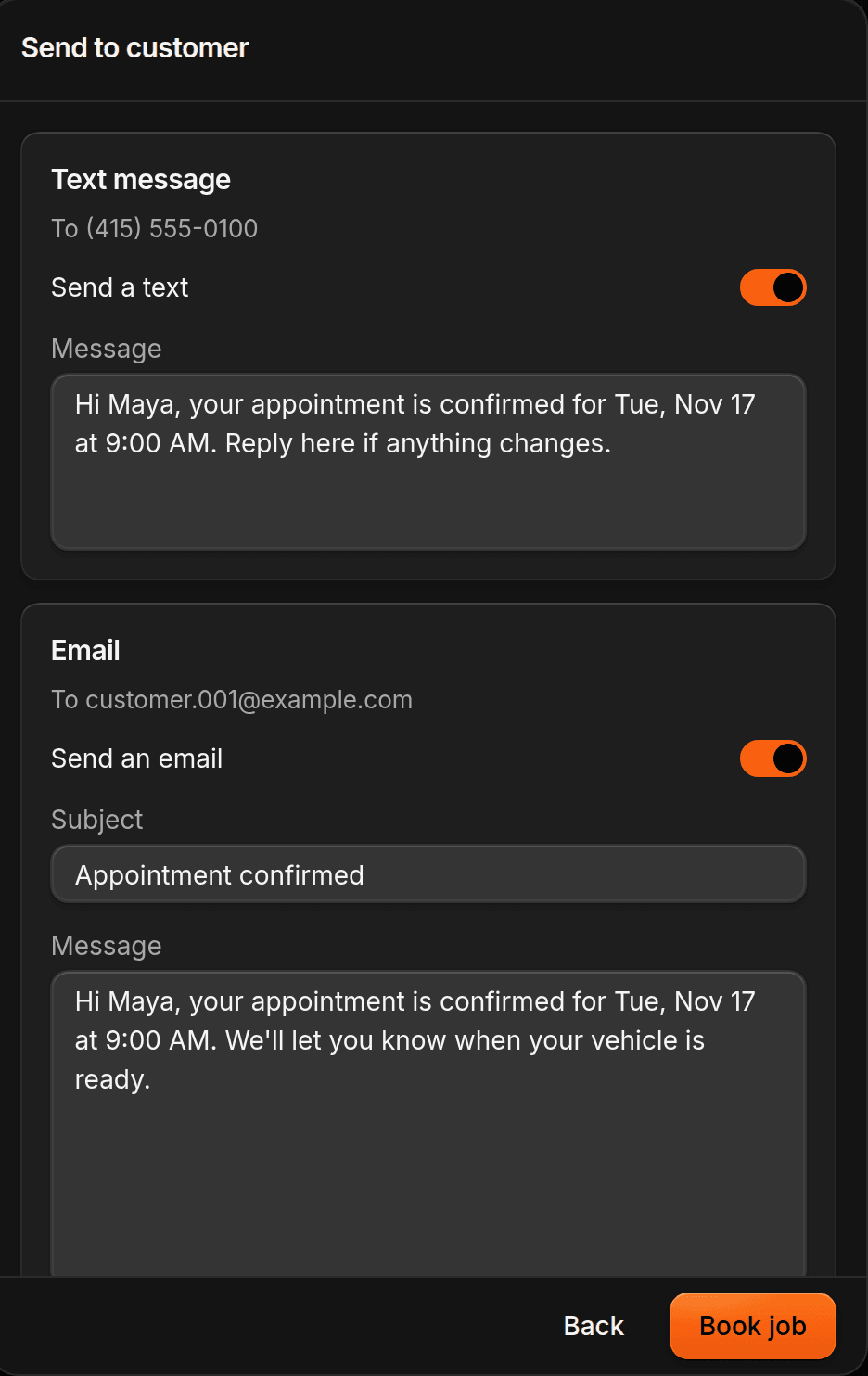
Click Continue. Leave Send a text, Send an email, or both on, then click Book job.
Leave Payment link in the message if you asked for money, and Signing link if a document needs a signature. Texting needs the Pro or Autopilot plan. On Essential, only the email goes out.
Other ways to start a job
- From an approved estimate. Click Convert to job. See What happens when a customer approves.
- When the customer approves. Turn on Create unscheduled job on approval when you build the estimate.
- From a deal. On a deal with no job yet, click New, then Booking.
To change a job after you book it, open it and click Edit. The work itself happens on the job page.