

Track your film and stock
Add films and rolls, count and adjust stock, and see how marking a service Done takes film out of stock.
Inventory tracks the films, coatings and supplies you keep on the shelf. When a service is marked Done, ShopWrk takes what it used out of stock, so the numbers stay close to what's in the shop.
Technicians can see stock and record what a job used. To add films or stock, count, adjust or change settings, you need Edit catalog. Owners and Admins have it. To see costs you also need View inventory costs.
Open Inventory in the sidebar. It has four tabs: Overview, Stock, Catalog and Reports. Inventory is on by default. You can turn it off under Settings > Inventory.
Add a film to your catalog
The Catalog tab is the list of products you carry. Add a film here before you can stock it.
Open the catalog
Click the Catalog tab, then Add film.
Pick from the library
Search by brand or product, tick one or more films, and add them. If yours isn't there, click Create a custom film instead and fill in its type, widths and shades.
Add rolls
Open Add stock
On the Stock tab, click Add stock.
Choose the film and describe each roll
Pick the Film product. For each roll, choose the Width, the VLT if it's tint, and the Price ($), then pick or enter the length. Click Add roll for more rolls in the same delivery.
Coatings and supplies take bottles or units and a total price.
Add them
Add notes such as the supplier or PO number if you want them, then click Add 2 rolls (the number matches your rolls).
To top up something you already stock, open the row's menu and click Restock. It opens Add stock with that film and width filled in.
Count your stock
Count when the shelf and the screen disagree.
Open the count
On the Stock tab, click Count stock. You see each film with the number of rolls ShopWrk thinks you have, as System.
Enter what you have
Type the rolls you actually count. A difference shows next to the box, like -1.
Post the count
Click Post count. Any shortfall is marked as used. If you have more than ShopWrk shows, the count doesn't add them. Use Add stock for the extra rolls.
Adjust one item
Open a row's menu on the Stock tab and click Quick Adjustment. Choose Remove stock, Add stock or Log waste, enter the Amount, then click Apply adjustment. Log waste only shows if Track waste separately is on. For a delivery of rolls, use Add stock instead.
How Done takes film out of stock
When a technician clicks Finish on a service, the Materials card shows what was planned from the panels, with Used, Width and Waste. Waste is part of what was used, not extra. Change the amounts to match what happened, then click Mark done. ShopWrk takes that stock out. See Panels for how the plan is worked out.
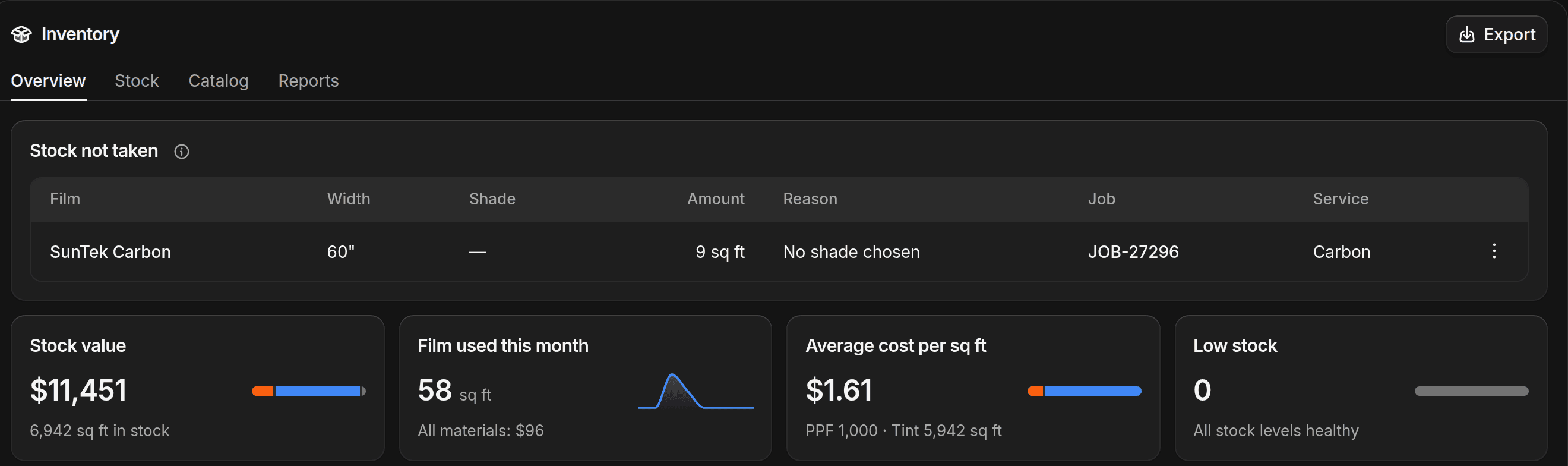
Marking Done never waits for stock. If ShopWrk can't take something, the line goes to Stock not taken on Inventory, and on the job. The reasons include Not in stock, Not enough stock, No shade chosen and Stock item archived. Until you deal with it, the job's profit counts it as an estimated cost.
For each line in Stock not taken, open its menu and either:
- Take from stock, once you've added the film. Choose which stock to take it from.
- Dismiss, with a reason such as "Used an offcut". It won't be taken from stock or counted in profit.
This needs Edit catalog.
If the amounts on a finished service were wrong, click Correct on its Materials, change them and give a reason.
Settings that change this
Under Settings > Inventory:
- Allow negative stock lets Done take stock below zero, which helps if you log deliveries late. It's off by default. With it off, a line that the stock can't cover goes to Stock not taken.
- Require inventory for services stops you adding a service to a job until it has materials. It's off by default.
- Show materials in job form shows the planned materials while you book a job.
Usage, cost and waste over a period are on the Reports tab.