

Set up your services and prices
Add the services you sell, with options, a price and time for each vehicle group, deposit, tax, add-ons, warranty and a document to sign.
Your services are what you pick when you build an estimate or book a job. Each service has one or more options, such as Full Front or Full Body, and each option has its own price and time for every group of vehicles.
You need View services to open the list, Create services to add one, and Edit services to change one. Owners and Admins have all three. Technicians don't have View services unless you add it. Only owners can delete a service by default, because Admins don't have Delete services.
Set up categories and vehicle groups first
Settings > Services lists your categories, like Window Tint or PPF. Click Add category to make one. Drag to reorder, turn one off, or delete it. Deleting a category with services asks where to move them.
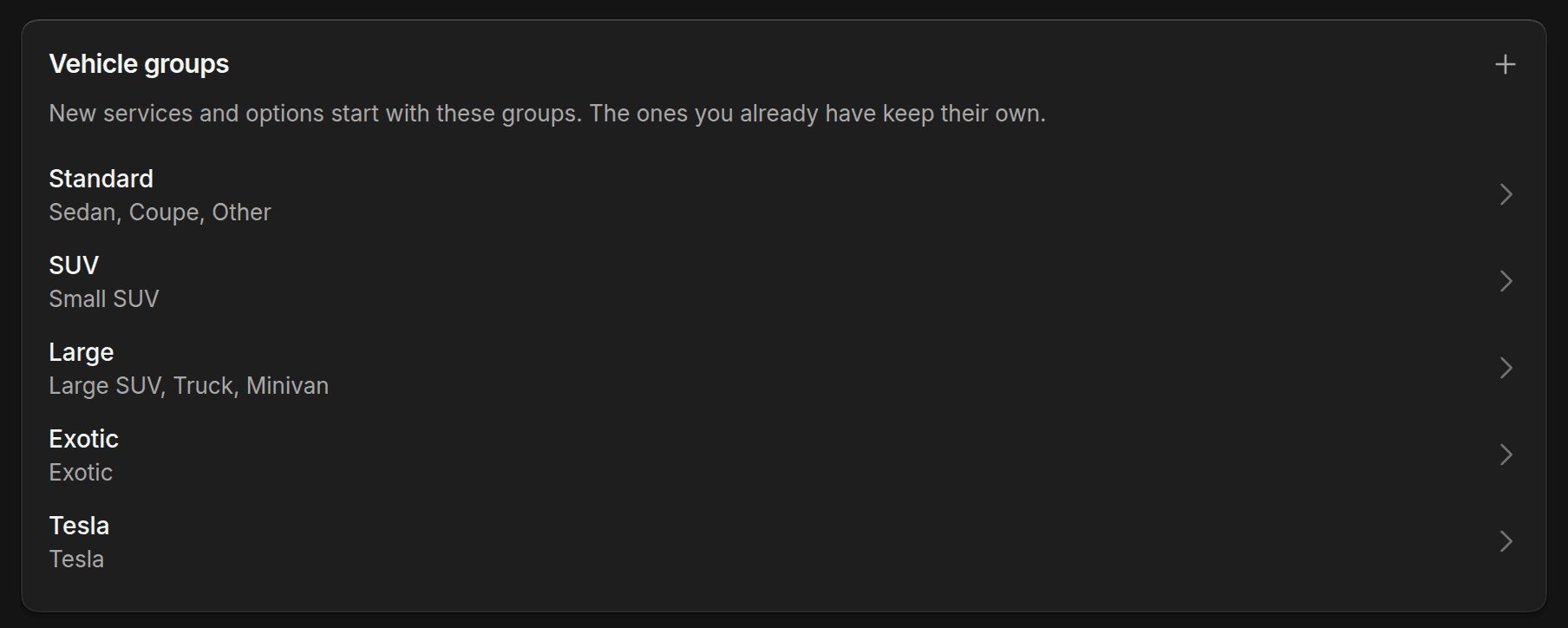
Prices depend on the vehicle, so set up your groups under Settings > Vehicle groups. A group is a name and the vehicle sizes in it. ShopWrk starts you with Standard, SUV, Large, Exotic and Tesla. Click New group, name it, and tick its vehicles (Sedan, Coupe, Small SUV, Large SUV, Truck, Minivan, Exotic, Other, Tesla). A vehicle belongs to one group, so ticking it moves it from its old group. Click Save when you're done.
Changes only affect new options. Existing options keep their own groups. You need Edit settings, which Owners and Admins have.
Add a service
Start the service
Click Services in the sidebar, then New service. Enter a Name, choose a Category and write a Description. Active is on by default. Turn it off to keep the service out of the pickers without deleting it.
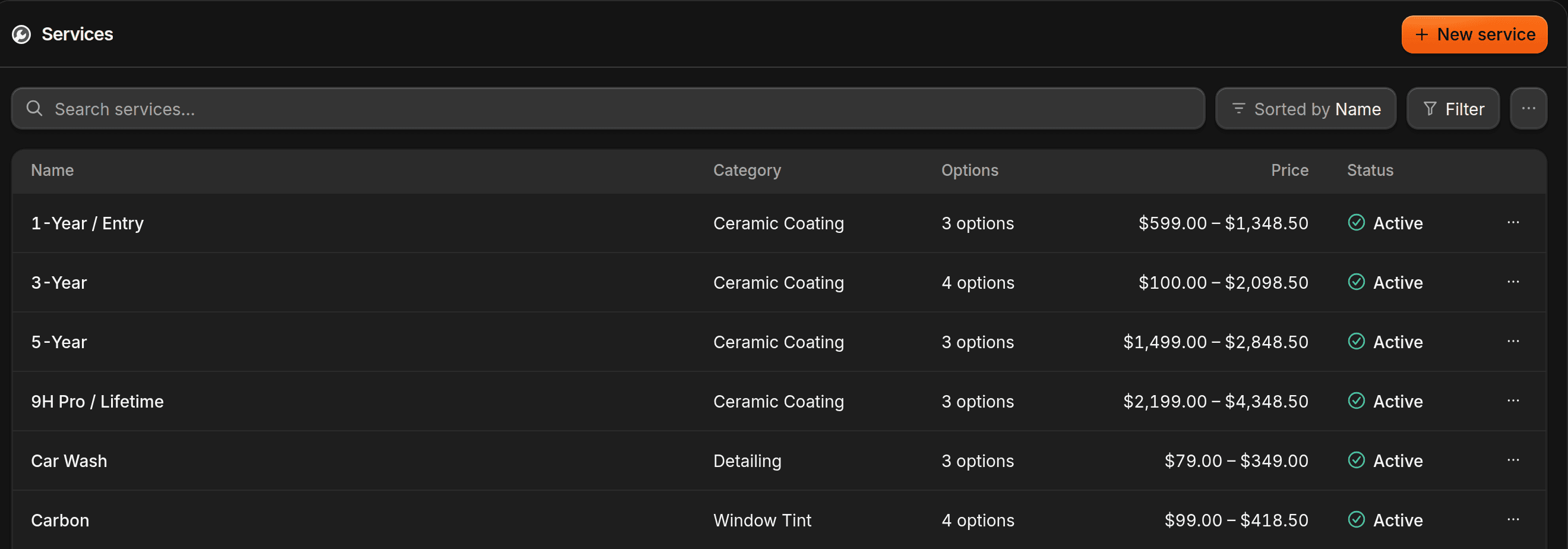
Set the deposit and tax
Under Deposit & tax, set Deposit type to None, Percentage or Fixed amount, then enter the Deposit amount. For Tax rate, choose Default tax, Custom tax (enter a Custom rate) or No tax. Default tax uses your shop's tax rate. See Discounts and tax.
Choose who can do the work
Under Technicians & bays, pick the Technicians and Bays that can take this service.
Add a warranty or a document, if you need one
Turn on Enable warranty and pick a Warranty profile from the ones you made under Settings > Warranties. See Warranties.
To make customers sign something, turn on Require a document under Signed document and pick the Document. Every estimate, job and invoice with this service then asks the customer to sign it. This needs Edit services and Manage templates (under Documents). See Documents. On a new service, the Signed document card appears after you save.
Fill in the options
Open the Options tab. A new service starts with one option. Click Add option for more, such as Good, Better and Best.
Each option has a Name, a Description and a Film, which is the film or coating its panels start on. Under Vehicle group prices, enter a Price and Hours for each group. Use the pencil on a row to change which vehicles are in that group for this option, or New group to add one.
Add panels and materials for PPF and tint
If the service covers panels, such as a full-front PPF kit or window tint, use Panels covered on the option. Click Add panel and pick from the list in Panels. The copy icon copies the panels from another option.
Under Materials, click Add material for other inventory items the work uses. See Inventory.
Save
Click Create service, or Save changes on an existing one.
Every service needs at least one active option. Use the switch on an option to retire it without deleting it. Remove option deletes the option with its prices, panels, materials and checklist. For checklists, see Checklists.
Add-ons
An add-on is another service you offer with this one. On the Add-ons tab, click Add add-on, then choose the Service, which of its Options apply, and the Pricing: Service price, Dollar discount, Percent discount or Custom price. Upsell reason tells staff and ShopWrker when to suggest it. Customers don't see it.
A service can appear once in the add-ons of another service.
If a vehicle isn't getting a price, check that it has a Size. Prices come from the group that size belongs to.
To edit many services at once, use the export and import menu on the Services list. Export a CSV, change it, and upload it with Import services.