

Run a job from the job page
Start the work, finish each service, and mark the job done.
The job page is where the work happens. Open a job from Jobs or the calendar. Each service on it has its own checklist and its own finish step.
Technicians can start jobs and finish services. Cancelling a job needs Delete/cancel jobs, which Owners and Admins have.
Start the job
Click Start job. The job moves to In progress, and Your time starts counting. Only the person assigned to the job sees Start job. Anyone else can set Status to In progress.
If a required document isn't signed yet, ShopWrk stops you and offers to send it or have the customer sign in person. Owners and Admins can click Start anyway. If your shop tracks shifts and you haven't clocked in, ShopWrk offers to clock you in.
Work the checklist
Open a service and tick the steps on Checklist as you go. Some steps need a photo. Click Add photo on those.
Finish each service
Click Finish. Pick a shade for any window still on Decide later. If Materials shows, check how much film you Used and how much was Waste. Then click Mark done.
Mark done stays off until nothing is left. The badge beside it says what's missing, such as "1 step left".
Close out the job
When every service is done, the job is Completed. Click Notify customer to tell them it's ready. If money is still owed, click Collect payment. See Log a payment.
Manager approval
If you want a manager to check the work, turn on Require manager approval when a job is finished under Settings > Services > Approval. Finished jobs then wait in Pending review until an Owner or Admin clicks Approve. To send a service back, they open it and click Send back, with a note for the technician.
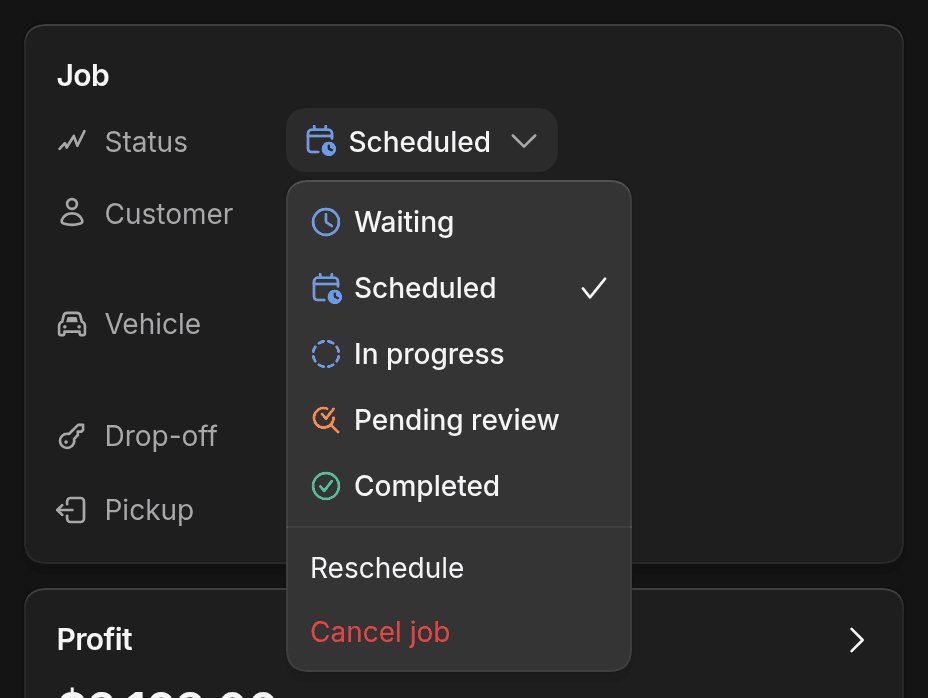
Statuses
| Status | What it means |
|---|---|
| Waiting | Booked, but there's no start time yet. |
| Scheduled | It has a start time. |
| In progress | Work has started. |
| Pending review | The work is done and waiting for a manager. |
| Completed | All the work is done. |
| Rescheduled | Someone moved the job to a new time on the calendar. |
| Cancelled | The job won't happen. Book a new one if the customer comes back. |
Reschedule
Open Status and click Reschedule. Change the times, technician, or bay, then save. Leave the message on to send the customer the new time. You can also drag the job on the calendar.
Cancel or delete a job
Open Status and click Cancel job. You can add a reason, which the customer never sees, and choose whether to text or email them. If they paid, keep the money or refund it.
To delete a job, select it on Jobs and click Delete. You can't undo it. A job can't be deleted once it has a payment, finished work, or stock taken for it. Cancel it instead.
To change the services or the booking, click Edit. It opens the same page you booked the job on.