

Log a cash or cheque payment
Log cash or a cheque against a job, and see card payments that come in from the invoice link.
When a customer pays in cash or by cheque, log it against their job. It lowers what they owe and sends them a receipt. Card payments from the invoice link are recorded for you.
You need Log cash payments or Log cheque payments. Owners and Admins have both. Technicians don't, unless you add them.
Open Log payment
On the job, click Collect payment, then Cash or Cheque. You can also start from Payments: click Create, then Log payment.
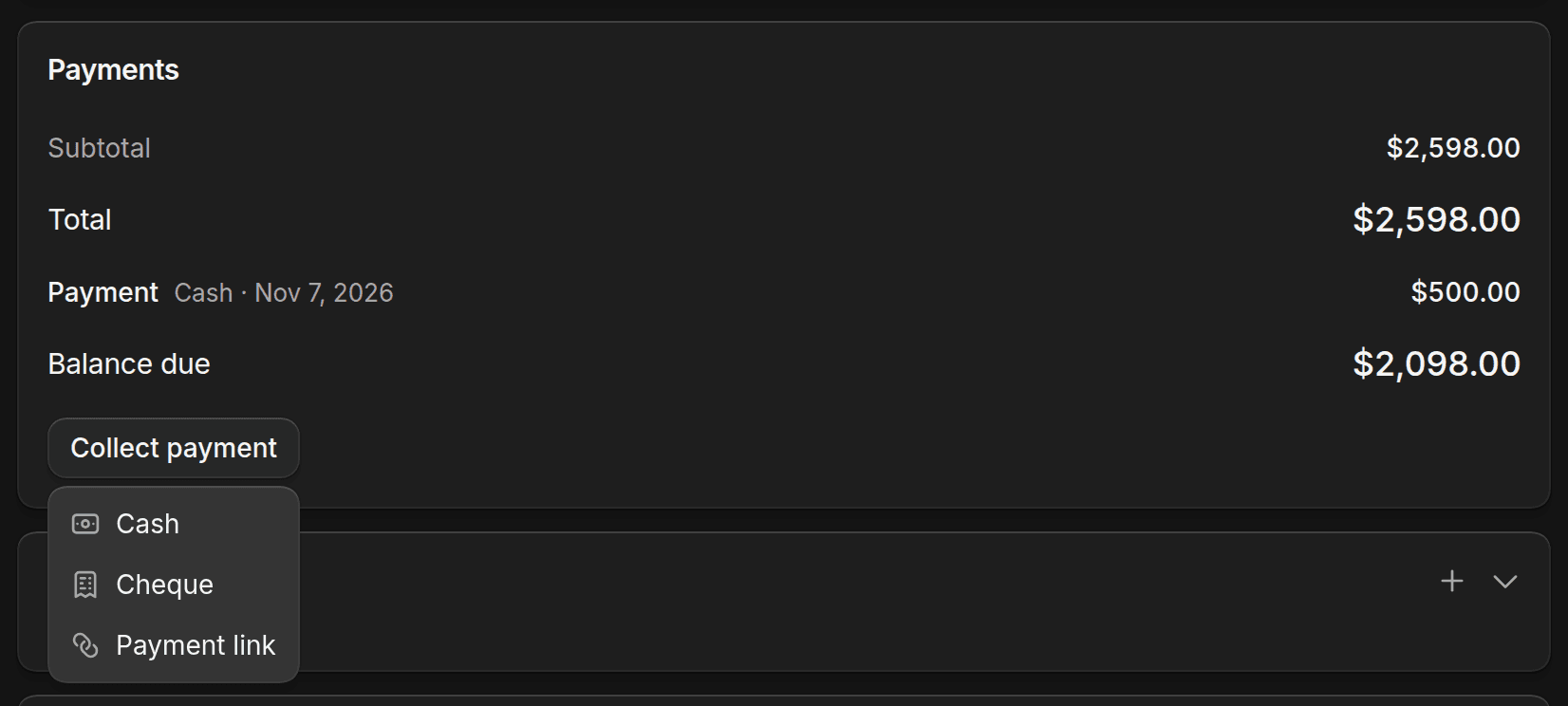
Enter the amount
If you started from Payments, pick the Job first. Click Full balance to fill in what's left, or type a smaller amount. A cheque needs its Cheque number.
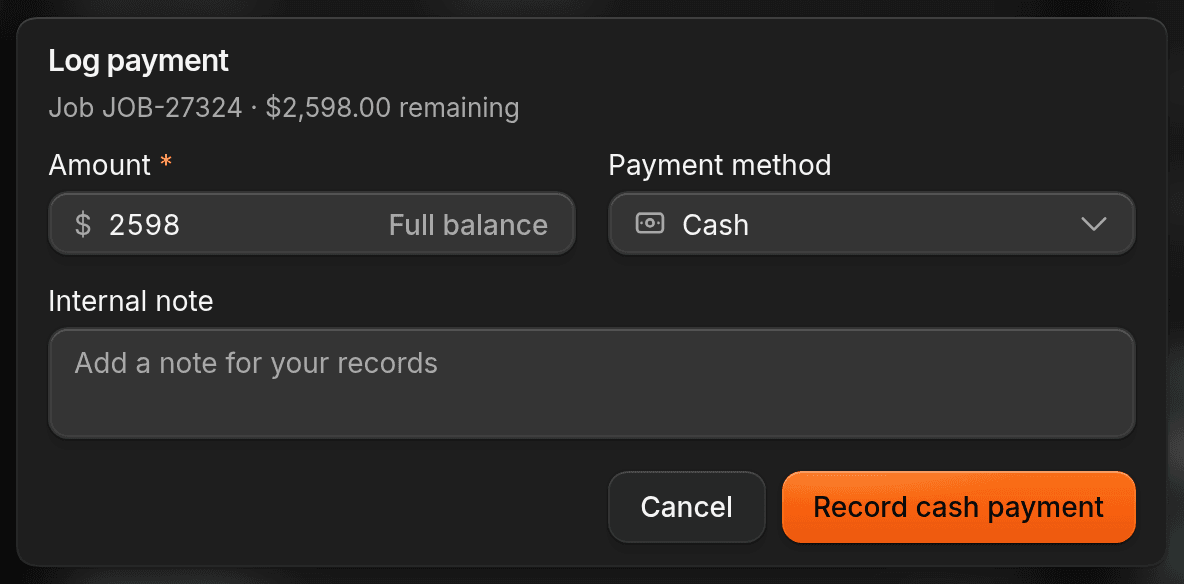
Save it
Click Record cash payment or Record cheque payment. If the customer has an email address, ShopWrk emails them a receipt.
Part payments
You can record less than the full balance. The invoice shows Partly paid until the rest comes in. A deposit on an estimate is the exception: record it in full.
A payment needs a job with an invoice. Booking a job creates its invoice, so this is only a problem for invoices made without a job.
Where payments show up
Every payment shows on the job and on its invoice, and the balance drops. Cash and cheques are also listed under Payments > Cash & Cheque.
Card payments show on the invoice with the card, such as Visa ending 4242. They don't appear under Cash & Cheque. A card payment that's still going through shows Processing. Customers pay the full amount on the link and can't type in a smaller one. To take part of a balance, record cash or a cheque.
Send a receipt again
Open the invoice, click More invoice actions, then Send receipt. The customer needs an email address on file.