

Create and send an invoice
Bill the work and send the customer a link they can pay from.
An invoice is the bill for the work. Every job gets one when you book it, so most of the time you're finishing an invoice that already exists. The customer pays from a link, with no account needed.
You need Create invoices and Send invoices. Owners and Admins have both. Technicians don't, unless you add them.
Open the invoice
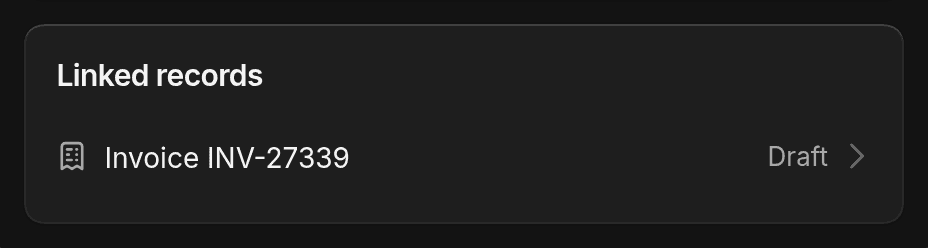
For a booked job, open the job and click its invoice under Linked records.
For work without a job, open Payments, then Invoices. Click Create, then Invoice. Or, on a contact, click +, then New invoice.
Check the customer and the services
From a job, the customer, vehicle, and services are already there. Otherwise, pick the customer and vehicle, then click + on Services to add the work. For work that isn't in your catalog, click Custom line.
To take money off, see Discounts and tax.
Set the deposit and due date
On a job's invoice, click Edit first.
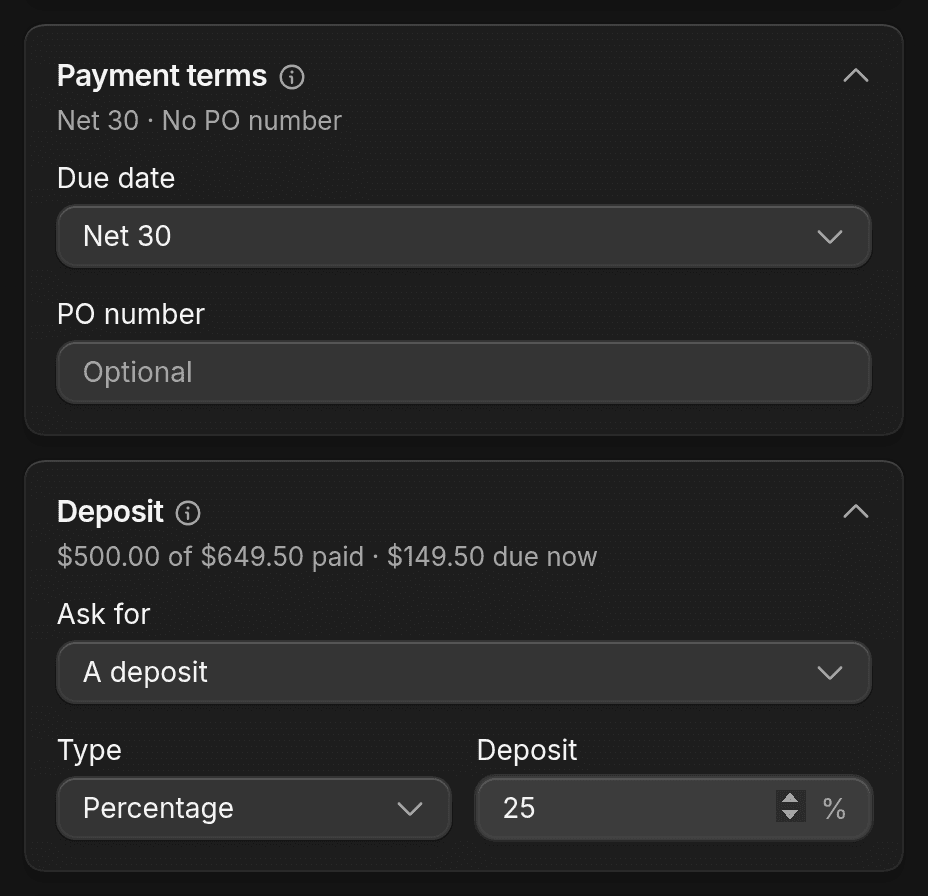
To collect part of the price first, open Deposit, set Ask for to A deposit, then enter a percentage or a flat amount.
Under Payment terms, pick a Due date, such as Due on receipt or Net 30. It starts at your shop's payment terms. The invoice is overdue the day after.
Send it
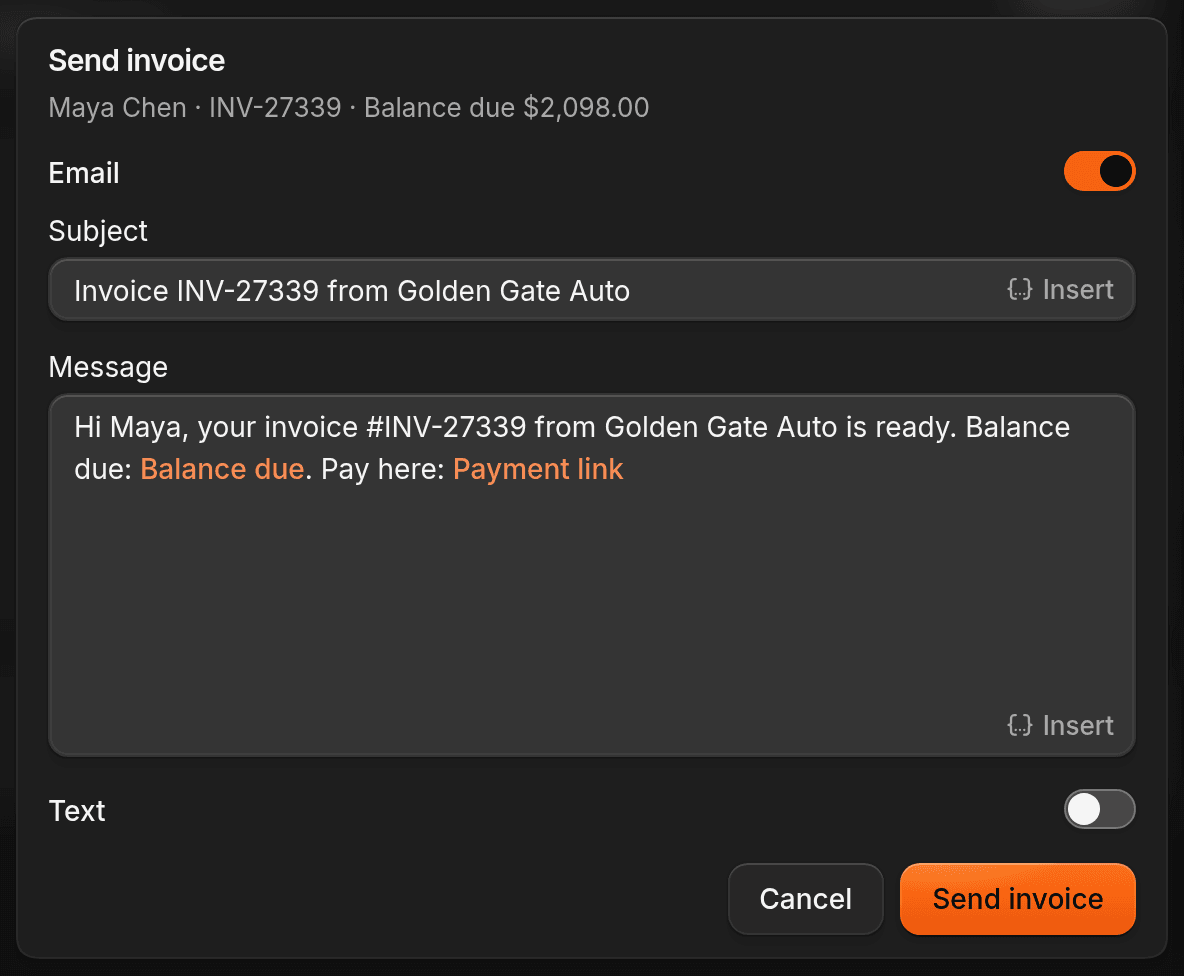
On a job's invoice, click Send invoice at the top. Leave Email, Text, or both on, then click Send invoice.
On a new invoice you built from Create, click Continue instead, then Send invoice. Click Save as draft if you're not ready. Customers can't see drafts.
Leave the invoice number and the invoice link in the message. ShopWrk fills them in when it sends.
If you change an invoice after sending it, ShopWrk asks whether to send the customer the new version.
What the customer sees
The link shows the services, the payments so far, and what's left to pay. They tap Pay and pay by card, Apple Pay, Google Pay, or bank, depending on what you've turned on in ShopWrk Pay. If a document needs signing first, they sign it before they pay. Afterwards they can open their receipt.
Without ShopWrk Pay, the page shows your phone number so they can pay you another way. To log that payment, see Log a payment.
The link works for 90 days after you send it. Sending again restarts the 90 days.
Payment reminders
ShopWrk sends a reminder one day after an invoice is overdue. To add reminders before or after the due date, go to Settings > Notifications > Reminders and edit Unpaid invoices.
To nudge someone now, open the overdue invoice, click More invoice actions, then Send reminder.
Invoice statuses
| Status | What it means |
|---|---|
| Draft | Not sent. The customer can't see it. |
| Sent | Sent, but the customer hasn't opened it. |
| Viewed | The customer opened it. |
| Partly paid | Some of it is paid. |
| Overdue | Past the due date with money still owed. |
| Paid | Nothing left to pay. |
| Send failed | The email or text didn't go through. Check the contact details and send again. |
| Refunded or Partially refunded | Some or all of the money went back. See Refunds. |
| Disputed | The customer disputed a card payment with their bank. Nobody can pay or refund it until the bank decides. See Disputes. |
| Void | Cancelled. It can't be paid. |
Texting needs the Pro or Autopilot plan. On Essential, the email still goes out.