

Track deals in the pipeline
Follow each sale from first inquiry to a booked job on the CRM board.
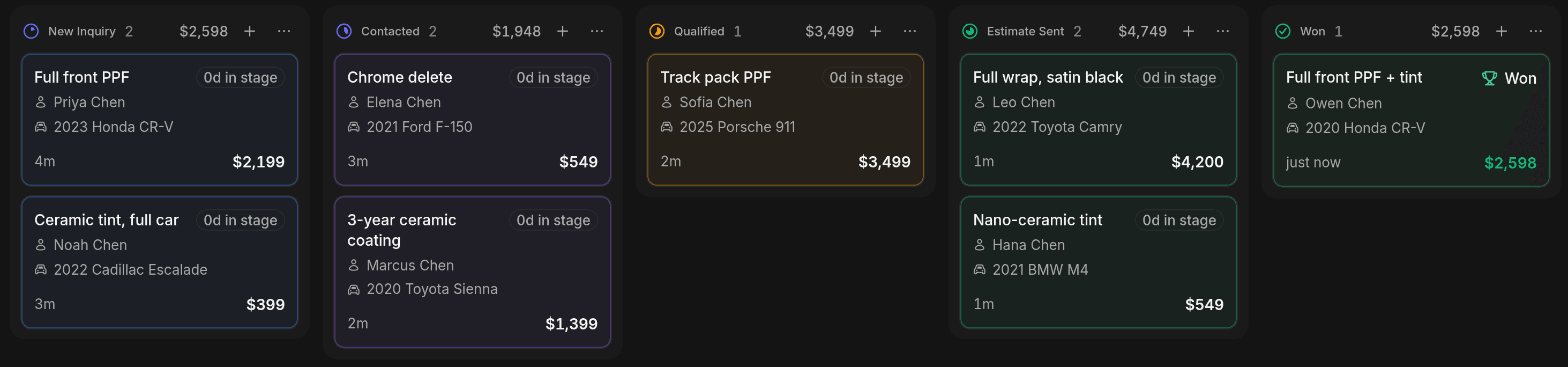
A deal is one buying decision for one contact and one vehicle. A contact can have several deals, such as a tint job on one car and PPF on another. Each deal sits in one stage of a pipeline, and you move it along until it's won or lost.
CRM shows in the sidebar for Owners and Admins. You need View deals to open it, and Create deals or Edit deals to change deals. Technicians don't have these unless you add them.
Add a deal
Open the board
Under Contacts, open CRM. The board opens on Pipeline, with one column per stage. Click Add Deal, or the + at the top of a stage to start in that stage.
Pick the contact and vehicle
Search for the contact, then pick their vehicle. For someone new, create them right in the form. They're added as a Lead. See contacts.
Add services and a title
Add the services they want and give the deal a Deal title. Value follows the services you add, or you can type your own.
Set the stage and owner
Pick the Stage and who the deal is Assigned to. You can also set a Source, Tags, and Notes. Click Create deal.
You can also start a deal from a contact's page. Open the contact and click + on Active deals.
Move a deal
Drag a card to another column. Or click the card, and change Stage in the panel that opens beside the board. Every move is logged on the contact's Activity tab.
Two stages ask for more:
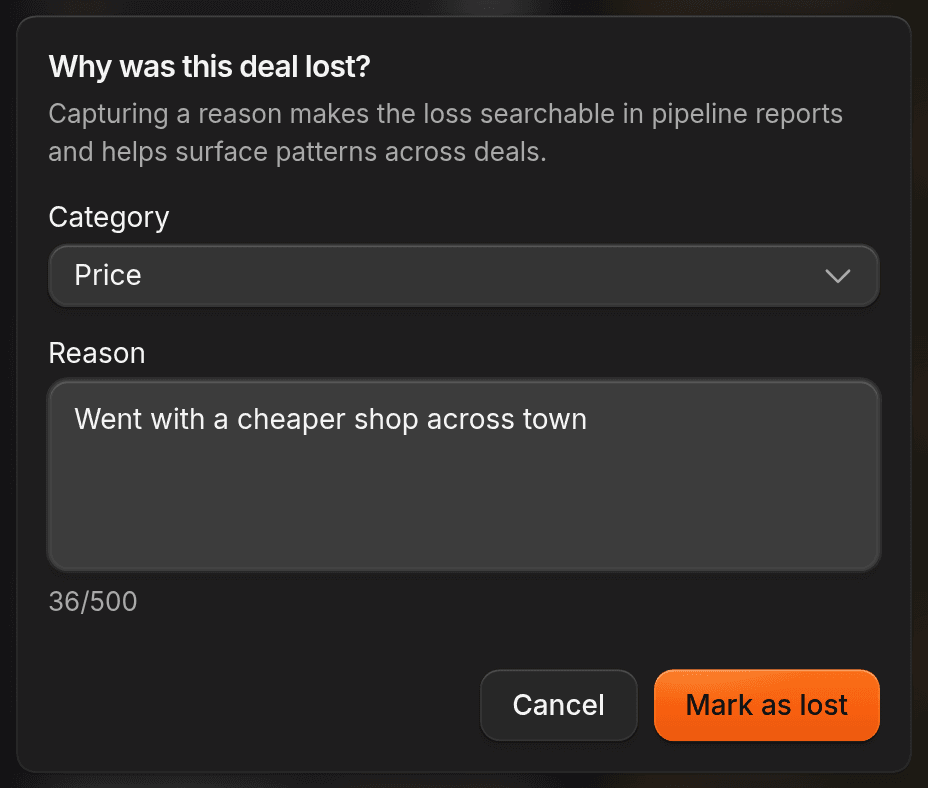
- Lost. ShopWrk asks Why was this deal lost? Pick a Category (Price, Timing, Lost to competitor, No response, or Other), write the Reason, and click Mark as lost. If you cancel, the card goes back. A reason is required.
- Won. If the deal has no job yet, ShopWrk asks Deal won. Book the job now? Click Book now to open job booking with the customer, vehicle, and services already filled in. Click Not now to book later.
If a service on the deal has no price, ShopWrk won't open booking from the deal until you price it.
Turn a deal into an estimate, invoice, or job
Click a deal to open it. Click New, then choose:
- Estimate builds an estimate for this deal's contact and vehicle. Once one exists, the item reads View estimate.
- Invoice works the same way, and becomes View invoice.
- Booking opens job booking. Once the deal has a job, it becomes View job.
The deal also has Message and Call buttons, and Note and Task under New. See Estimates, Book a job, and Invoices.
Switch to the list
The menu at the top of the board switches between Pipeline and List. Both show the same deals. Use List to work down a table instead of dragging cards.
Stages and pipelines
New shops start with three pipelines: New Leads (the default), Estimate Follow-up, and Customer Upsell. New Leads runs New Inquiry, Contacted, Qualified, Estimate Sent, Won, and Lost.
To rename stages or add a pipeline, go to CRM settings. That takes Manage pipelines, which Owners and Admins have.
Where deals come from
You add deals by hand, and some arrive on their own:
- When a customer fills in a web form or Meta lead form that you picked for Lead Closer, ShopWrk creates a deal in the first open stage of the pipeline Lead Closer uses, with the form's service and where the lead came from.
- When Lead Closer is texting a lead who asks for a specific service, it adds the request to a deal. It reopens a lost deal if the customer comes back to it.
- Automations can create and move deals. See Automations.
Delete a deal
Open the deal, click More actions, then Delete deal. You need Delete deals. A deleted deal can't be restored.