

Manage your contacts
Add contacts, keep their vehicles, see their history, merge duplicates, and delete them.
A contact is one person you do business with. A contact is either a Lead or a Customer. Jobs, estimates, invoices, deals, and messages all hang off the same contact, so you find everything about someone in one place.
Contacts shows in the sidebar for Owners and Admins. Technicians don't have contact permissions unless you add them.
Add a contact
Open the form
Under Contacts, open Contacts, then click Add contact.
Choose Customer or Lead
Under Contact type, pick Customer for someone who already pays you. Pick Lead for someone who hasn't booked yet.
Fill in the details
Enter a first name and a phone number or an email. Last name is optional. You can add a vehicle now, but you don't have to.
If a vehicle is partly filled in, ShopWrk asks for the make and model.
Create the contact
Click Create contact. If someone in your shop already has that phone number or email, ShopWrk says Contact already exists. Click Open existing to go to their page instead of making a second one.
You can't add a deal from this form. Add one from the contact's page or from the pipeline.
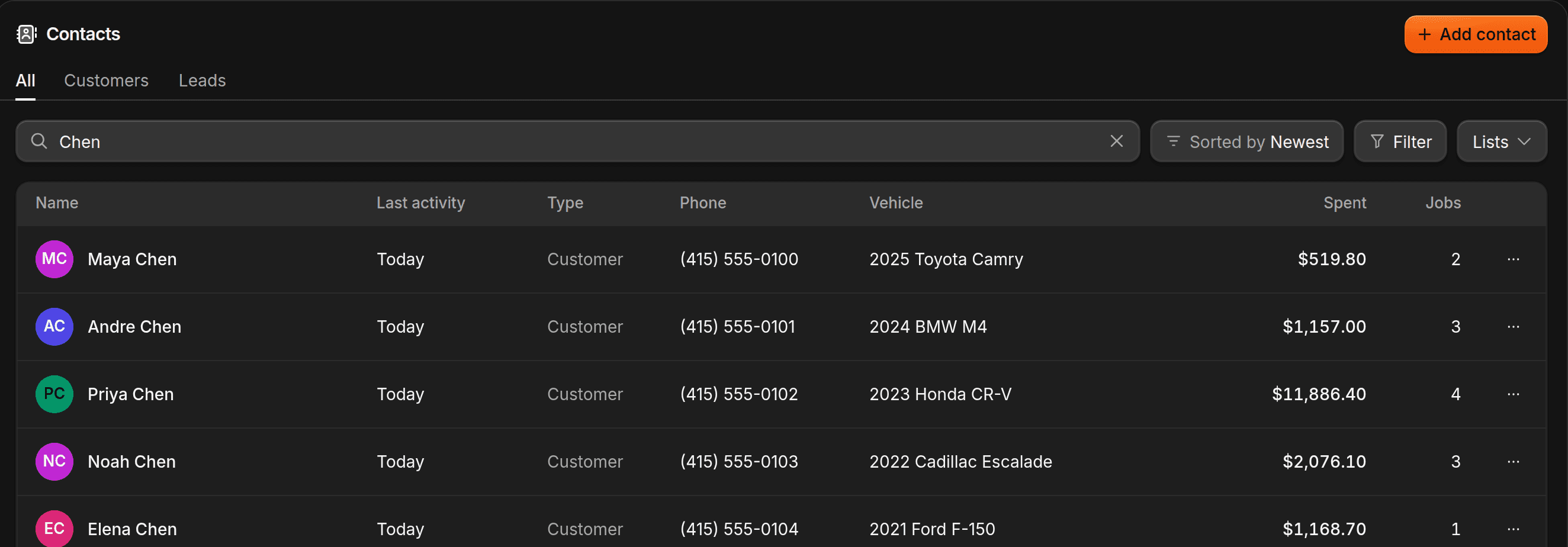
Find a contact
The tabs on Contacts are All, Customers, and Leads. Search by name, email, or phone. Use the filters to narrow the list by Vehicle, Last visit, Jobs, or Spend. That's a quick way to pull your best customers for a follow-up.
To keep a set of filters, click Lists, then New list. A list is shared with everyone in your shop and updates as contacts change.
What's on a contact's page
Click a contact to open their page. The row under their name says Customer or Lead. Click it to switch. A contact becomes a Customer when they make a payment, or when you change it here.
The tabs are:
- Overview has Details (name, phone, email, tags, Owner, Source), Recent jobs, Vehicles, and Active deals. Click any detail to edit it, if you have Edit contacts.
- Jobs & billing has every job, plus Invoices & estimates.
- Files & forms has Documents and Form submissions.
- Notes & tasks holds notes and tasks you add for this contact.
- Activity is a timeline of what happened: jobs, estimates, invoices, payments, notes, deal moves, forms filled in, and website visits.
The Messages pane on the right is the text and email thread with this contact. To work from the full inbox, click Open in Conversations. See Conversations.
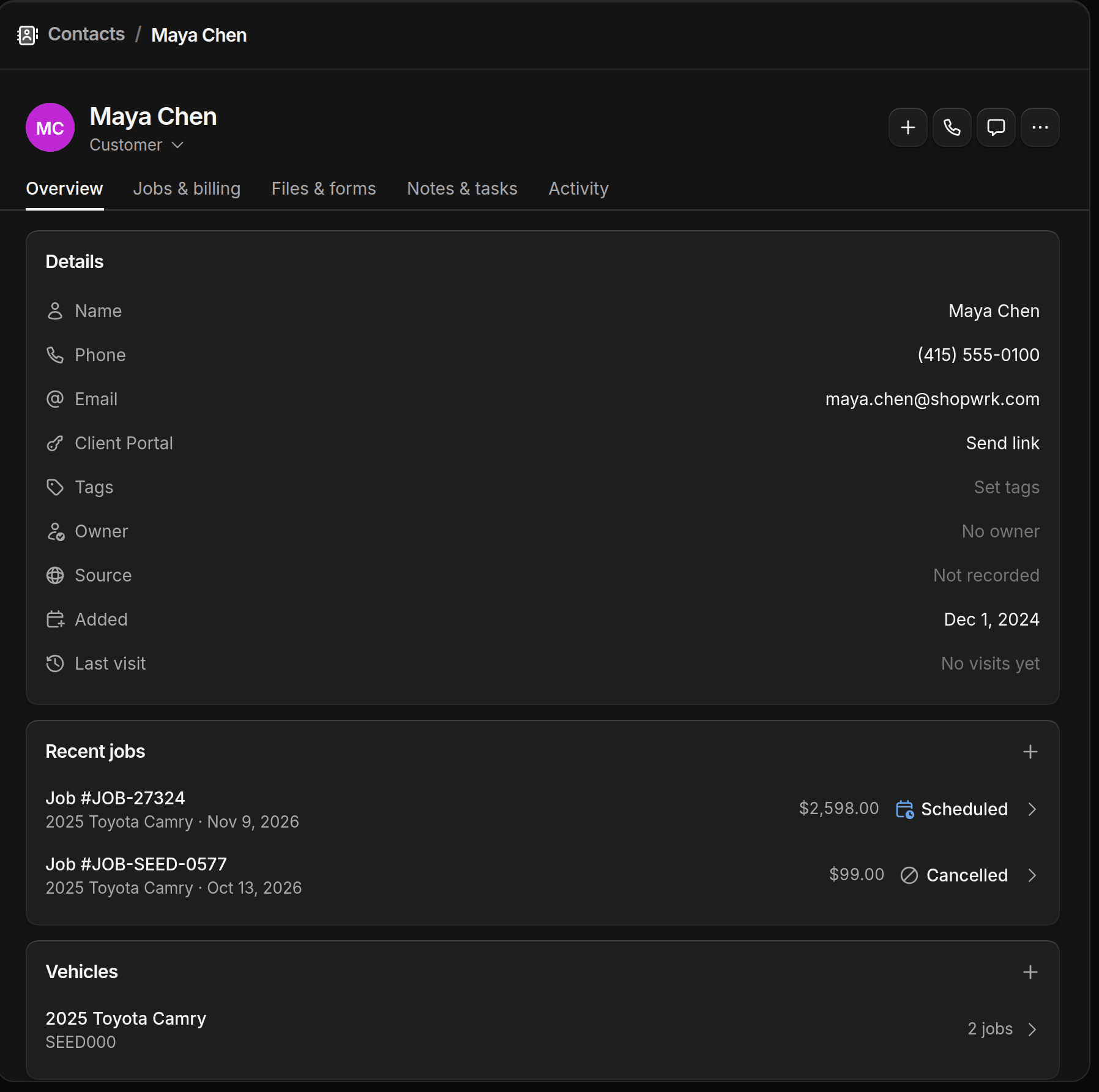
The + button at the top of the page starts work for this contact: Book job, New estimate, New invoice, Log payment, New note, or New task. You only see the ones you have permission for.
The Call and Text buttons next to it ring the contact or open the Messages pane. Call is greyed out when the contact has no phone number.
Add or change a vehicle
On Overview, click + on the Vehicles card. In the panel that opens, click Add vehicle, or edit or remove one that's there. Click a vehicle in the card to see its details. Each vehicle shows how many jobs it has had.
If the contact has more than one car, you pick which one when you book a job or build an estimate.
Merge duplicates
When another contact shares this one's phone number or email, a Possible duplicate banner shows at the top of the page. Click Review & merge. To merge on your own, click More actions at the top right, then Merge contact, and search for the other profile.
Pick the other contact
Search by name, email, or phone and choose the profile of the same person.
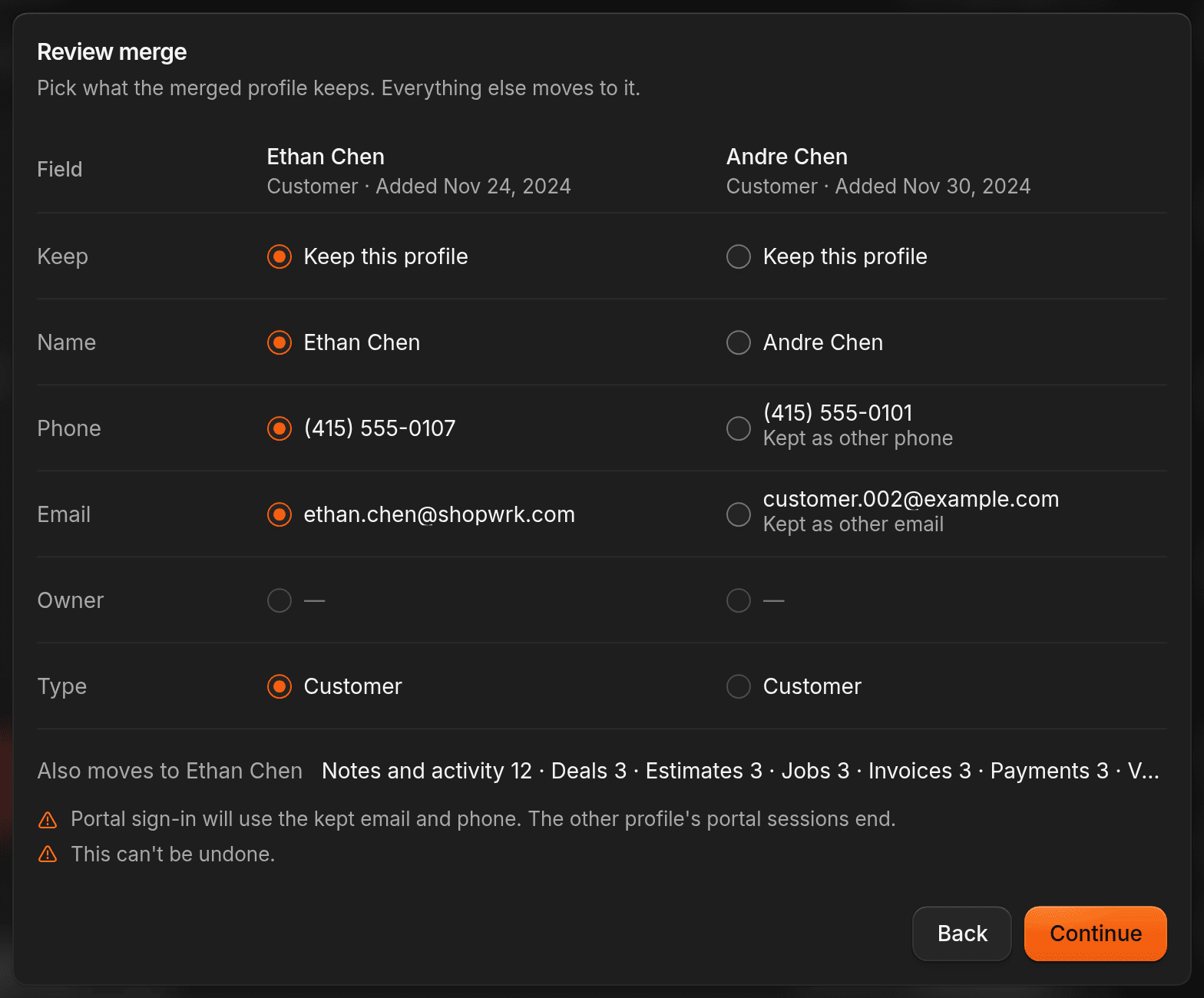
Choose what to keep
Review the two profiles side by side. Pick which one to keep and which phone, email, and other details the merged contact uses. Click Continue.
Confirm
Click Merge contacts. The other profile is removed and everything on it moves to the one you kept. No messages are sent. You can't undo a merge.
To hide a banner for now, click the X on it. It comes back if a new match turns up.
Delete a contact
You need Delete contacts. Click More actions, then Delete contact, then Delete.
A contact with jobs or payments is hidden, not erased. A contact with no history is removed for good.