

Send an estimate
Build an estimate on one page and send the customer a link they can approve.
An estimate is the price you send before you book the work. You build it on one page and send it by text or email. The customer opens the link and approves it. If you set it up first, approval can create the invoice, or a deposit the customer pays from the link.
You need the Create estimates and Send estimates permissions. Owners and Admins have both. Technicians don't, unless you add them.
Start an estimate
Under Business, open Payments, then Estimates. Click Create, then Estimate.
On a contact, click +, then New estimate. That person is already on it.

Pick the customer and the vehicle
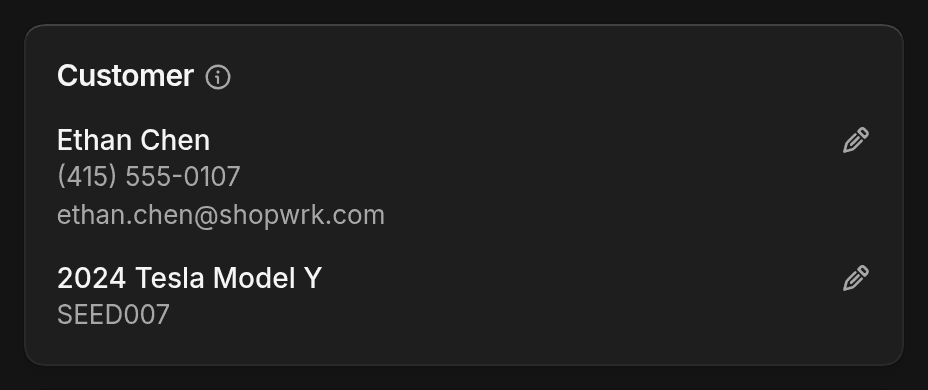
Search by name or phone, then pick the vehicle. Click New customer for a new person, or Add vehicle for a new vehicle. If ShopWrk can't tell the vehicle's pricing group, it asks Which pricing group is this? Teslas go in the Tesla group automatically.
Add the services
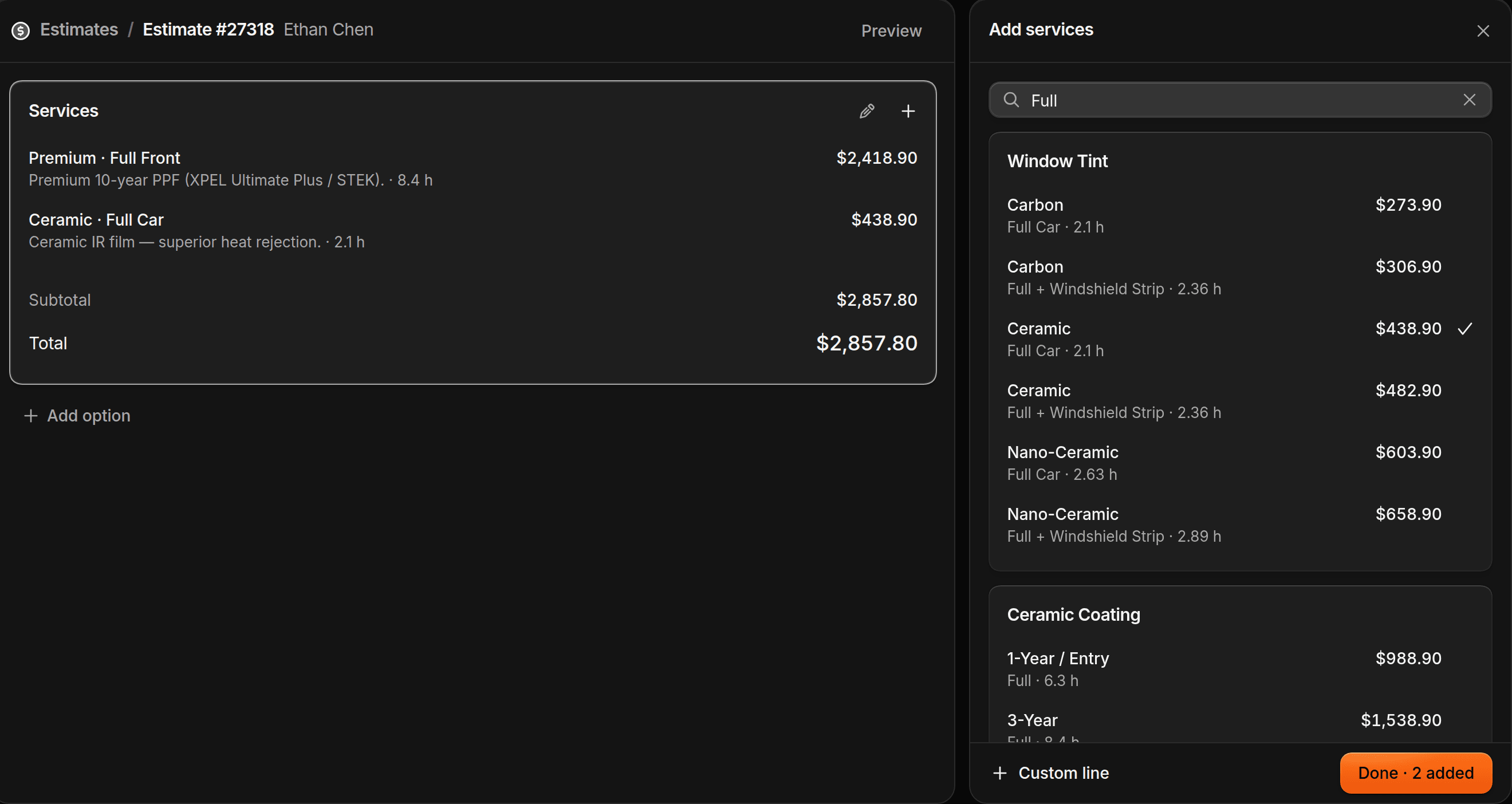
On Services, click + to open Add services. Add the work, such as full-front PPF. For work that isn't in the catalog, click Custom line, set Name and Price, then click Add to estimate. Click Done.
If the service has panels, set the panels on the line and the shade on each window. Decide later leaves the shade for drop-off.
Decide what approval does
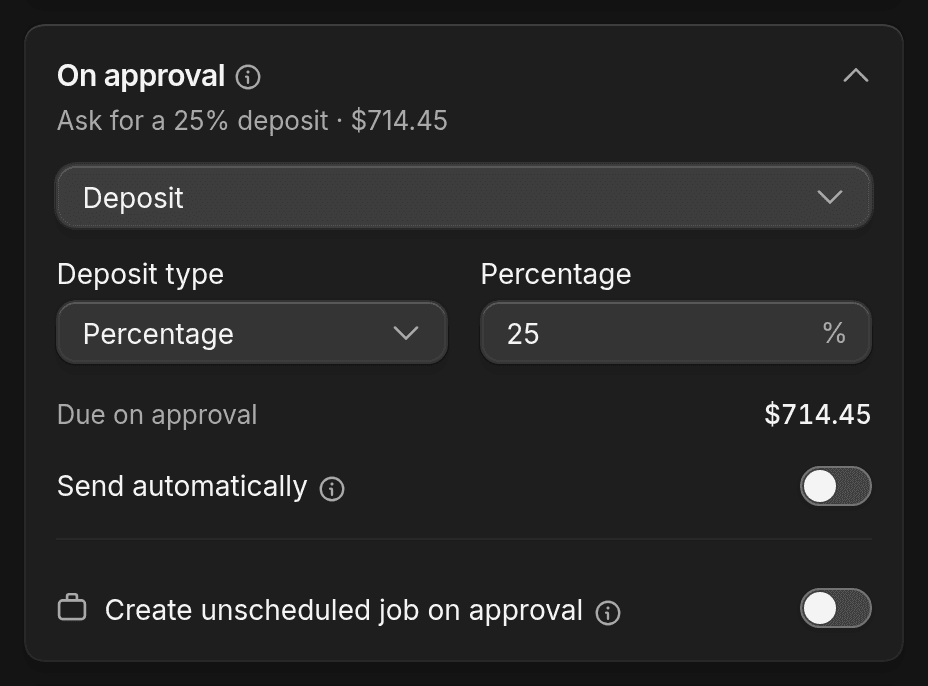
Under On approval, choose what happens when the customer says yes:
- Do nothing. The customer doesn't get an invoice. You take it from there.
- Full invoice. ShopWrk creates an invoice for the full price.
- Deposit. The customer pays part of the price when they approve. It starts at 25%. To charge a flat amount instead, change Deposit type. Deposits need ShopWrk Pay set up first.
The invoice stays a draft until you send it. To have it go to the customer as soon as they approve, turn on Send automatically.
To have a job ready when they approve, turn on Create unscheduled job on approval. You pick the date later.
Send it
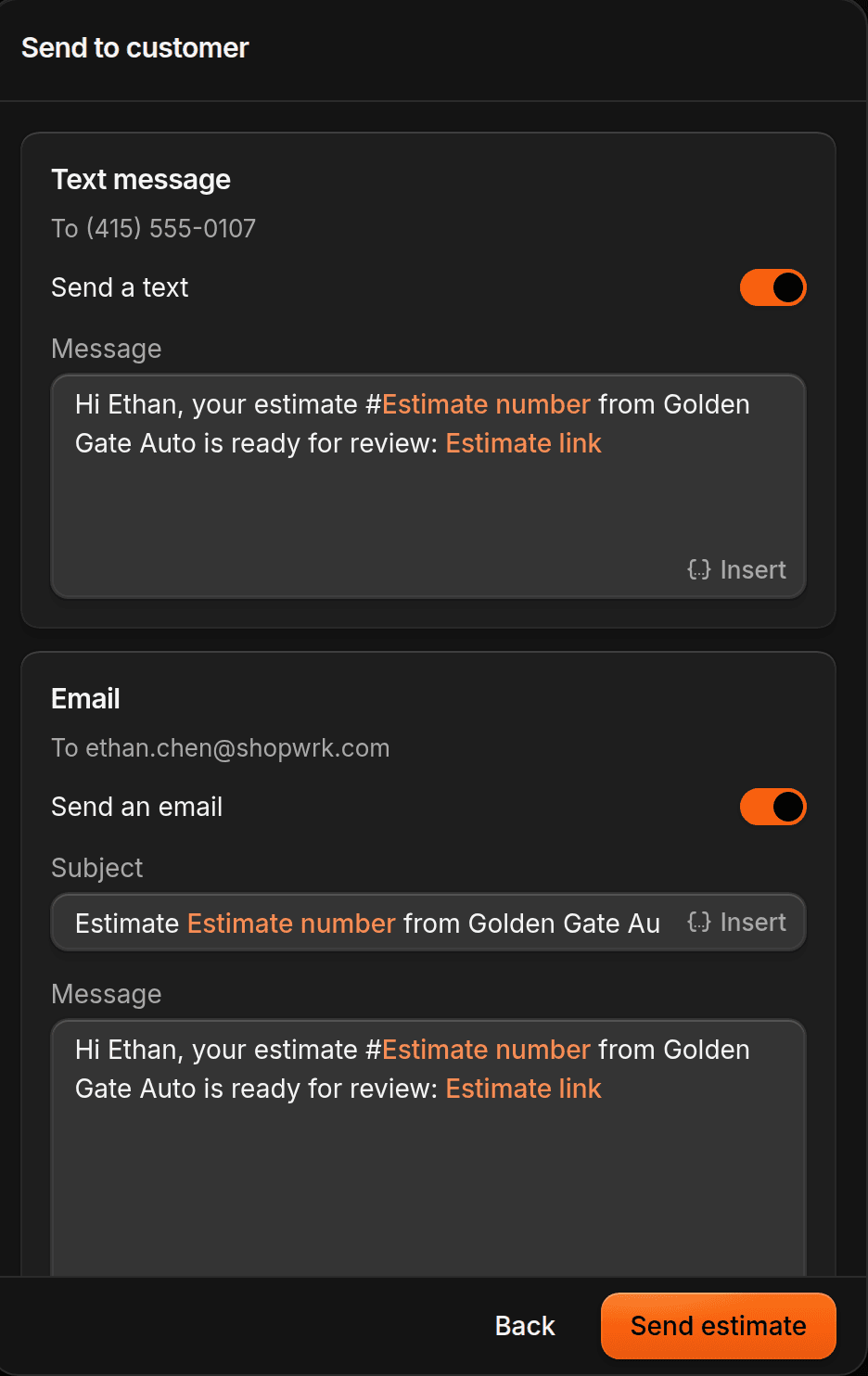
Click Continue. Leave Send a text, Send an email, or both on, then click Send estimate. If the customer isn't ready, click Save as draft instead of Continue.
The customer's name is already in the message. Leave Estimate number and Estimate link where they are. ShopWrk fills both in when the message sends.
Offer up to 3 options
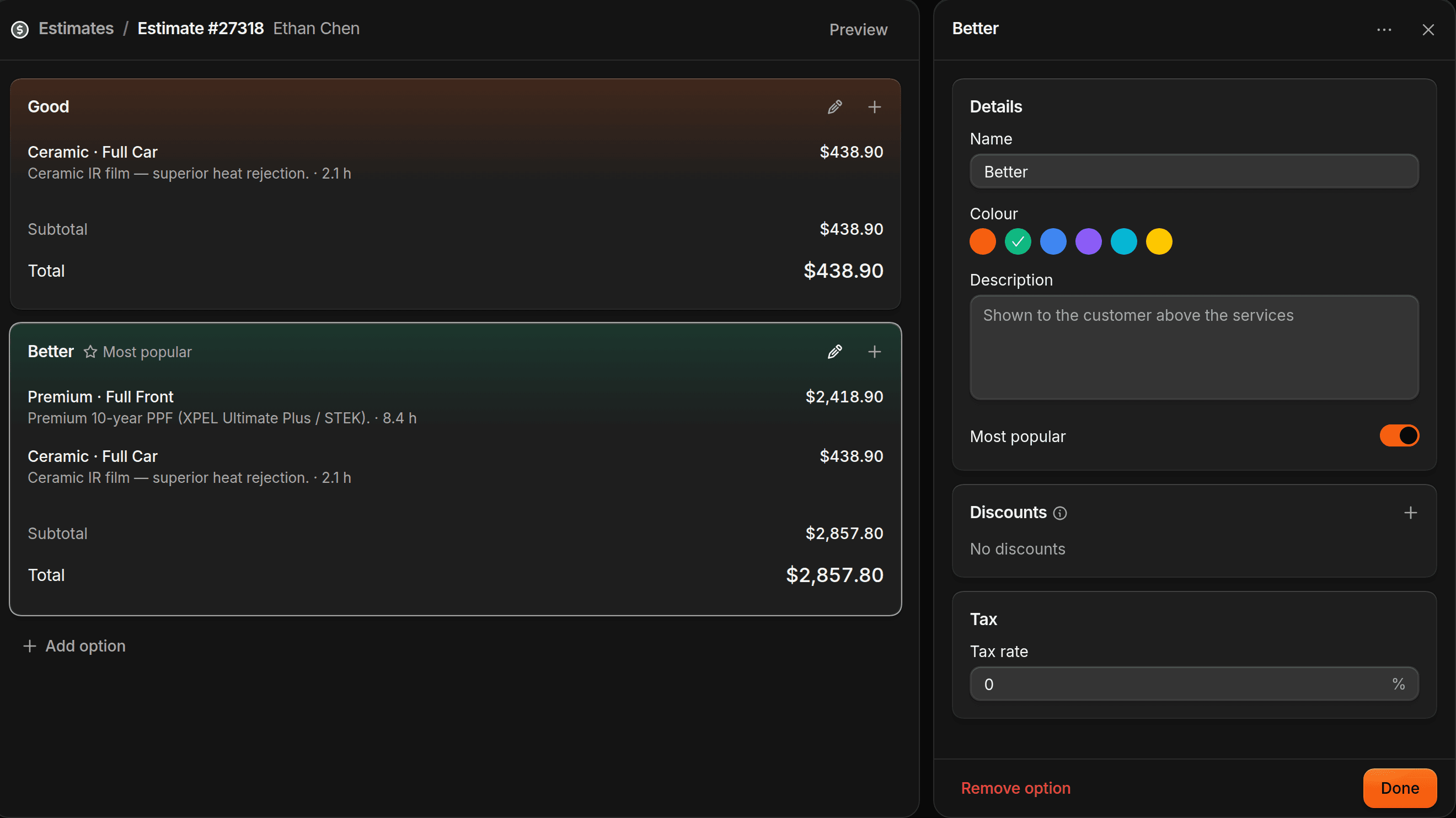
Click Add option to copy the services into another price. You can have 3 options. ShopWrk names any option you haven't named Good, then Better, then Best. Click the pencil on an option, set Name, and turn on Most popular for the one you want them to pick.
If you leave Most popular off and send exactly 3 options, the customer sees the middle one marked Most popular.
What the customer sees
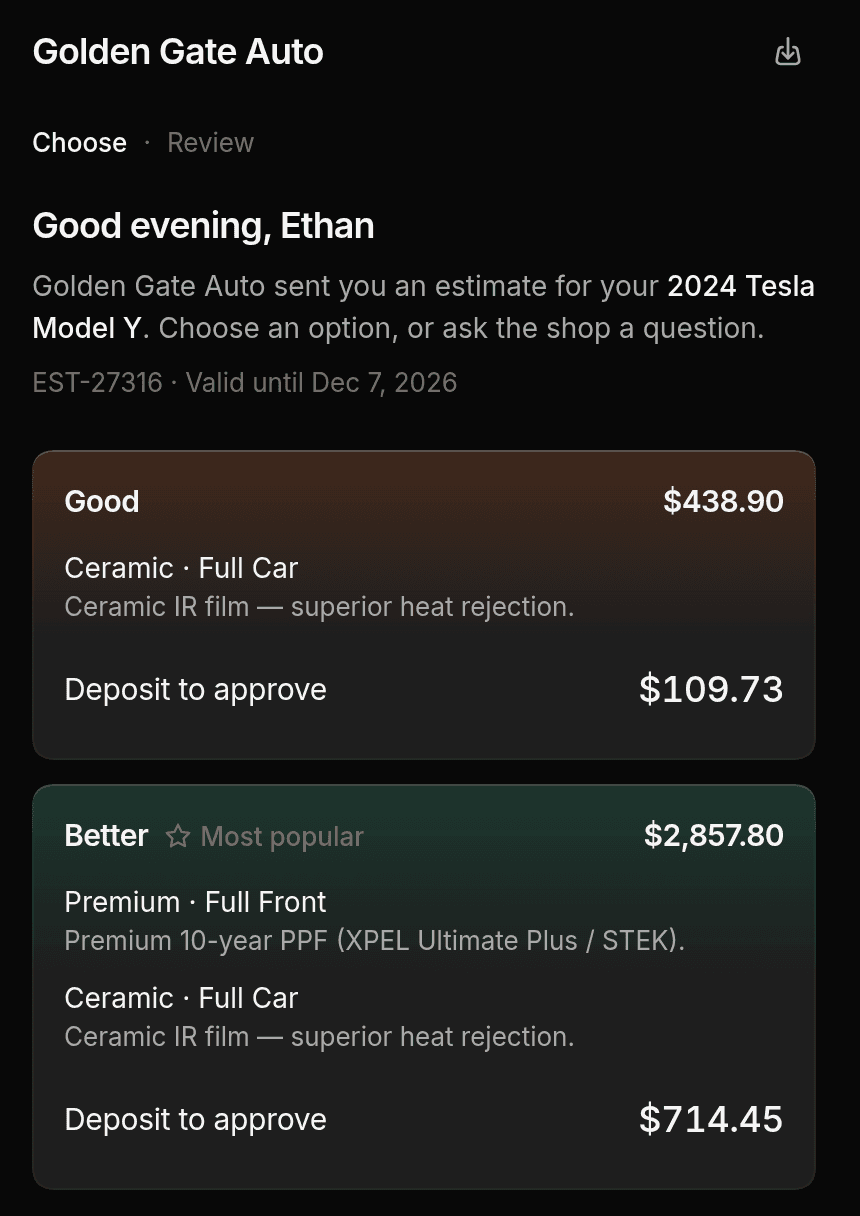
The customer opens the link and approves it there. They don't create a ShopWrk account. With one price, they review the services. With more than one, they pick an option. Add-ons you left off the estimate show up priced for their vehicle. They can add those, then tap Approve. If a deposit is due, the button is Approve & Pay.
They can tap Decline estimate. The reason is optional. A question from the page shows up in Conversations, on the Client Portal channel, and your reply goes back to that page. If a service requires a document, they sign it there.
The link takes approvals for 30 days. To change that, set Expires on before you send.
Statuses
| Status | What it means |
|---|---|
| Draft | Not sent yet. |
| Sent | Sent, and the customer hasn't opened it. |
| Viewed | The customer opened the link. |
| Approved | The customer approved it. |
| Declined | The customer declined it. |
| Expired | The date passed with no approval. |
| Converted | It became a job. This badge replaces Approved. |
On the Estimates tab, Awaiting review is Sent and Viewed together.
If you open the link while signed in to the shop, ShopWrk leaves a sent estimate on Sent.
You can still create the job from an approved estimate after Expires on. The date only blocks a new approval.
Price not set
A line that says Price not set has no price for this vehicle's group. Set that price under Operations > Services, or remove the line. You can't send until every line has a price, and each option needs at least one service.
Texting
Texting needs the Pro or Autopilot plan. On Essential, send estimates by email. To upgrade, go to Settings > Billing.
Related: Services, ShopWrk Pay, Jobs, Invoices.