

Set up ShopWrk Pay
Turn on ShopWrk Pay so customers can pay by card or from their bank, and track your payouts.
ShopWrk Pay lets customers pay estimates and invoices by card or straight from their bank. The money goes to your bank in payouts. Your ShopWrk subscription is billed separately, under Billing.
Only the owner can set up ShopWrk Pay.
Open ShopWrk Pay
Click your name at the bottom of the sidebar, then Settings. Under Payments, open Payments. You start on ShopWrk Pay.
Fill in the application
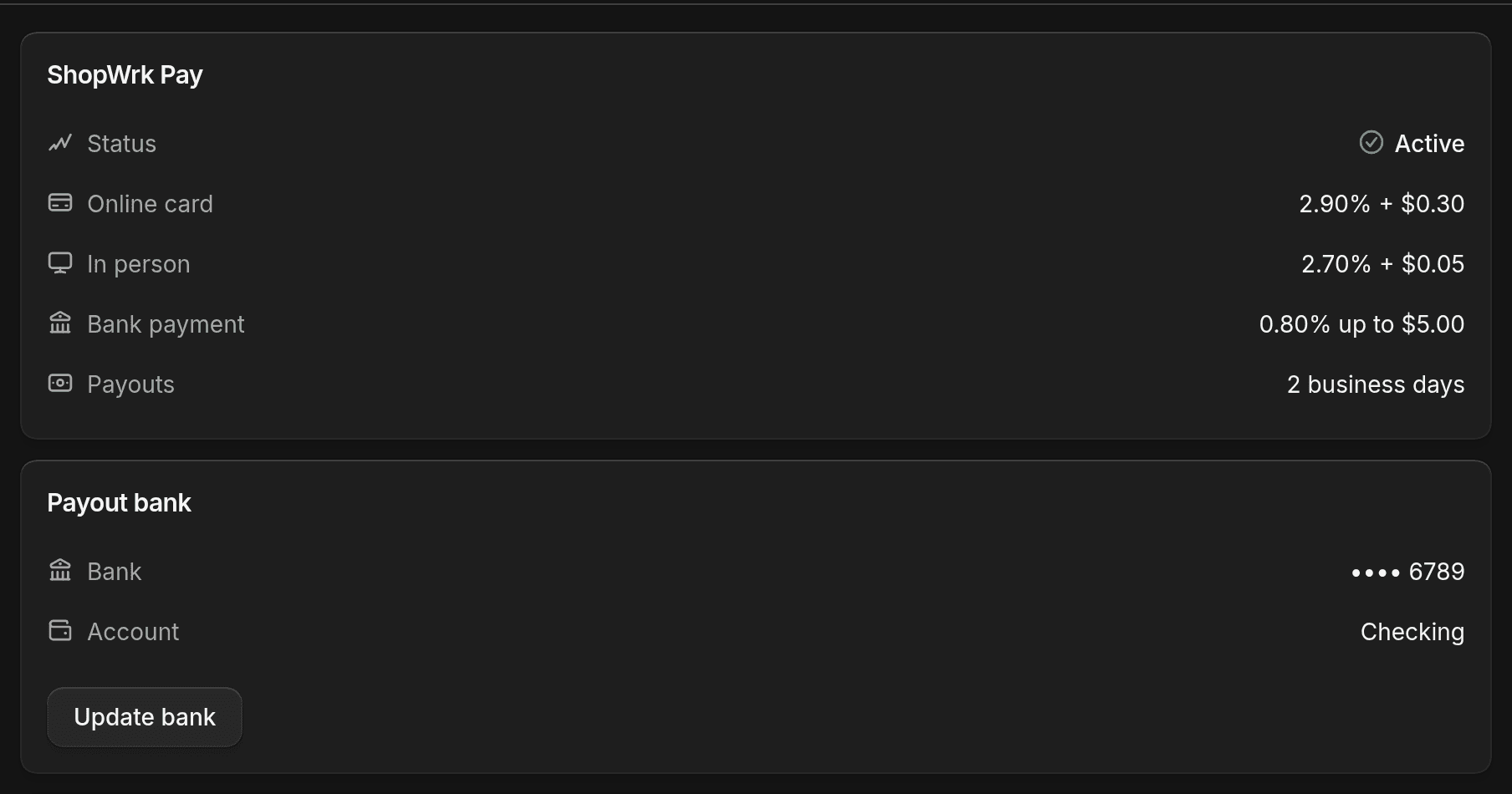
Click Set up ShopWrk Pay and fill in the application. If you stop partway, click Continue setup to pick up where you left off.
Wait for approval
Review takes 1 to 2 business days. Status shows In review until then. If ShopWrk needs more from you, Status says Needs info, and the card lists what's missing. Click Finish setup to send it.
When Status says Active, customers can pay and payouts are on.
Choose how customers can pay
Open the Invoices & estimates tab. Under Payment methods, Card, Apple Pay, and Google Pay turn on once ShopWrk Pay is ready. Bank payment is off until you turn it on. It lets customers pay straight from their bank account. Click Save.
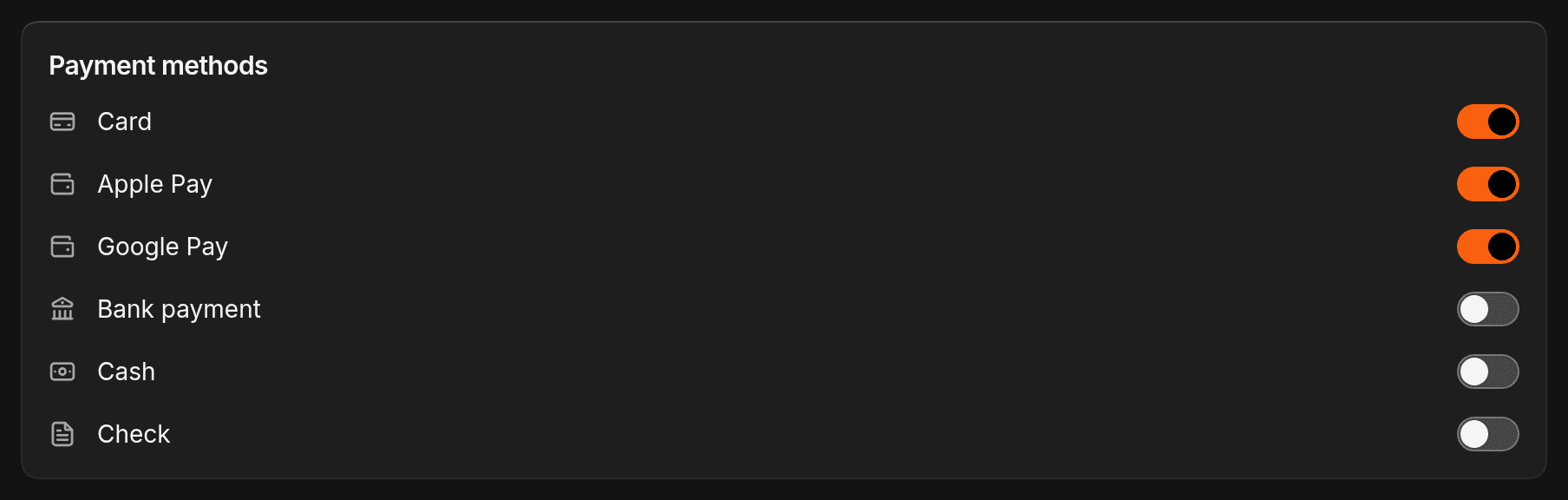
Cash and Check on the same card are payments you record yourself.
Fees
| Payment | Fee |
|---|---|
| Card, Apple Pay, or Google Pay | 2.90% + $0.30 |
| Bank payment | 0.80%, up to $5.00 |
A single payment can't be more than $10,000. If a customer disputes a card charge, there's a chargeback fee of US$30, or CA$40 for a Canadian account. See Refund, void or dispute a payment.
When a PCI form is due, Sign PCI form shows on the ShopWrk Pay card. Signing it late costs $35 a month.
Payouts
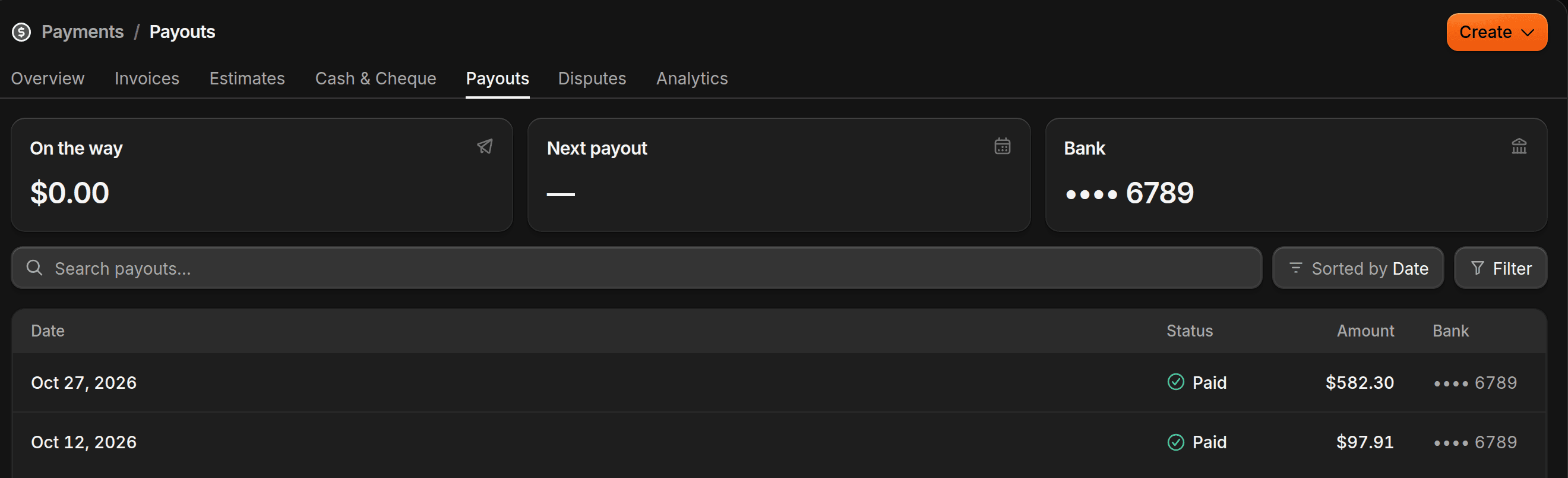
Payouts reach your bank 2 business days after the payment. To see them, open Payments, then Payouts. You need View payments, which Owners and Admins have.
The top of the page shows the money on its way, the next payout date, and the bank it goes to. Each payout is Collecting, On the way, Paid, or Failed.
If a payout fails
Open the payout to see why. ShopWrk tries again on its own after 1 business day, then after 3. Other payouts wait until it goes through.
If the bank details are wrong, click Update bank and enter the new account. Your old bank keeps getting payouts until the new one is approved. Once it is, open the failed payout and click Resend payout.
Change your payout bank
On the ShopWrk Pay card, click Update bank, then Submit new bank. It shows In review until it's approved.