

Refund, void or dispute a payment
Refund a payment, void an invoice that hasn't been paid, or answer a customer who disputes a card charge.
Refund a payment from the job it was made on. To cancel an invoice nobody has paid, void it. If a customer disputes a card charge with their bank, answer it from Disputes.
You need Process refunds to refund a payment. Owners and Admins have it.
Refund a payment
Open the payment
On the job, click the payment, then Refund.
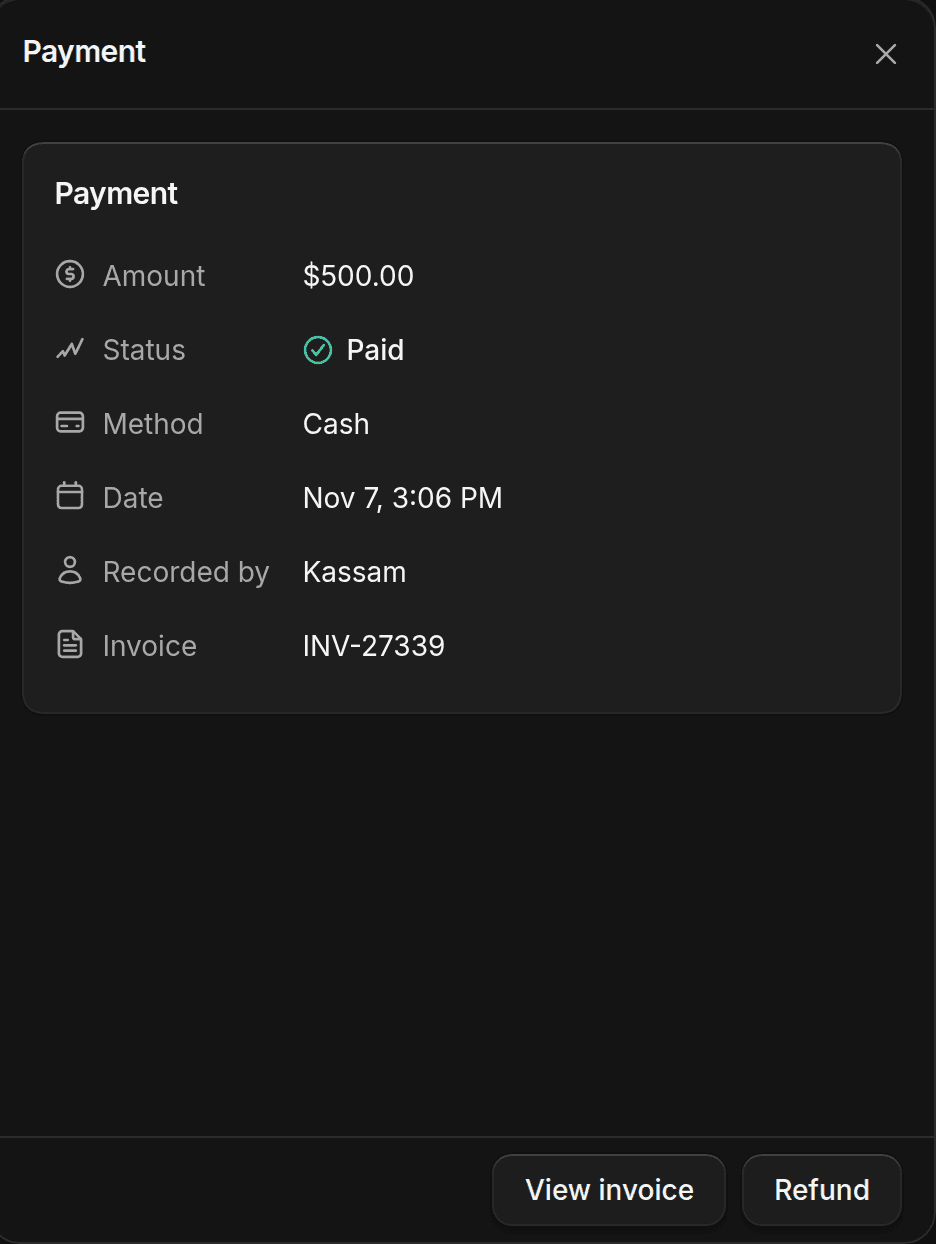
Enter the amount
The amount starts at the full payment. Leave it for a full refund, or enter less for a partial one. Card and bank refunds don't return the processing fee to you, but the customer gets the full amount you enter.
Send it
Choose whether to tell the customer by text, email, or both. Click Review refund, then Submit refund.
Card and bank refunds go back to the customer's card or account. For cash and cheque, ShopWrk records the refund, and you hand the money back yourself.
To refund everything paid by card or bank on an invoice in one go, open the invoice, click More invoice actions, then Refund payment.
Void an invoice
Voiding cancels an invoice so it can't be paid. It works only if nothing has been paid on it. You need Void invoices, which Owners and Admins have.
Open the invoice, click More invoice actions, then Void invoice, and confirm. You can't undo it. The customer sees the invoice as Voided.
When a customer disputes a charge
A dispute, or chargeback, is when a customer asks their bank to reverse a card payment. You have until a deadline to send evidence that the charge was fair.
While a payment is disputed, its invoice shows Disputed. The customer can't pay it and you can't refund it. If you win, the invoice goes back to its earlier status. The invoice and the job both have an Open dispute link.
Open Payments, then Disputes. Answering needs Respond to disputes, which Owners and Admins have.
Open the dispute
Click the dispute. It shows the amount, the customer's reason, the invoice, and the date you have to respond by.
Add your evidence
Under Evidence, upload what shows the work was done and agreed to, such as the signed estimate, the invoice, photos of the finished car, and your messages with the customer. Each file can be a JPEG, PNG, or PDF up to 1 MB, with up to 8 files. Click Upload files.
Submit your response
Click Submit response, write a note explaining what happened, and submit it. Upload your files before you submit. The response only sends what's already uploaded.
If you agree with the customer, click Accept liability instead. The payment is returned to them.
| Status | What it means |
|---|---|
| Needs response | Send evidence or accept it before the deadline. |
| Response submitted | The bank is deciding. |
| Won | You keep the money. |
| Lost | The money went back to the customer. The invoice stays closed. Send a new invoice if the customer agrees to pay. |
| Accepted | You accepted it, and the money is going back. The invoice stays closed. |
Each dispute has a chargeback fee of US$30, or CA$40 for a Canadian account.