

Add discounts and tax
Take a percentage or a flat amount off an estimate, invoice, or job, and set the tax rate.
A discount takes a percentage or a flat amount off an estimate, an invoice, or a job. It comes off before tax. Tax uses your shop's rate unless you change it on the estimate or invoice.
You need the edit permission for what you're changing: Edit estimates, Edit invoices, or Edit jobs. Owners and Admins have all three. Technicians don't, unless you add them.
Open discounts
Click the pencil on Services. On an estimate with more than one option, click the pencil on the option you want to discount.
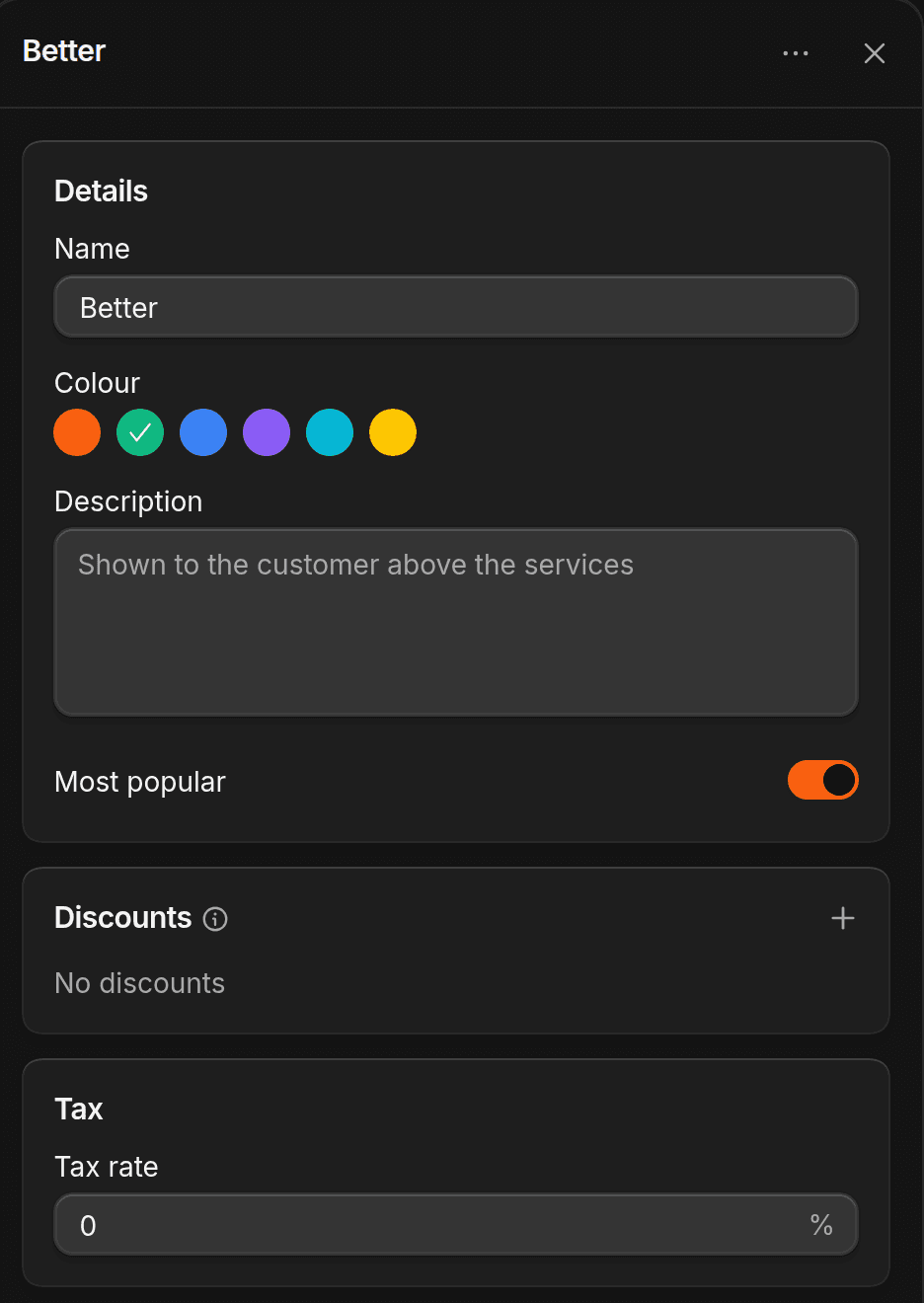
Add a discount
On Discounts, click +. Choose Percentage or Flat amount and enter the amount. Under Applies to, pick the whole estimate or one service. A Note is optional, and it becomes the discount's name. Click Add discount.
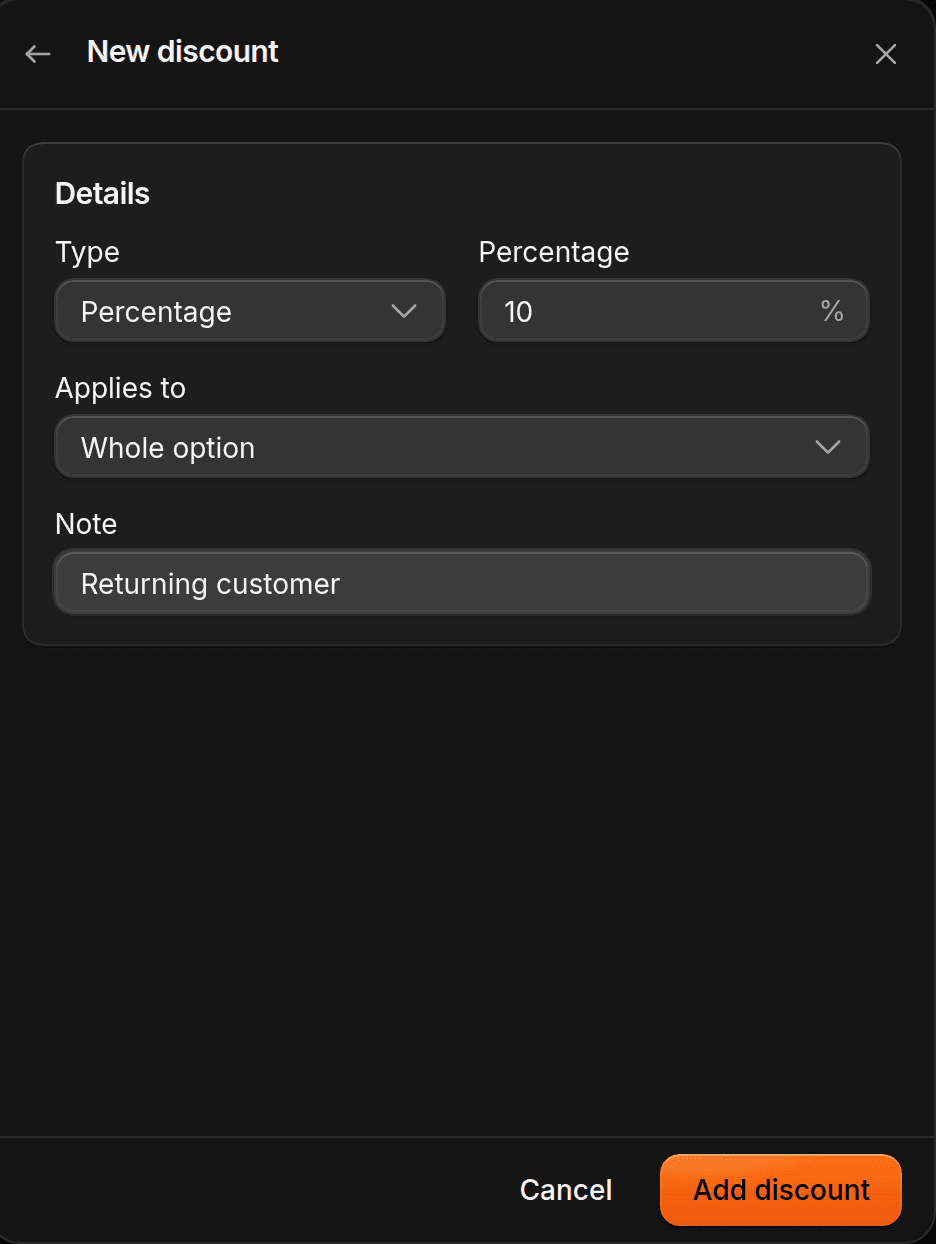
Change the tax rate, if you need to
On an estimate or invoice, set Tax rate under Tax. To go back to your shop's rate, click Use shop rate.
Each service can have one discount, and the whole estimate, invoice, or job can have one more. On an estimate with several options, each option gets its own. Discounts that Lead Closer added are marked Lead Closer, and you can change or remove them.
Tax on a service
If some work isn't taxed, or has its own rate, set that on the service. Open it under Operations > Services. Under Deposit & tax, choose Default tax, Custom tax, or No tax. Estimates, invoices, and jobs all follow it.
On an invoice, you can also turn off Taxable on a single line.
Jobs don't have a tax rate of their own. They use each service's setting and your shop's rate.
Set your shop's tax rate
Only the owner can change it. Go to Settings > Payments > Invoices & estimates, and set Tax rate under Tax.