

Change, resend or extend an estimate
Change an estimate after you send it, send it again, or give the customer more time to approve.
After you send an estimate, you can still change it. The customer keeps the same link and sees your changes there.
You need Edit estimates to change or extend an estimate, and Send estimates to resend it. Owners and Admins have both. Technicians don't, unless you add them.
Change a sent estimate
Open the estimate
Open the estimate, then click Edit next to Details.
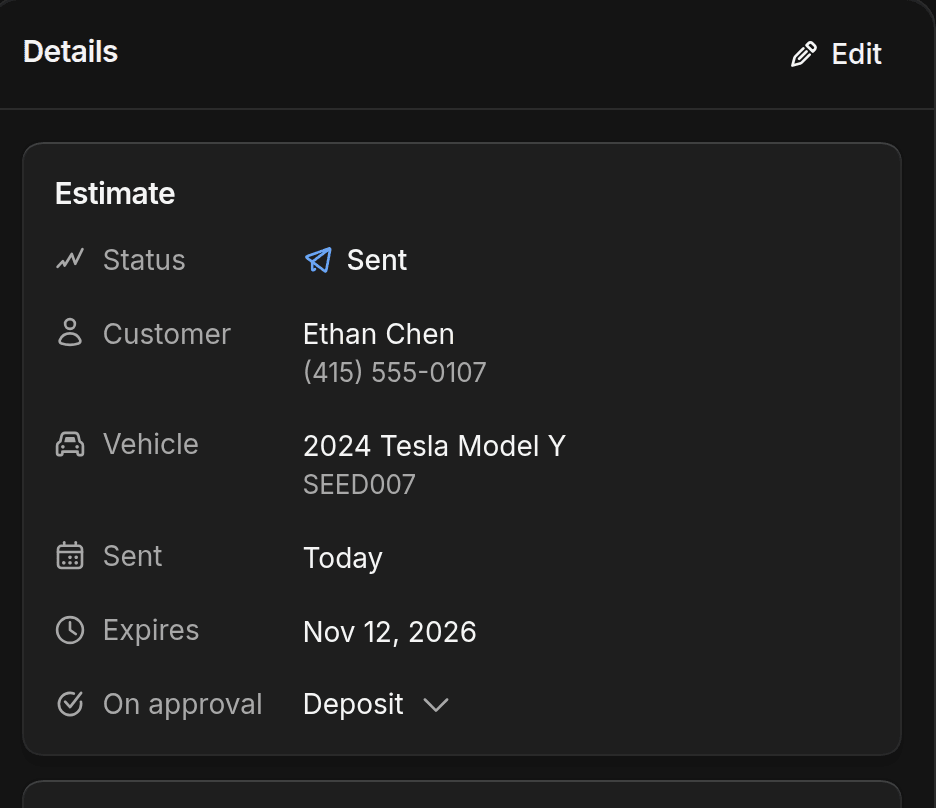
Make your changes
Change the services, the prices, or the options. You can't change the vehicle. For a different vehicle, start a new estimate.
Save it
To tell the customer, click Continue, then Resend estimate. To save without sending a message, click Finish editing.
Either way, the estimate goes back to Sent. If the customer had already approved it, they need to approve the new version. ShopWrk keeps the version they approved. If they have the old version open, they're asked to refresh the page before they can respond.
Send it again
Click Resend. On an approved estimate, it's in the ⋯ menu. Leave Email, Text, or both on, then click Resend estimate.
Resending doesn't change the expiry date. A declined estimate stays declined, so the customer can't approve it from the new message. To let them approve, edit the estimate and save it.
Give the customer more time
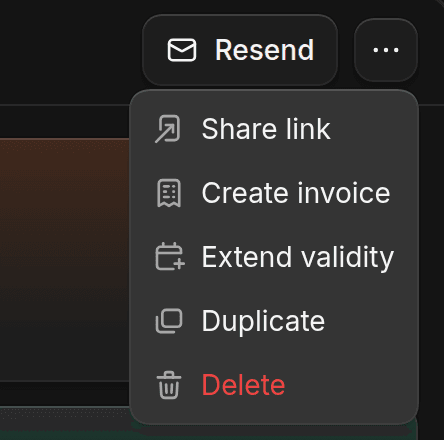
When an estimate expires in the next 7 days, or already has, click ⋯, then Extend validity. It adds 14 days. On an expired estimate, the 14 days start today, and the customer can approve it again.
Copy, share or delete
These are in the ⋯ menu:
- Duplicate makes a new draft with its own number. Use it to quote a second vehicle or to start from an old estimate.
- Share link copies the customer's link. Preview estimate shows you what the customer sees.
- Delete removes the estimate. You can't undo it.
Right after you send, the confirmation screen offers Edit and resend. It makes a new draft copy, and the estimate you sent doesn't change. To change the one you sent, use Edit instead.
Once an estimate becomes a job, you can't edit or delete it.