

Send documents to sign
Build a document template, require it on services, and get the customer's signature.
A document is a waiver, agreement, or release the customer signs. You write it once as a template. Then you can require it on a service, so it follows every estimate, job, and invoice with that service, or send it on its own.
Owners and Admins can do everything here. Technicians can't open Documents unless you give them View documents.
Start a template
Under Business, open Documents, open the Templates tab, and click New template. Choose Start from a starter or Start from scratch. New shops already have Service agreement, Window tint waiver, and Ceramic coating agreement, and the starter services require them. The starter list also has a PPF agreement, a Wrap agreement, a Deposit and cancellation policy, and more.
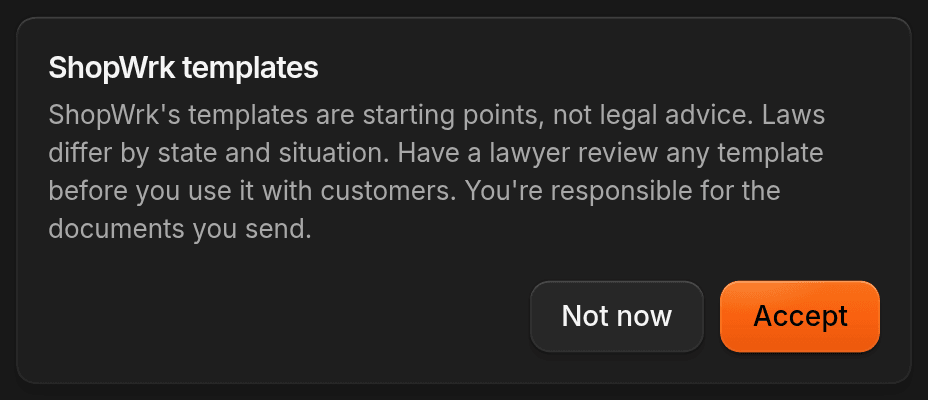
Before anyone can use a starter, an owner or admin has to accept the ShopWrk templates terms. The starters aren't legal advice, so have a lawyer read each one first.
Edit the text and add fields
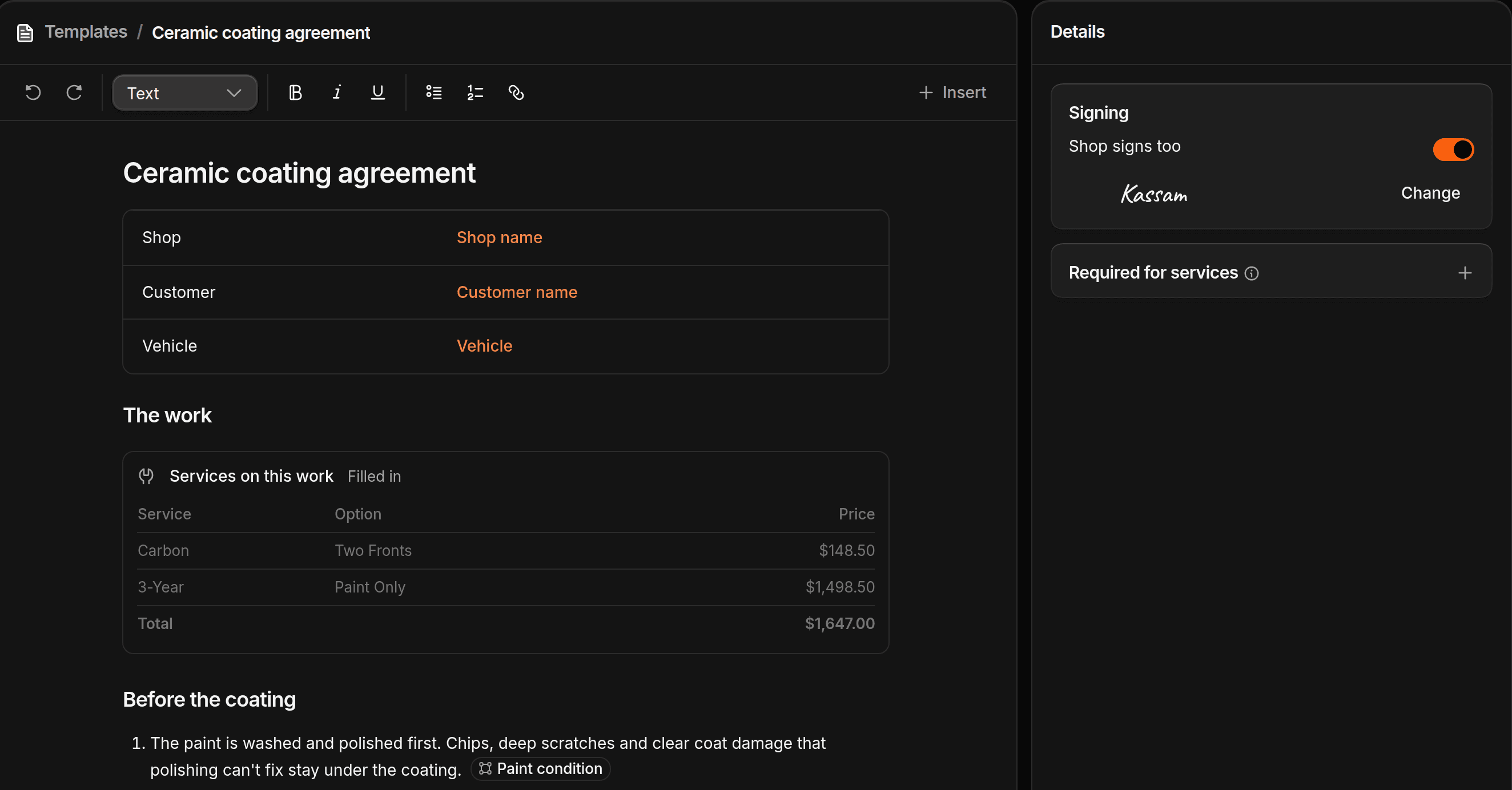
Change the wording, then type / where the customer has to act. You can insert Customer signature, Initials, Date signed, Checkbox, and Short answer, plus details that fill in on their own, such as the customer's name. Click Save template.
Building templates needs Manage templates.
To have your shop counter-sign, turn on Shop signs too under Signing. The signature comes from your account: open your account page, then Profile, then Signature, and click Add signature.
Require it on services
In the Details pane, click Add service under Required for services and pick the services that need it. You can also open a service and use its Signed document card. A service requires one template, and several services can share it. The customer signs it once per job.
After that, any estimate, job, or invoice with the service gets the document on its Documents card. Open work that already has the service gets it too. Finished work doesn't.
Send it to the customer
To add a document by hand, click Add a document on the Documents card of an estimate, job, or invoice. The customer gets the signing link in one of these ways:
- Estimate. After they approve it, they sign, then pay the deposit. See What happens when a customer approves.
- Booking a job. Leave Signing link in the confirmation message.
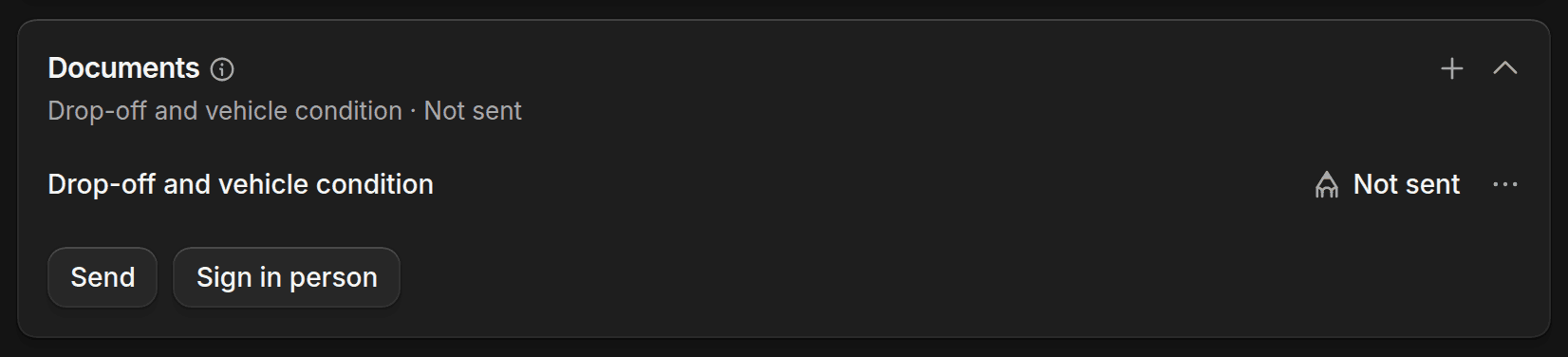
- Anytime. On the Documents card, click Send.
- On its own. Go to Documents and click Send document. Pick the template and the customer, then click Continue. Expires after is 30 days unless you change it. Click Send document.
Sending needs Create documents and Send documents. Texting needs the Pro or Autopilot plan.
Let the customer sign
The customer opens the link, goes through each document, and signs once for all of them. They can draw their signature or type it.
If they're at the shop, click Sign in person on the Documents card. A signing page opens in a new tab for you to hand over. If the document needs your shop's signature and you haven't saved one, ShopWrk asks for it first. If your browser blocks the tab, allow pop-ups for ShopWrk and try again.
Signing comes before payment and work
A customer with unsigned documents can't pay through a link. On an invoice, you can't take a counter payment until they sign. Moving a job to In progress stops for the same reason. ShopWrk lists what's unsigned and offers Send link and Sign in person.
Start anyway and Collect anyway skip the wait. They need Override documents, which Owners and Admins have. Staff without it are told to ask a manager.
When the work changes
If the work changes after the customer signs, the document reads Needs new signature and they sign again. Keep the old signature on the Documents card keeps what they signed. It needs Override documents too, and so does removing a document a service requires.
Find a signed copy
- On the work. The Documents card shows each document's status. Download PDF gets all the signed ones in one file.
- In Documents. Search, or filter by Not sent, Sent, Signed, or Expired. Open a row to see its Activity and download the PDF.
- The customer. Their signing page shows the result with Download PDF. Their Client Portal lists the documents you've sent under Agreements.
A document goes from Not sent to Sent, Opened, Shop to sign, and Signed. It can also end as Declined, Void, or Expired.
Void a document
Open the document and click Void. You need Void documents. A signed document needs a Reason. The signed copy and its PDF stay in the history. If a service still requires the template, the job gets a new unsent copy.