

Add checklists to your services
Give each service option a step list, optionally with required photos, and see how it shows up on jobs.
A checklist is the list of steps a technician ticks off on a job, such as film match, install and final QC. You build it on a service option, so Good and Better can have different lists. When you book a job with that option, its checklist comes along.
You need Edit services to build checklists. Owners and Admins have it. Technicians tick steps on their jobs but can't change a service's checklist.
Save time with templates
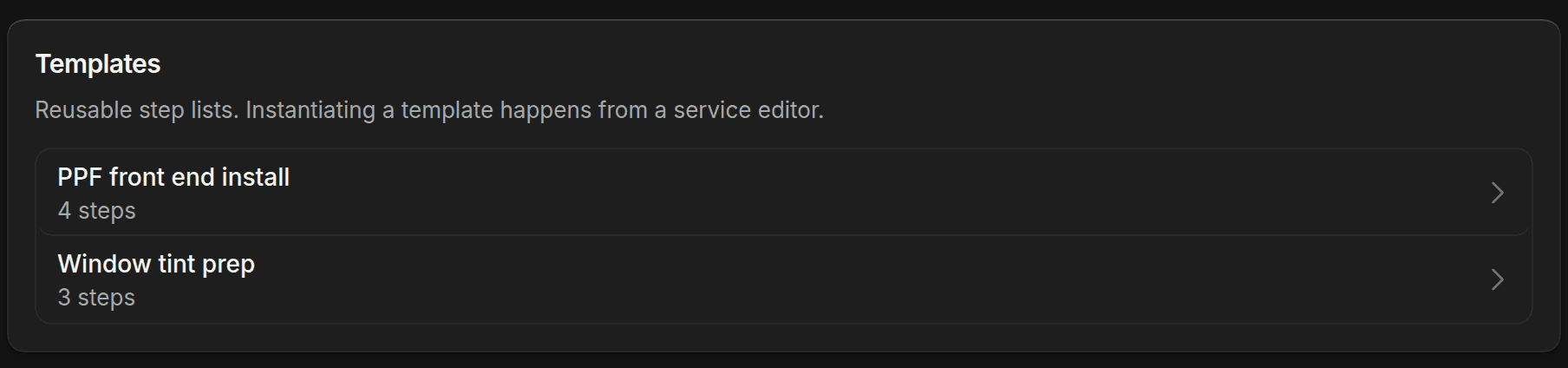
A template is a step list you reuse. Go to Settings > Checklist templates and click New template. Enter a Template name and a Description, add the steps, then click Create template.
A service copies the steps from a template. It doesn't stay linked. If you change the template later, services that already copied it don't change. Each row in the list shows its step count and how many services used it. You can duplicate a template from its More template actions menu. You can only delete one that has never been used.
Add a checklist to a service
Open the option
Go to Services, open the service, and click the Options tab. Open the option the checklist is for.
Start the checklist
In the Checklist section, click Add checklist, then Start from scratch or Import from template. Importing copies the template's steps into this option so you can change them.
Write the steps
Click Add step and enter the Step title. Click a step to open it. Add Instructions for the tech if the step needs them. Drag a step's number to reorder.
Each step is Required or Optional. Use the Photos and Videos counters to set how many the tech must attach. Click Done to close the step, or Delete to remove it. You can Undo a delete.
Save the service
Click Save changes. Jobs you book from now on use the new steps.
An option's checklist is only used for that option. To use the same steps on another option, import the template again or copy the steps by hand.
What happens on a job
When you book a job, each service's checklist shows as a Checklist card. You can add, remove or change steps there for this job only. The service itself doesn't change.
Once the work starts, the technician opens the job and ticks each step. The card shows how many are done, like 3 of 5. For steps that need photos, Add photo appears until the count is met.
Required steps, and any photos or videos they ask for, have to be finished before the job can be marked done. If something is missing, ShopWrk shows Checklist requirements not met and lists what's left. Optional steps never block it.
Jobs keep the steps they were booked with. If you edit a service's checklist later, jobs that already exist keep their steps.
Questions
I added a checklist and a job I booked earlier doesn't have it. Jobs keep the steps they were booked with.
There's no Add checklist button. With no templates, the empty section shows Add step instead. Once a checklist has steps, it also shows Add step.