

Use the calendar
See the shop's jobs, book an open slot, move a job, and block time you can't take.
The calendar shows every job in the shop, by day, week, or bay. You can book work straight from an open slot and drag jobs to new times.
Booking from the calendar needs Create jobs and Schedule jobs. Owners and Admins have both. Technicians see the jobs assigned to them.
Open the calendar
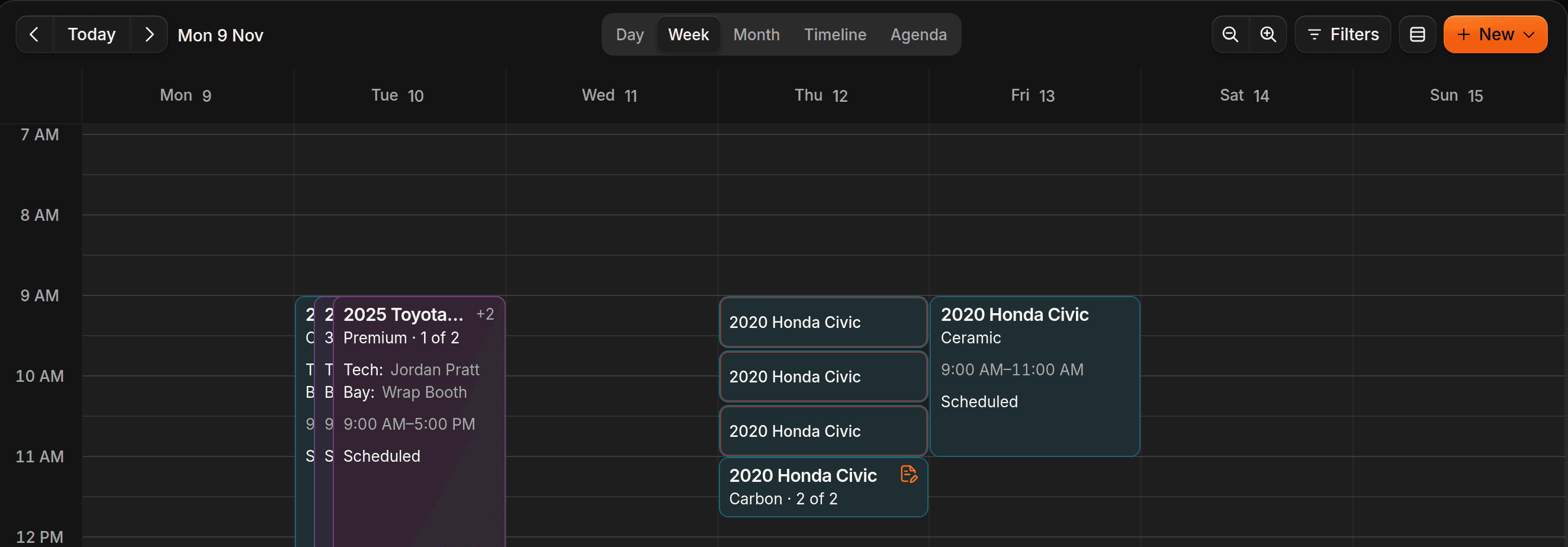
Under Overview, open Calendar. Pick Day, Week, Month, Timeline, or Agenda at the top. ShopWrk remembers the view you last used.
Book an open slot
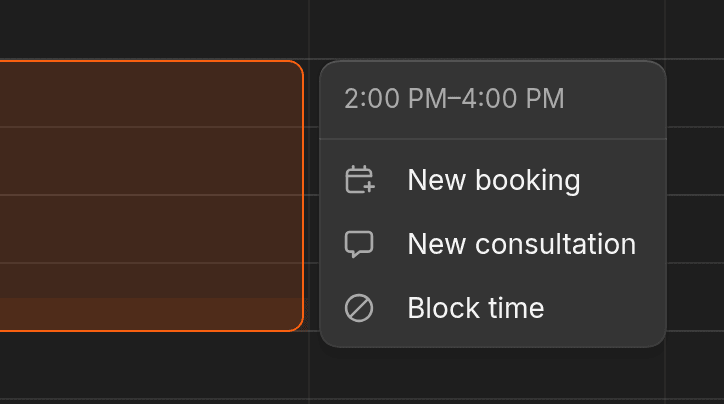
Drag across the time you want, then click New booking. On Day and Timeline, the job also gets that column's bay or technician. Finish it the same way you book a job.
Move a job
Drag the job to a new time. It saves right away and doesn't message the customer. To tell them, click Notify customer on the note that appears, pick text or email, and click Send. Undo puts the job back.
If the new time clashes with another job, ShopWrk asks before it moves. Overriding needs Assign technicians and a reason.
The views
- Day has one column per bay.
- Week has one column per day.
- Month shows the month. Click a day to open it.
- Timeline has one row per bay. Switch it to technicians with the heading on the left.
- Agenda is a plain list.
To see one technician, bay, or status, click Filters.
Block time
To keep time free, such as for a team meeting or a technician's day off, click New, then Block Time. Or drag a slot and click Block time.
Give it a Title and Date, then a start and end time or All day. Block the whole shop, or pick bays and technicians. To repeat it, choose an option under Repeat and set Repeat until. Click Block time.
New jobs can't be booked into blocked time. Jobs already booked there stay where they are.
For a holiday when the whole shop is shut, go to Settings > Booking & Calendar > Calendar and click Add closure or blackout.
Consultations
A consultation is a short visit to look at a car before you quote it. Click New, then New Consultation, or drag a slot and click New consultation. Pick the customer, date, and time, then click Schedule consultation.
ShopWrk texts and emails the customer a confirmation. Consultations don't take a bay or technician.
Set up bays and colours
Only Owners and Admins can change these. Go to Settings > Booking & Calendar > Calendar.
- Bays. Rename the starting bays, or click Add a bay. You can have up to 20. To control which work each bay takes, edit the service. See Services.
- Event colours. Give each service category a colour. A job takes the colour of its most expensive service. Click Colour legend on the calendar to see them.
- Calendar start hour and Calendar end hour. Choose how much of the day the calendar shows.
Time outside your business hours shows as Closed. You can still book into it. Set your hours under Settings > Shop > Shop Details.
To see Google Calendar events here too, connect Google Calendar.