

Let Lead Closer answer calls
Choose Lead Closer's voice and greeting, then add it to your Call Flow so it answers when nobody picks up or after hours.
Lead Closer can answer your shop number the way it answers texts. It greets the caller, answers from your catalog, and hands the call to a person when it should. Use it for the calls nobody gets to and for after hours.
Calls need Lead Closer on the Pro or Autopilot plan, and Lead Closer must be on and published. See Set up Lead Closer first. Changing settings needs the permission to configure agents, and Call Flow needs Manage calling settings.
Pick a voice and greeting
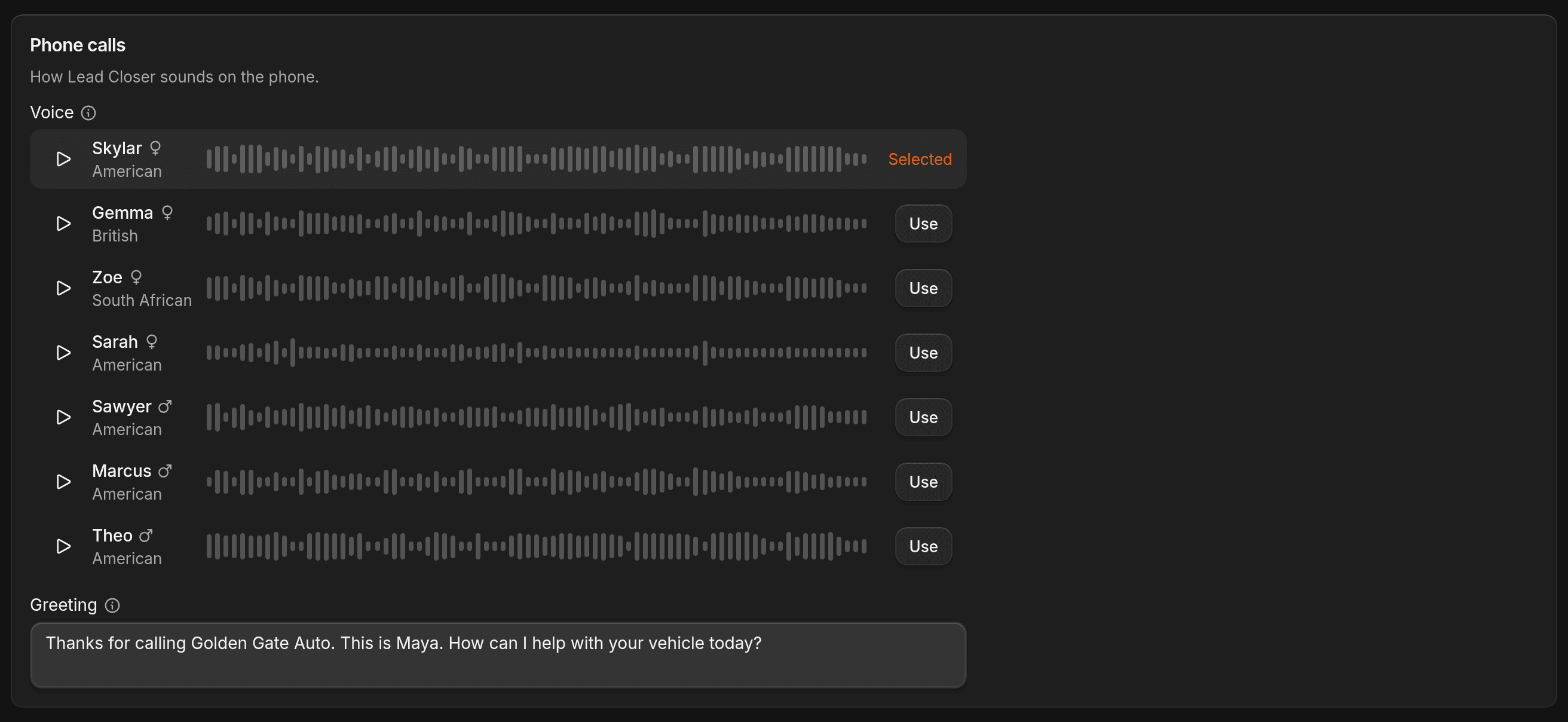
Go to Agents > Lead Closer > Configuration. On the Phone calls card, pick a Voice. Press play on each one to hear it, then click Use on the one you want.
Under Greeting, write the first thing Lead Closer says when it picks up. The default is "Hi, thanks for calling. How can I help you today?" It can be up to 500 characters.
Add Lead Closer to your Call Flow
Go to Settings > Call Flow. Click Add step and choose Lead Closer answers. It always sits last, above Voicemail, and you can add it once. It has no ring time, because it answers as soon as the call reaches it.
The people above it ring first. Lead Closer only takes the call if nobody answers.
Choose what happens after hours
On the same page, under Hours, set your business hours and set After hours to Lead Closer answers. Outside business hours nobody rings, and the call goes straight to Lead Closer. With Voicemail selected, it goes to voicemail instead.
Save
Click Save. For the other steps and ring times, see Call Flow.
Recording notice
If Call recording enabled is on under Settings > Call Flow > Setup, Lead Closer plays "This call may be recorded." before its greeting. You can't change that line. If recording is off, there's no notice.
When Lead Closer hands the call to a person
Lead Closer transfers the call when it can't or shouldn't handle it, such as when the caller asks for a person or something on your Escalate when list comes up. The caller hears "One moment, I'm getting someone from the team for you." Then they hear hold audio while ShopWrk rings your Send to list from Configuration, in order.
- Each person rings for 20 seconds, on their ShopWrk app and on their Work Phone. They hear who's calling and why, and press 1 to accept.
- The whole transfer stops after 60 seconds.
- Assigned person is whoever is assigned to the contact or their deal. If nobody is assigned, ShopWrk skips that entry.
If nobody answers, or the call comes in after hours (when nobody rings), the caller hears a short line in Lead Closer's voice and the call ends. A task named Call back with the caller's name goes to the assigned person or the owner, and they get a notification. If the caller's number was withheld, there's no task, and the notification says it was a missed call.
To change who gets transferred calls, edit Send to as described in Set up Lead Closer. Make sure each person has a Work Phone set, or ShopWrk can only ring them in the app.
After a call
If the caller talked to Lead Closer for 10 seconds or more, ShopWrk writes a summary of the call and adds a note to the contact. Shorter calls get neither. Lead Closer can also send the caller one follow-up text if they don't get back in touch. It never does after a transferred call, or to a number that has opted out.
What calls cost
Lead Closer calls use your AI credits. Credits come with your plan each month (Pro 5,000, Autopilot 10,000), and one credit is worth 1 cent. Go to Agents > Usage to see your balance, what you've used this period, and Voice minutes (30d).
If you're out of credits, Lead Closer doesn't pick up. The call goes to your normal Call Flow and then voicemail. Lead Closer also doesn't pick up when it's off, when that customer is paused or already waiting on you, or when it's already on another call with that customer.