

AI agents
See what each agent is doing, what needs you, which knowledge they use, and how many credits are left.
Agents is where you check on the agents that work for your shop. Today that's Lead Closer, which texts new leads and books jobs. More agent cards are coming. To chat with the assistant that helps you run the shop, use ShopWrker instead.
Lead Closer needs the Pro or Autopilot plan. You need View Agents to open this page and Configure Agents to turn an agent on or off, edit knowledge, or change settings. Owners and Admins have both.
What's on the Agents page
Open Agents in the sidebar. The page opens on Overview, with tabs for Inbox, Knowledge, Usage, and Settings.
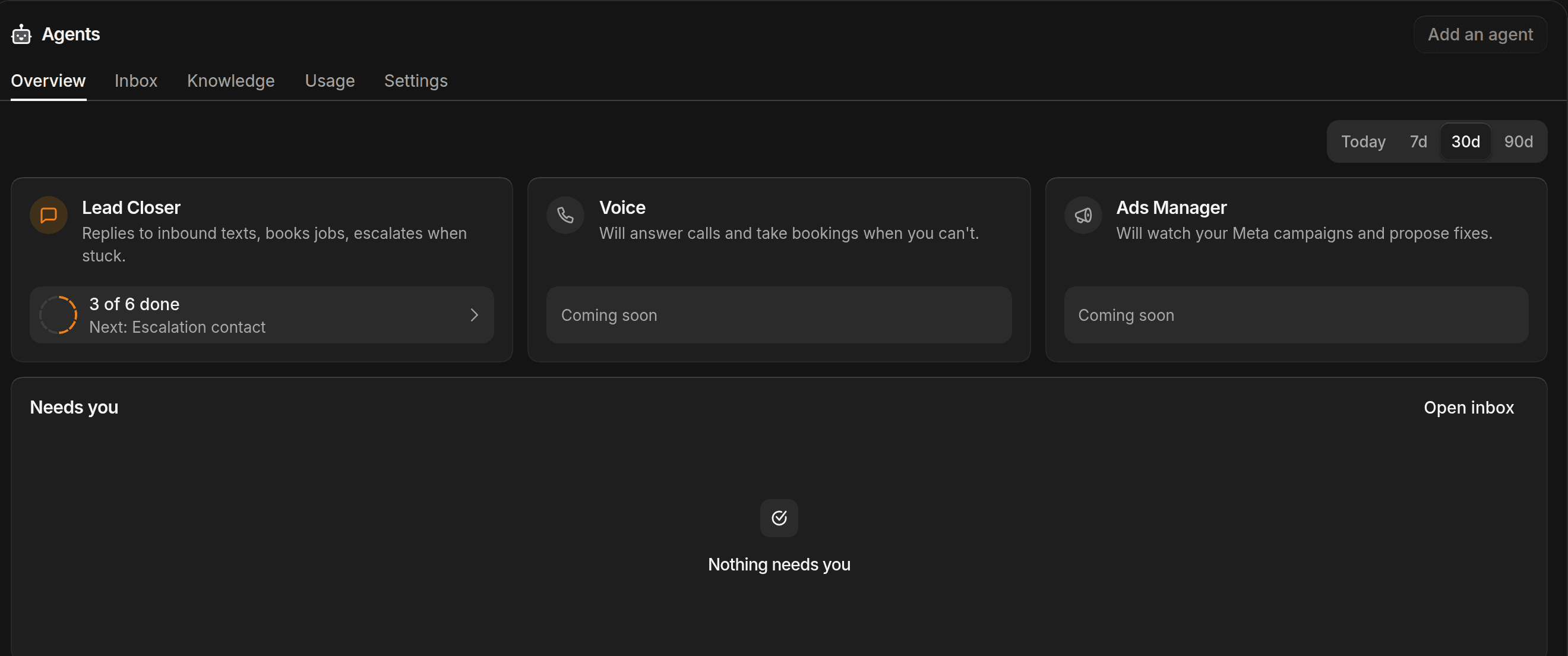
- Time range. The picker at the top right offers Today, 7d, 30d, and 90d. It opens on 30d. It sets the dates for the Lead Closer card and the Usage chart.
- Agent cards. Each card has the agent's name and what it does. Click a card to open the agent. While setup is unfinished, the card shows how many steps are done and the next one. Click Finish setup to continue. Once the agent is ready, the card shows the revenue it booked and the number of jobs booked in the time range, with an On/Off switch. Cards for other agents say Coming soon.
- Needs you. Errors and escalations that need a person. When Lead Closer hands a conversation to you, it appears here. Click a row to open the thread. Open inbox shows the full list.
- From the inbox. Suggestions from ShopWrker that you can act on or ignore.
- Usage. How many credits are left this month, when they reset, and a chart of credits spent per day in the time range.
The Inbox tab lists the same items with filters for Errors, Escalations, and AI suggestions. Don't confuse it with Conversations, where customer messages live.
Add to your agents' knowledge
Knowledge is what agents read to answer customers, like your warranty terms, a tint FAQ, or your website. Lead Closer also uses your services and prices. Knowledge covers everything else.
Create a knowledge base
Click Knowledge, then New knowledge base. Name it after what it holds, like Warranty policies or Tint FAQ.
Add your content
Open the knowledge base and click Add. Choose Website and paste a URL, Business data and type a title and the text, or File and pick a file up to 20MB.
After you change your website, click Re-crawl All on the knowledge base, or use Re-sync website… in the menu on the Knowledge list, to read it again.
Give it to Lead Closer
On the Knowledge list, click the ... menu on the knowledge base and tick Lead Closer under Assigned agents. A new knowledge base isn't used by any agent until you do this.
The knowledge base marked Default, named Shop Knowledge, is shared with all agents, so you can't assign it. You can rename a knowledge base from the same menu. You can't delete one.
Credits and usage
Agents spend AI credits. Plans include 1,000 credits a month on Essential, 5,000 on Pro, and 10,000 on Autopilot. Buy packs and set up auto-recharge under Settings > Billing. See Billing.
Click Open usage on the Usage card, or the Usage tab, for the detail. It shows how many credits were granted this period, used, and purchased, then token and request counts for the month, a daily breakdown for the last 14 days, and how much time the agents saved you over the last 30 days. The Usage tab needs View settings.
Quiet hours and escalation
The Settings tab holds two defaults for every agent.
- Pause outreach during quiet hours stops agents from sending texts between a start and end time you set. Times use your Shop Details timezone.
- Escalation phone is the number agents text when they hand a conversation to a person.
Click Save fleet settings after you change either one.