

Connect Instagram and Messenger
Receive Instagram DMs and Facebook Messenger messages in Conversations, and bring in Facebook Lead Ads.
Connect a Facebook Page and its Instagram account, and their messages arrive in Conversations with your texts and emails. Facebook Lead Ads is a second, separate connection for leads who fill out your Facebook lead forms.
You need the Connect accounts permission. Owners and Admins have it. Technicians don't, unless you add it under Roles and permissions.
Click Connect
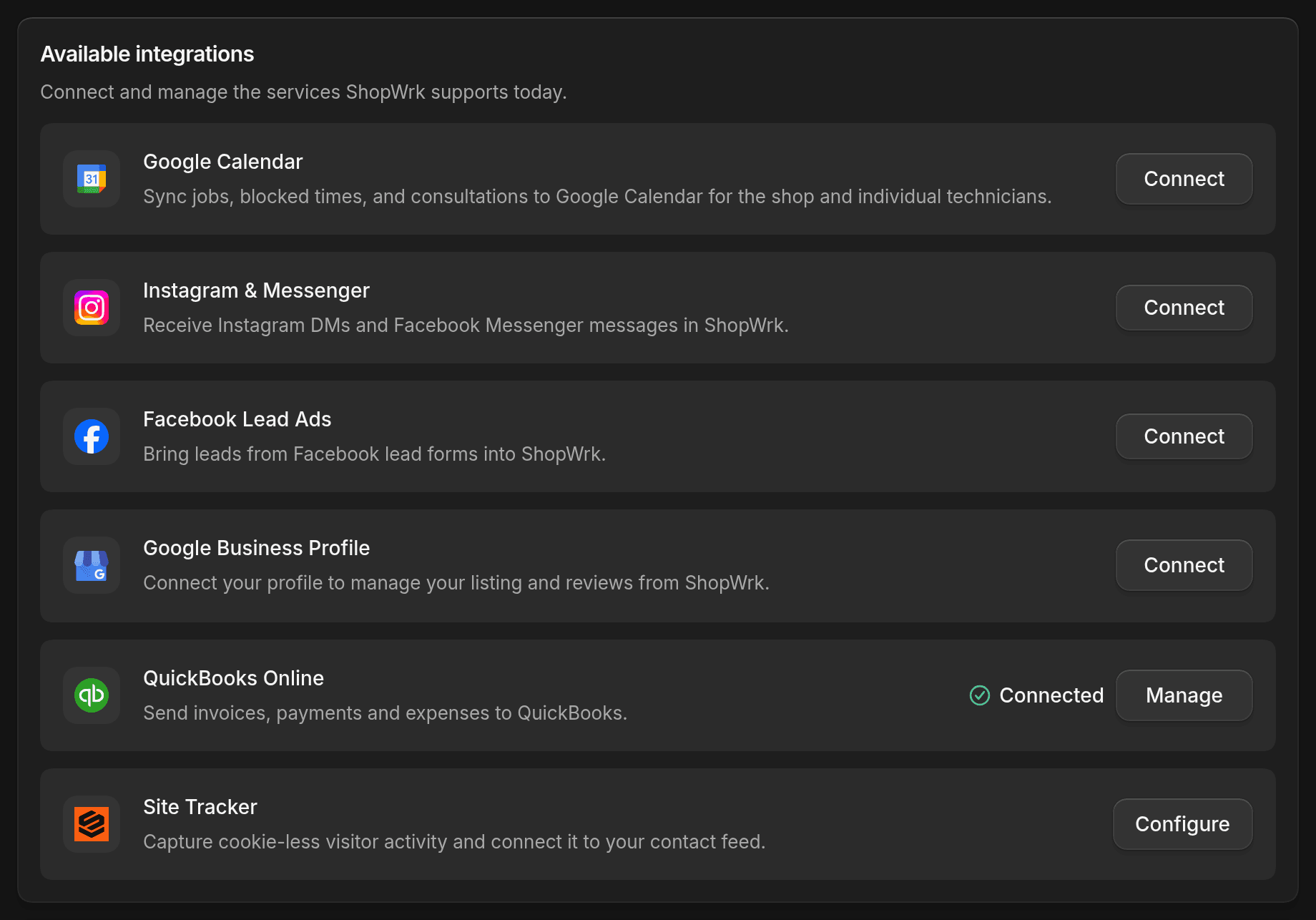
Go to Settings > Integrations and click Connect on the Instagram & Messenger card. Sign in to Facebook and allow the access it asks for.
Pick your Pages
Choose the Facebook Pages ShopWrk should connect, then click Connect selected Pages. A Page with an Instagram Business account linked to it is labeled Instagram + Messenger. A Page without one is labeled Messenger only, and no Instagram DMs come in for it.
Reply in Conversations
New Instagram and Messenger messages show up in Conversations.
If the picker says No Pages available, Facebook returned no Pages for the login you used. Click Connect again and grant the access it asks for.
Turn a Page on or off
After you connect, the card's button reads Manage pages. Each Page has a switch that reads Messaging on or Messaging off. Turn it off to stop receiving that Page's messages without disconnecting it.
If the window says Reconnect required, go back to Integrations, reconnect, and then change your Pages.
Facebook Lead Ads
On the Facebook Lead Ads card, click Connect and pick Pages the same way. Each Page has its own Lead Ads on or Lead Ads off switch.
Connecting one card doesn't connect the other, even for the same Page. You can disconnect one and keep the other. In the Pages window, Disconnect messaging or Disconnect Lead Ads only removes that one.
To act on a lead form, build an automation that starts with the Meta Lead Form trigger and pick one form. See Automations.