

Connect QuickBooks Online
Send your invoices, payments, and expenses to QuickBooks Online and map them to your accounts.
ShopWrk sends your invoices, payments, and expenses to one QuickBooks Online company. Your numbers stay in ShopWrk. QuickBooks only receives copies.
Only the shop owner can connect QuickBooks or change its settings. Admins can see whether it's connected.
Pick a start date
Go to Settings > Integrations and click Connect on the QuickBooks Online card. Under Sync from, choose Today, Start of this month, Start of last month, Start of this year, or Custom date…. ShopWrk doesn't send anything dated before this day, and you can't change it while connected.
Sign in to QuickBooks
Click Connect, sign in to QuickBooks, and allow ShopWrk. You come back to the QuickBooks page, which now shows your company name and Syncing since the date you picked.
Map your accounts
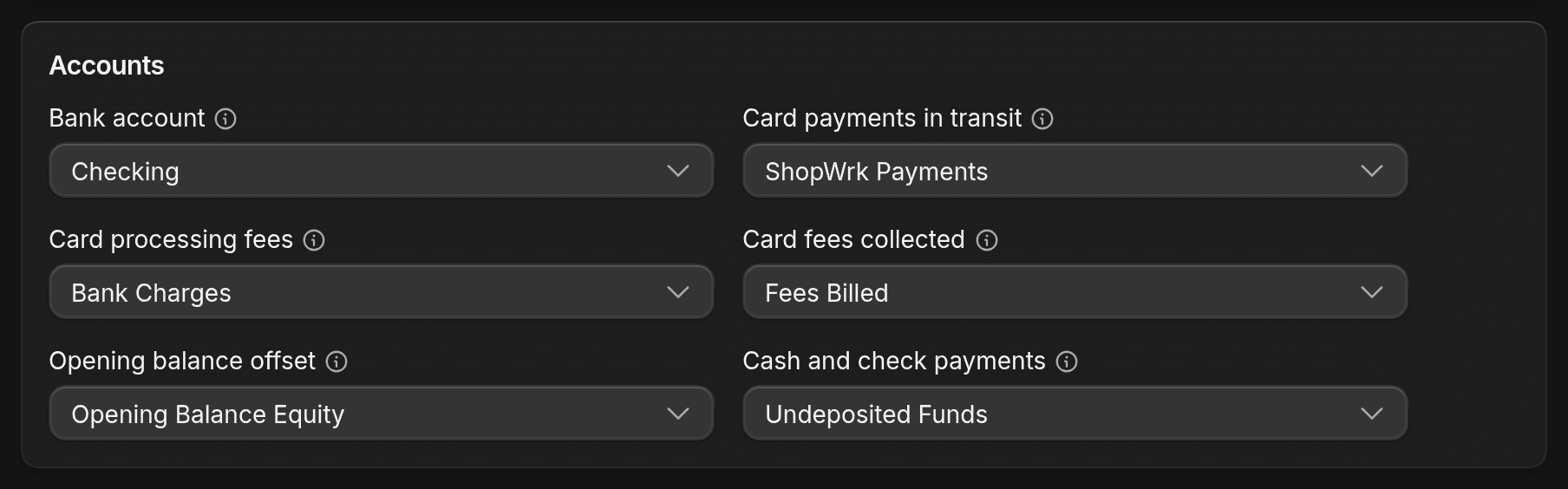
Under Accounts, pick the QuickBooks account for each line:
- Bank account: where your ShopWrk payouts land.
- Card payments in transit: holds card payments until they're paid out. You can pick Create "ShopWrk Payments".
- Card processing fees
- Card fees collected: card fees your customers pay you.
- Opening balance offset: balances card payments in transit on the sync date.
- Cash and check payments: includes any payment not taken through ShopWrk.
Map income items and save
Under Income items, pick a QuickBooks item for each of your service categories. Click Save in the header.
Expenses
Turn on Send expenses to send your shop's expenses too. Then set:
- Expenses paid from: the account to use when an expense's card has no account.
- Tax you claim back: the account for tax on expenses marked Claim back.
- Expense categories: one account for each category.
- Saved cards: an account for each card. You can create one named after the card.
Check what was sent
The company card shows how many records were sent and how many failed. Failed records appear under Failed items with the reason. Fix the cause, then click Retry on the row. Saving your mapping also retries failed records.
If the card says Reconnect QuickBooks to keep sending records, click Reconnect and sign in again. It has to be the same company.
Disconnect
Click Disconnect on the company card. ShopWrk stops sending. What's already in QuickBooks stays. If you connect again, you pick a new sync date and map your accounts again.