

Invite your team and set permissions
Invite a teammate as an Admin or Technician, change what they can do, and deactivate them when they leave.
Every teammate has a role: Owner, Admin, or Technician. The role sets what they can do to start with. You can then change it for the whole role, or for one person.
You need Invite members to invite someone. Owners and Admins have it. Only an Owner can change permissions.
Open the invite
Go to Team > Staff and click Invite Team Member.
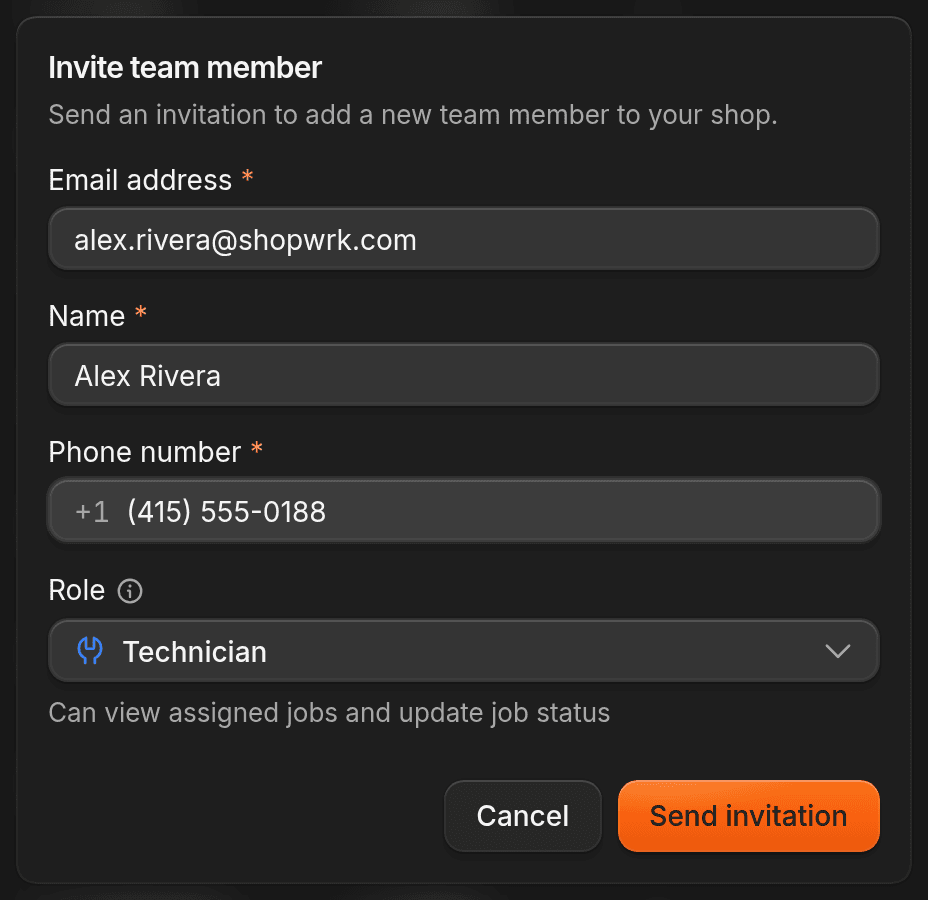
Fill in the person
Enter their Email address, Name, and Phone number. All three are required. The phone number becomes their Work Phone for your shop. See Work Phone.
Pick a role
Leave Role on Technician, or choose Admin. You can change it later. Owner only shows up if you're an Owner. It asks for your password and for you to type INVITE OWNER.
Send the invitation
Click Send invitation. They get an email with a link to join. If the email can't be sent, the dialog shows the link so you can copy it and send it yourself.
Until they accept, the person shows as Invited on Staff. The link works for 7 days. Owner invitations expire after 24 hours. To send a new one, open the row's menu and click Resend Invitation, Copy Invite Link, or Revoke Invitation. Owner invitations can't be resent, so revoke and invite again.
What each role can do
| Owner | Admin | Technician | |
|---|---|---|---|
| Jobs | All jobs | All jobs | Their own jobs. They can change a job's status. |
| Customers, estimates, invoices, payments | Yes | Yes | No |
| Inventory | Yes | Yes | See it and use it on jobs. No prices. |
| Services | Yes | Yes | No, until you turn on View services |
| Reports | Yes | Yes | No |
| Team, schedules, and time | Yes | Yes | Clock in and see their own time only |
| Settings | Yes | Yes | No |
| Manage permissions, Approve payments, Manage billing, Export reports, Manage QuickBooks | Yes | No | No |
Technicians can also make and receive calls and see call history and voicemail. Only an Owner can approve Payroll Prep or export it. See Schedule shifts and track time.
Change what someone can do
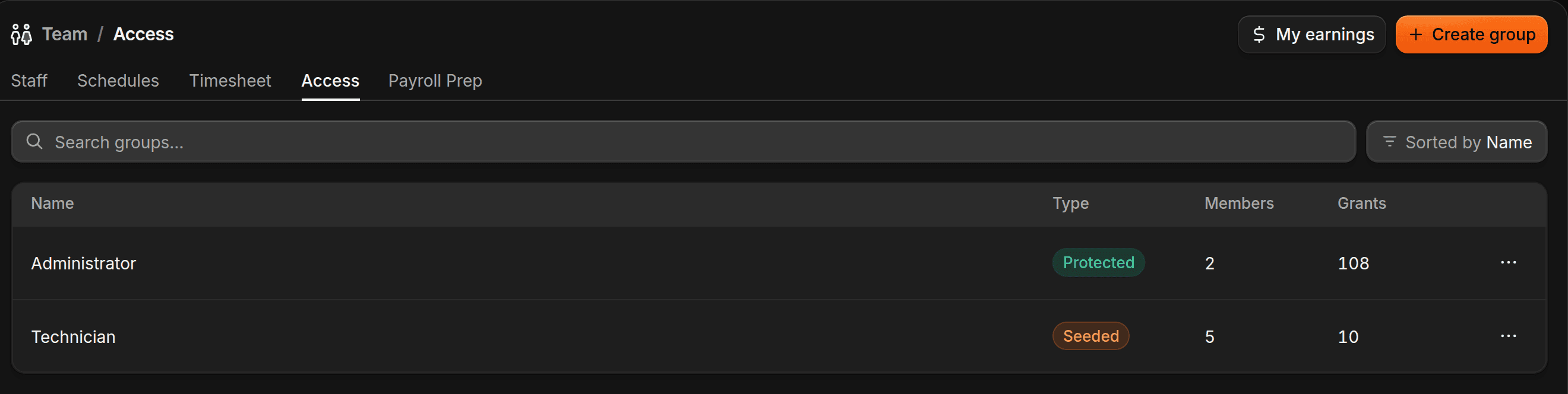
Only an Owner can do this. Go to Team > Access. Each role has a permission group, and the group sets what everyone with that role can do.
- Administrator is locked. You can't rename it or change its permissions.
- Technician can be renamed and edited, but not deleted. If you turn off a permission here, every Technician loses it.
- To make a group of your own, such as Front Desk, click Create group, name it, and pick its permissions.
To change one person, open the menu on their row in Staff and click Manage Permissions. Under Assigned groups, click Assign or Remove. Below that, switch a single permission on or off for just that person. Their change overrides the group.
To move someone between roles, open the same menu and click Promote to Admin or Change to Technician. Only an Owner can promote. Owners can't be edited on Access, because they always have full access.
Work Phone
Work Phone is a phone number that belongs to one person at your shop. Change it on their profile: open them from Staff, then Profile, and edit Work phone. If you leave it empty, ShopWrk uses the phone number on their account.
A Work Phone is used when Lead Closer transfers a conversation to that person. A Call Flow only rings someone's cell if you add it as a Phone number step. See Texts and calls.
Deactivate someone
Open the menu on their row and click Deactivate, or open their profile and click Deactivate member. You need Deactivate members. You can't deactivate yourself, only an Owner can deactivate another Owner, and the last active Owner can't be deactivated.
They lose access right away. Their future shifts are cancelled. If they were clocked in, ShopWrk ends the shift and flags it for review on the timesheet. Their jobs and time history stay.
To bring them back, click Reactivate from the same menu.