

Schedule shifts and track time
Add shifts for your team, let them clock in and out, review the timesheet, and prepare gross pay.
The Team page has tabs for Staff, Schedules, Timesheet, Access, and Payroll Prep. This page covers the three that deal with hours. ShopWrk adds up gross pay for you. It doesn't run payroll.
Adding shifts needs Manage schedule. Seeing everyone's time needs Manage time. Payroll Prep needs Payroll Prep. Owners and Admins have all three. Technicians can only clock in and see their own time.
Add shifts
Open the week
Go to Team > Schedules. Use the arrows or Today to pick the week.
Add the shift
Click Add shift. Pick the Staff member, set Start and End, and add Notes if you want. Click Add shift.
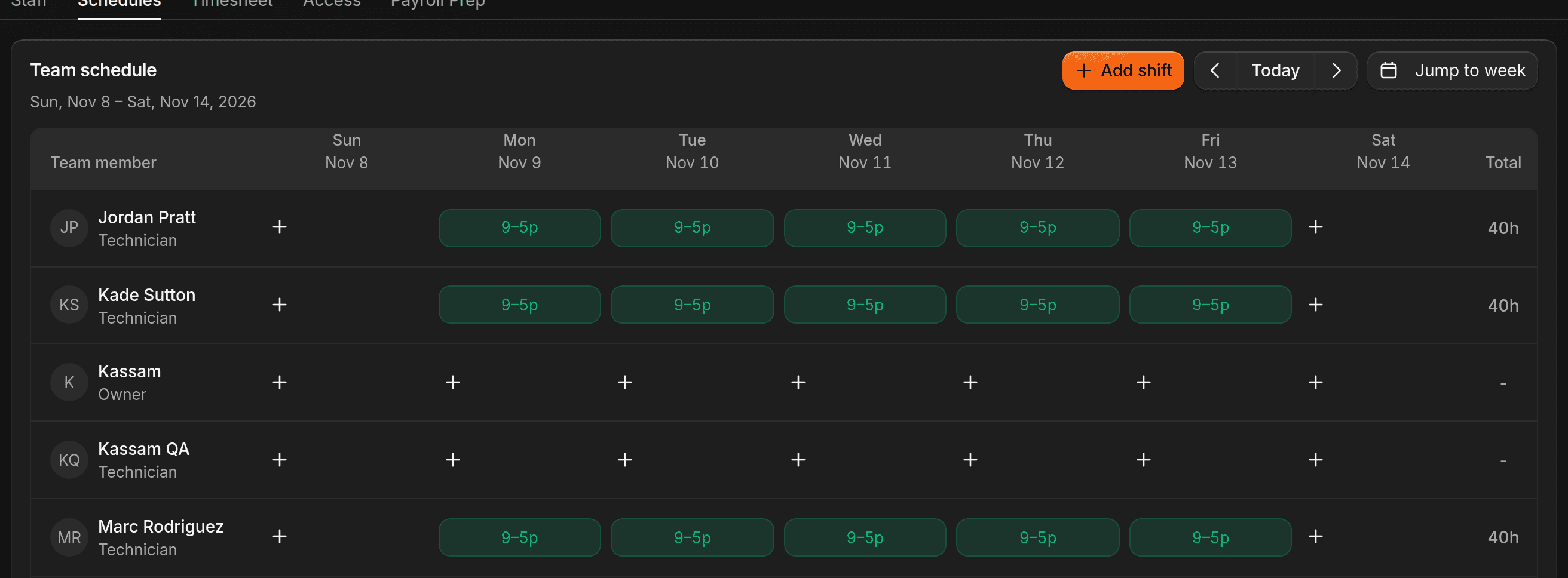
There's no publish step. A shift is live as soon as you save it, and the person is notified. To change it, click the shift and edit it, or click Cancel shift.
Lead Closer only offers a customer a time that falls inside a technician's shift. If no technician has an upcoming shift, it has no times to offer. Time off blocks those times too. See Lead Closer.
For time off, click Request time off under the schedule. Staff requests wait for a manager to approve or deny them. If a request overlaps a shift, cancel the shift first.
Clock in and out
Teammates open the account menu, the one with their name and photo, and click Clock in. While they're on shift, the same menu has Break and End shift. After a break they click End break.
Only people paid Hourly use the clock. Anyone on a fixed fee or percentage sees Shift attendance is off. You set the pay type on a person's profile, under Compensation > Pay method.
To warn people when they've worked too long without a break, click Add policy under Break policies on Schedules. Set Warn after (minutes worked), Duration (minutes), and whether it's a Paid break. You need Manage time.
Review the timesheet
Timesheet lists every shift with the person, date, clock in and out, breaks, duration, and pay method. Filter by Employee, Status, Pay method, Duration, or dates.
Click a shift to review it. Edit times fixes a clock-in or clock-out. Close open shift ends a shift someone forgot to end. Flag for review marks it for a second look, and Approve attendance signs it off. A shift marked Needs review holds up Payroll Prep.
People without Manage time only see their own shifts.
Prepare pay
Payroll Prep adds up what each person earned in a pay period. It's visible to Owners and anyone with Payroll Prep. Only an Owner can change the period settings, approve a snapshot, or export it.
Choose the pay period
Pick Pay period: Weekly, Biweekly, Semimonthly, or Monthly. Set Week starts and Pay date delay (days), then click Save period settings.
Prepare the snapshot
Click Prepare snapshot. The table shows Regular hours, Overtime hours, Service fees, Adjustments, and Total gross for each person. To correct someone's pay, enter a Gross adjustment and a Reason, click Add gross adjustment, then prepare a new snapshot.
Approve and export
An Owner clicks Approve gross pay, then Export CSV.
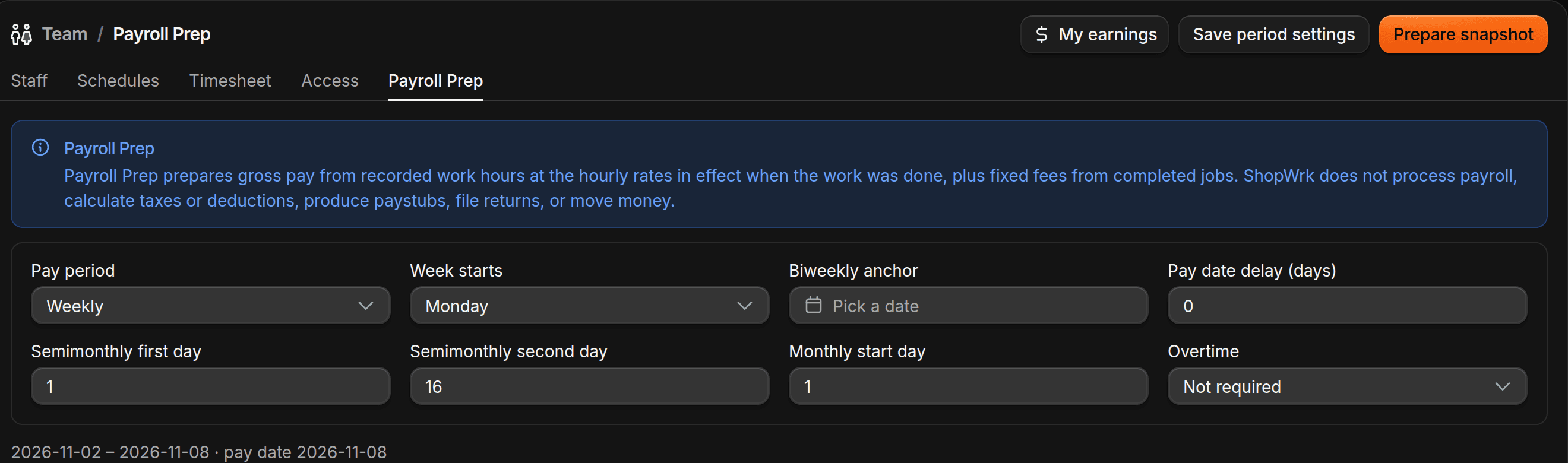
Hourly people are paid their Hourly rate for the hours on their timesheet. A fixed fee person earns the fee on each job once the job is complete. Until then it shows under Service fees waiting for job completion.
To pay overtime, set Overtime to Manager classified. Each person then gets Overtime start, Overtime end, and Multiplier fields, which start at 1.50. Click Save overtime.
If a timesheet or pay rate changes after you prepare a snapshot, the snapshot is marked Invalidated and can't be approved. Click Prepare snapshot again.