

Set your shop details and hours
Set your shop's name, contact details, address, time zone, and business hours.
Shop details are what ShopWrk shows customers and uses to run your calendar: your name, phone, address, time zone, and hours. Set them once, then change them when something moves.
Owners and Admins can change these.
Open Shop Details
Click your name at the bottom of the sidebar, then Settings. Under Shop, click Shop Details.
Fill in from Google, or type it in
Under Find your shop on Google, search for your shop's name and pick it. ShopWrk fills in your name, address, phone, website, and hours from your listing. Nothing is saved until you click Save.
Or skip the search and type each field yourself.
Check your name and contact details
Business name shows across the dashboard, emails, and invoices. Business email, Business phone, and Website appear on invoices, estimates, and emails.
Set where you work and your address
Under Where you work, choose At my shop, No storefront (mobile), or At my shop and mobile. Then search for your business address. If you choose No storefront (mobile), the address field goes away and no address is saved.
Pick your time zone
Choose your Timezone. ShopWrk uses it for scheduling, reminders, and the times customers see on invoices.
Set your business hours
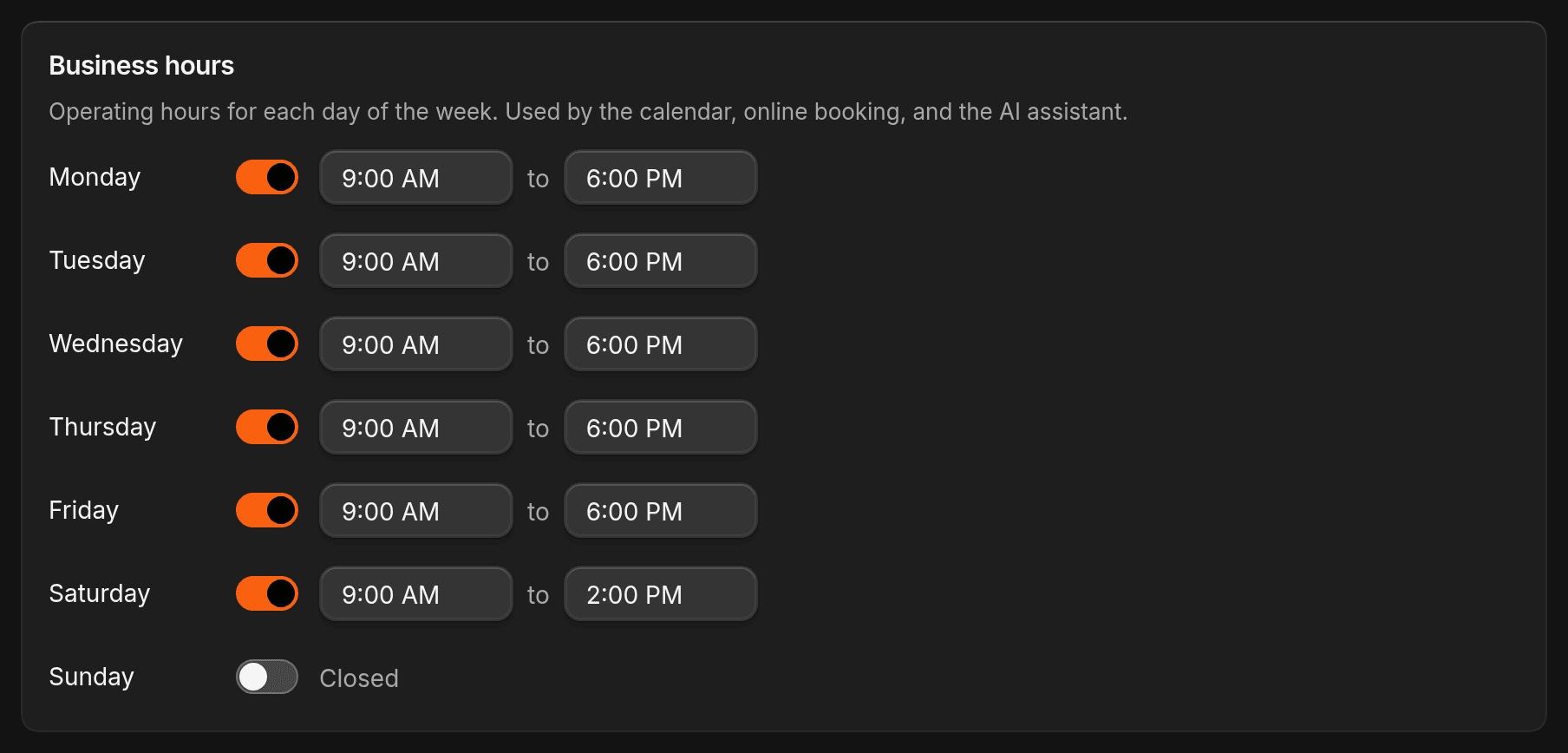
Under Business hours, turn a day on or off. When you turn a day on, it opens at 9:00 AM and closes at 5:00 PM. Change either time to match your shop.
The calendar uses these hours.
Save
Click Save at the top of the page. It saves your details and hours together.
Web address
Web address is the shop name in your ShopWrk link. You can change it only during Setup, before you add your first contact. After that the field is locked, and ShopWrk says it can't change.
An address takes lowercase letters, numbers, and single dashes. If another shop already has it, pick another.
Your Website here is the same one on Settings > Branding > Email. Changing it in one place changes both.
Default contact and task assignee
The card under your hours is Default contact & task assignee. Pick a team member from the list, then click Save.
- New contacts are owned by this person.
- Automatic follow-up tasks go to the contact's owner first. If the owner isn't available, they go to this person.
With no default, new contacts have no owner. Automatic tasks that can't find an owner fail instead of going to someone else.
To remove the default, click Clear. If the person you chose leaves the shop or is deactivated, the card tells you to pick a new one.

Questions
Why can't I type in Web address? Your shop has finished Setup or already has contacts. The address is locked from then on.
Where do I set up calendar bays and availability? Under Settings > Booking & Calendar > Calendar. Business hours here only set the days and times your shop is open.