

Set up reminders and notifications
Choose which reminders customers get and when, edit the wording, and set what your team is alerted about.
ShopWrk sends customers four kinds of reminder on its own. You pick which ones run and how many days before or after. The wording is on a separate page, Message templates.
Owners and Admins can change these.
Open Notifications
Click your name at the bottom of the sidebar, then Settings. Under Communications, click Notifications.
Turn reminders on or off
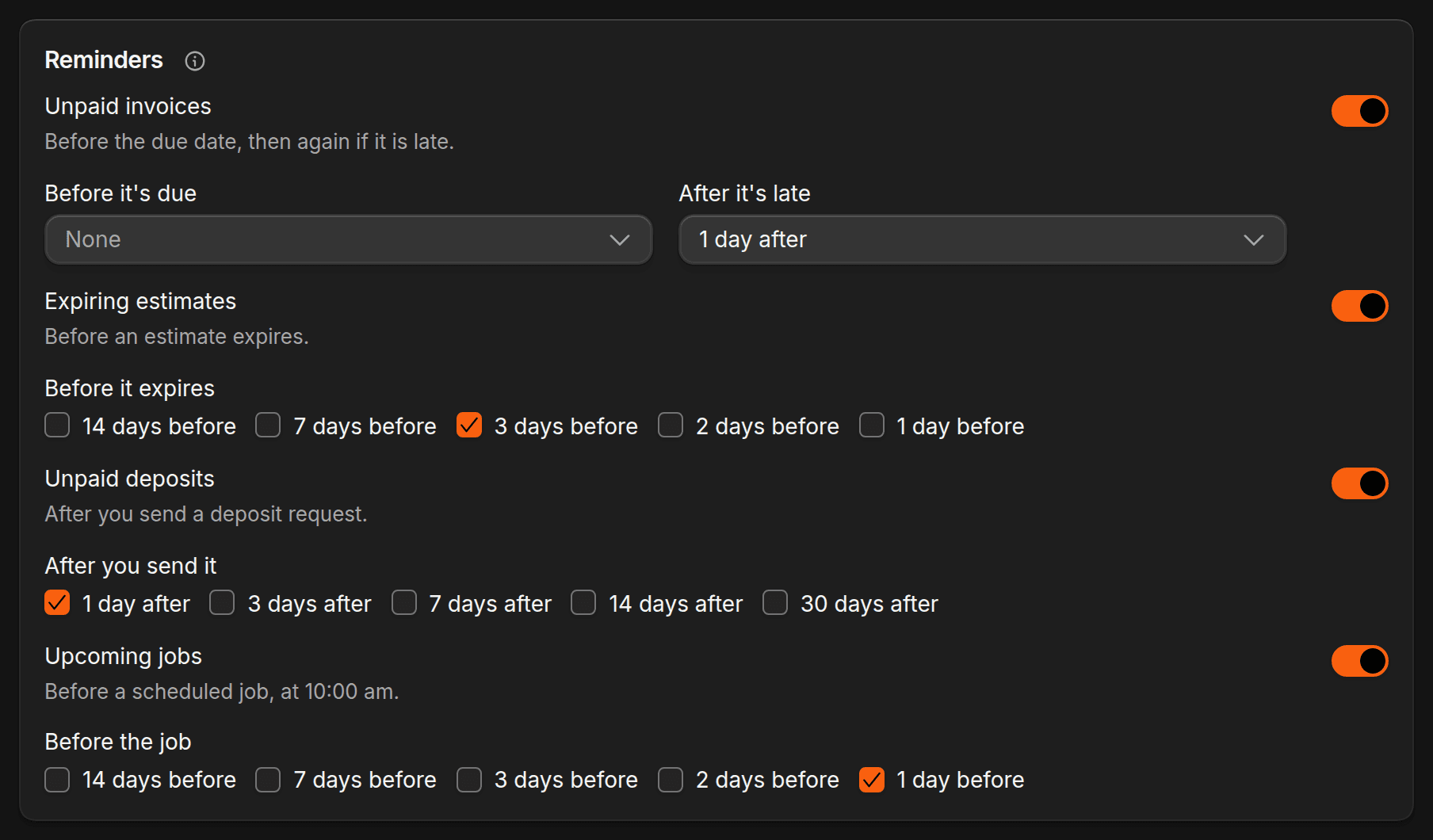
Each row on the Reminders card has a switch. Turn it off and customers stop getting that reminder.
Choose the days
When a row is on, tick the days you want. You can pick up to 5 per row.
Save
Click Save at the top of the page.
The four reminders
| Reminder | When it goes out | Default |
|---|---|---|
| Unpaid invoices | Before it's due: 7, 3, 2, or 1 days. After it's late: 7, 3, 2, or 1 days. | On. 1 day after it's late. |
| Expiring estimates | Before it expires: 14, 7, 3, 2, or 1 days. | Off. When on, 3 days before. |
| Unpaid deposits | After you send it: 1, 3, 7, 14, or 30 days after you send a deposit request. | On. 1 day after. |
| Upcoming jobs | Before the job: 14, 7, 3, 2, or 1 days, at 10:00 am. | On. 1 day before. |
Expiring estimates is the only one that starts off. If you want customers nudged before an estimate runs out, turn it on.
Upcoming job reminders can be changed for a single job when you book it.
Edit the wording
In Settings, under Communications, click Message templates. Each message has a row that shows Default or Edited. Click a row to open it, then change the Text message and the Email.
The messages are grouped like this:
- Appointments: booked, rescheduled, cancelled, upcoming job, new consultation, and job complete with a Client Portal link.
- Estimates, invoices and documents: the message that goes with each one.
- Payments: payment links and refunds.
- Reminders: Unpaid invoice, Expiring estimate, and Unpaid deposit.
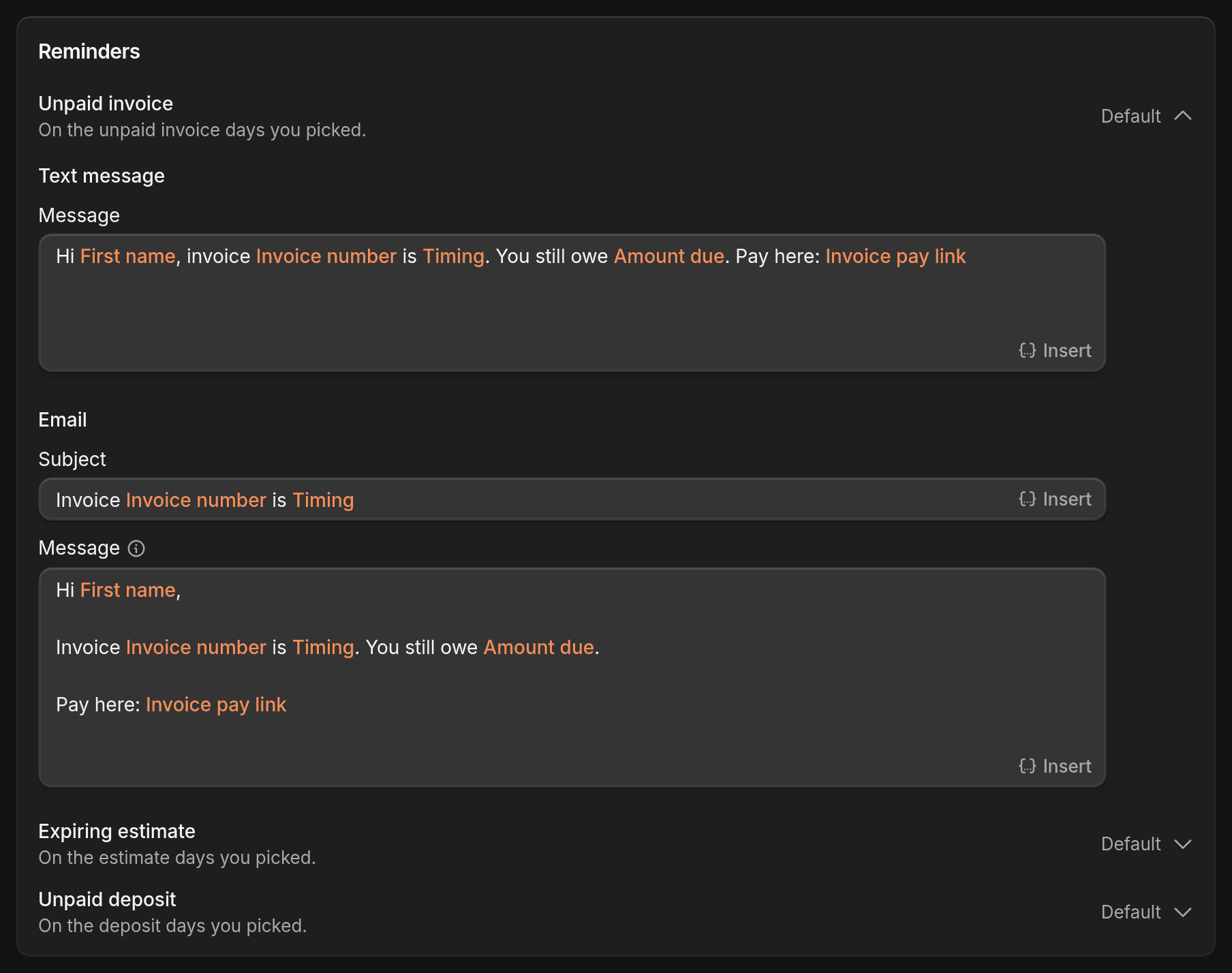
To add a name, a date, or a link, insert a variable from the list instead of typing it. Some messages must include one, such as the payment link, and ShopWrk tells you which. Click the reset icon to go back to the default wording.
In the email, ShopWrk adds the amounts, services, button, and your email footer for you, so the message only needs the top of the email. The footer is set under Branding.
Click Save at the top to keep your changes. Changing a template needs the Edit settings permission.
Your own notifications
The Notifications page covers what customers get. What you and your team are alerted about is set per person, on My account > Notifications. Each person picks, for each kind of alert, whether it shows In-app and as a Push on their phone. The kinds are:
- New messages
- Missed calls
- Voicemails
- Jobs assigned to me
- Job status updates
- Deal updates
- System & account alerts
Owners and Admins also see Vehicle ready for pickup and Payments received. Turn on Quiet hours to set a start and end time.
Questions
Why didn't a customer get a reminder? The customer needs a phone number or an email address on their contact. If they have neither, nothing is sent. Texting also needs the plan and a set-up number. See Texting and calling.