

Import and export your data
Bring customers over from Urable, Tint Wiz, or HighLevel, download your data as CSV files, and request deletion.
Use Settings > Data Import to move your customers and history over from another system. Use Settings > Export & Data Deletion to download your data or ask us to delete it.
Import from Urable, Tint Wiz, or HighLevel
Owners and Admins can import. Technicians don't see Data Import. ShopWrk imports from these three systems only. There's no spreadsheet import. If you use something else, tell support, and they'll look at adding it.
Pick where your data is
Go to Settings > Data Import. Under Start a new import, open Vendor and choose Urable, Tint Wiz, or HighLevel.
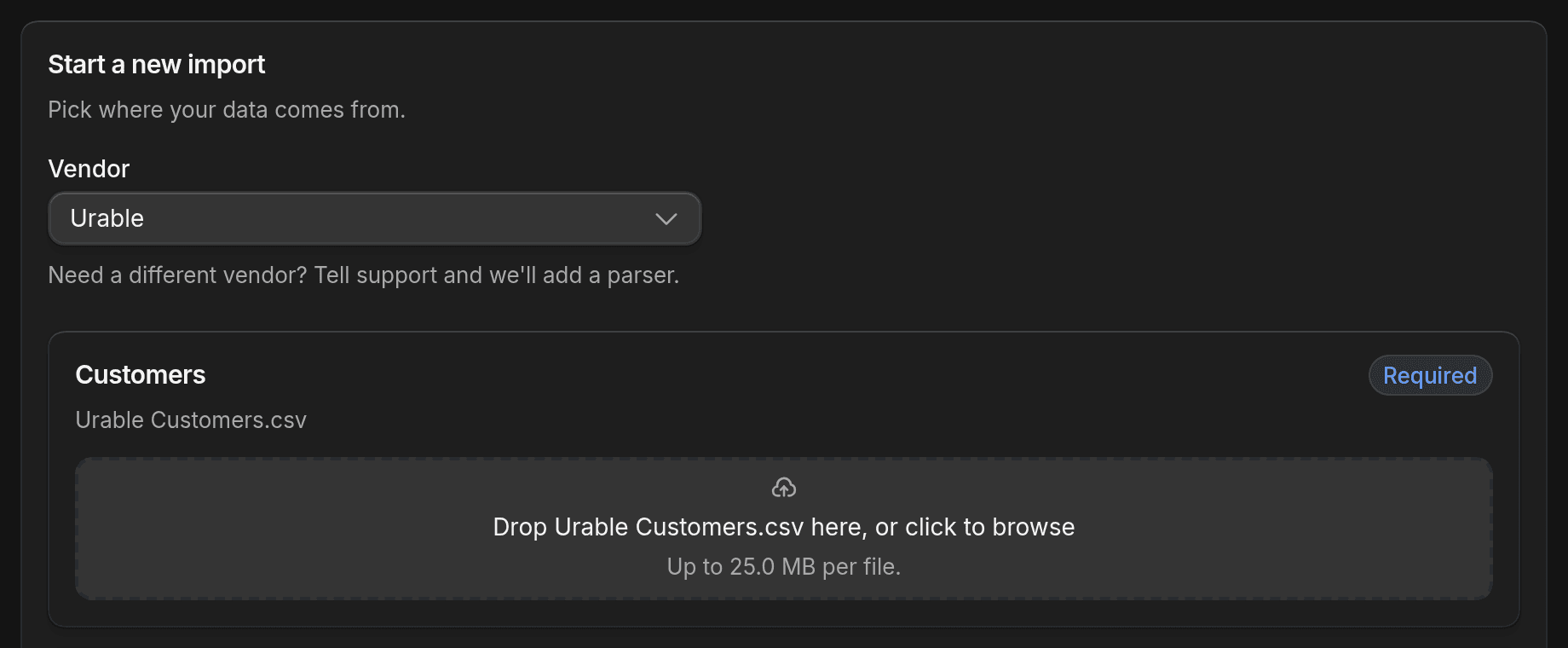
Add your files (Urable and Tint Wiz)
Export each list from the old system as a CSV, then add each file to its slot. Keep the file names the old system gives you.
- Urable: Customers is required. Jobs, Payments, and Products & Services are optional.
- Tint Wiz: Contacts is required. Projects, Proposals, and Invoices are optional.
Each file can be up to 25 MB. Click Start import.
Connect HighLevel (HighLevel)
Click Set up HighLevel import, then Connect HighLevel. If you'd rather paste a key, click Use a private token and enter the Private token and Location ID.
Under What to bring in, choose from Contacts, Deals, Conversations, Tags, Notes & tasks, and Custom fields. Under Filters, you can limit how much conversation history comes over and leave out contacts with no name. Click Start import.
Watch it run
The import opens a progress page. You can leave it. Each import stays in Recent imports, which lists your last 10 runs. Click one to open it again.
If you disconnect HighLevel afterward, everything you imported stays in ShopWrk.
Export your data
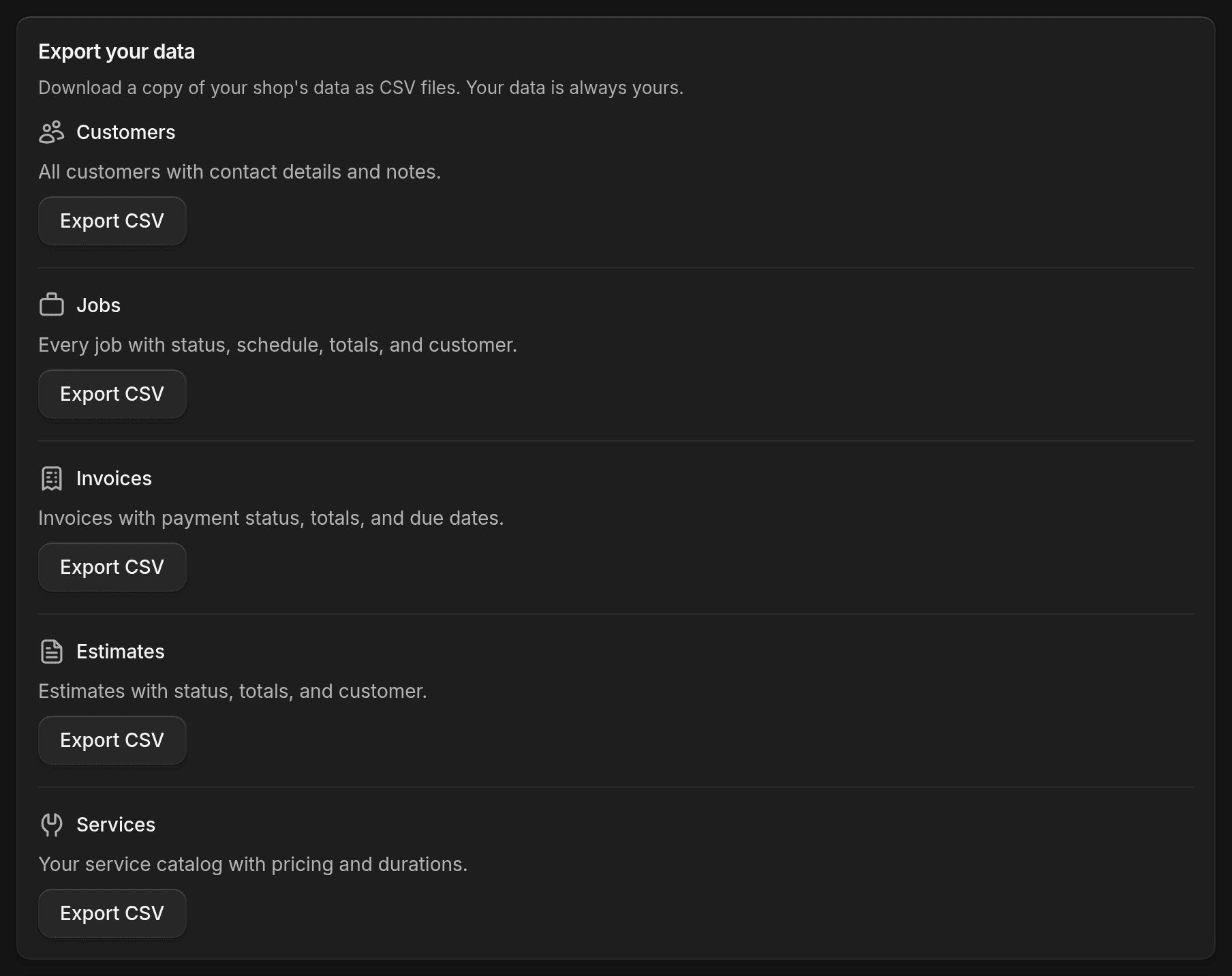
Go to Settings > Export & Data Deletion. Under Export your data, click Export CSV for the file you want:
- Customers
- Jobs
- Invoices
- Estimates
- Services
Only the owner can export. Other people don't see Export your data.
Request deletion
On the same page, the owner can click Request data deletion to ask us to delete the shop and everything in it: customers, jobs, invoices, estimates, messages, and call history for every team member. Our team checks every request. Deletion finishes within 7 days, and we email you when it's done. It can't be undone, so export what you need first.
Anyone else on the team sees Delete your login instead, with Request login deletion. That removes their login only. The shop's customers, jobs, invoices, and messages stay.